Admin Station / Instrument Maintenance - User Manual
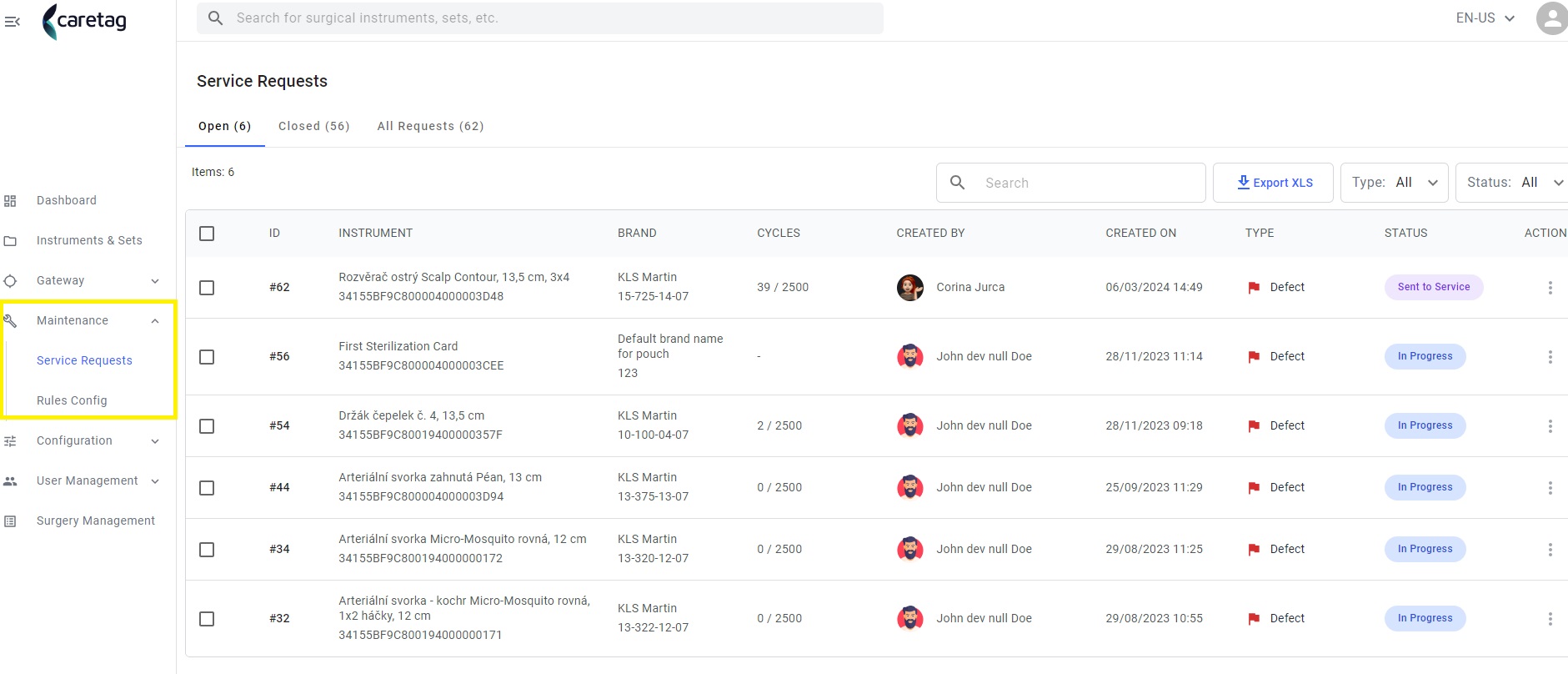
In the maintenance there are 2 sections: Service requests and Rules config
Service Requests
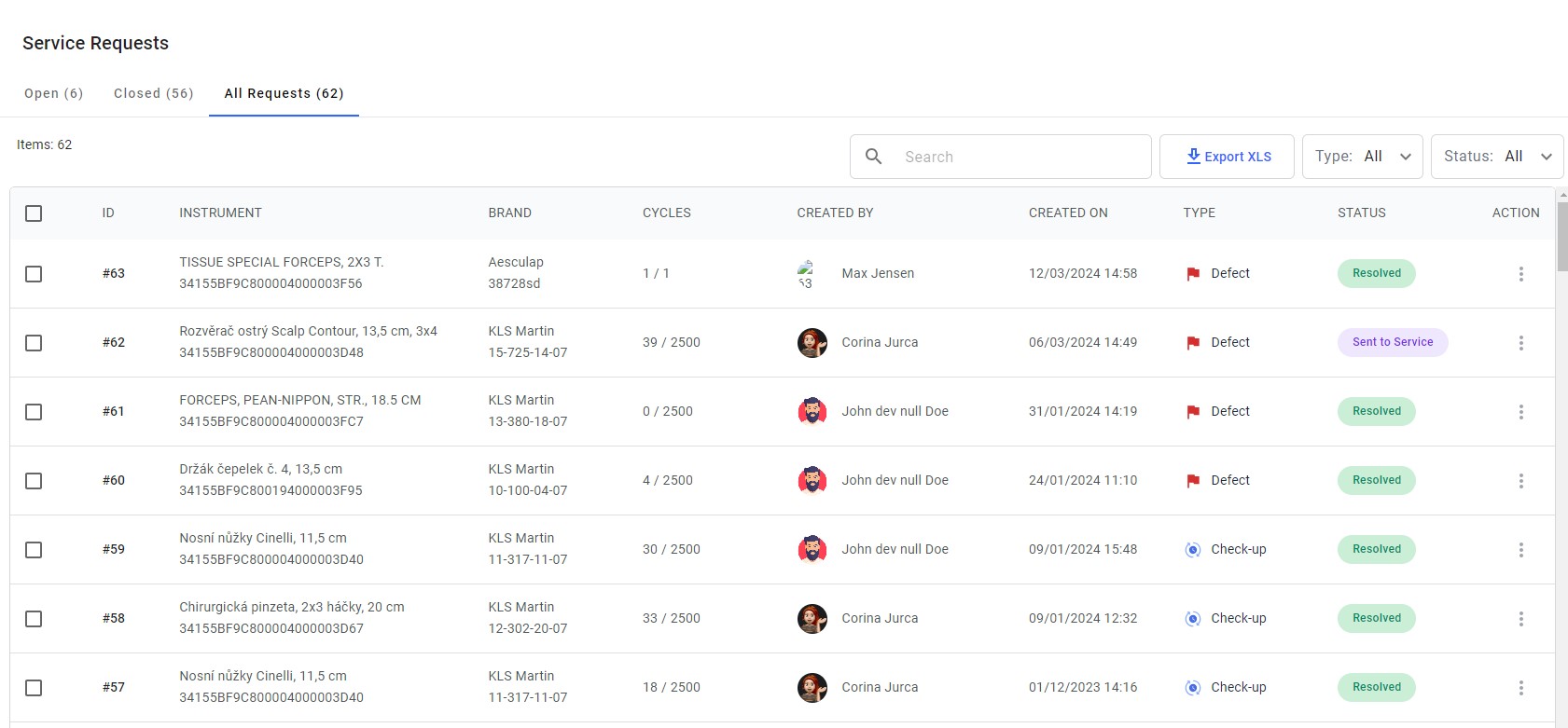
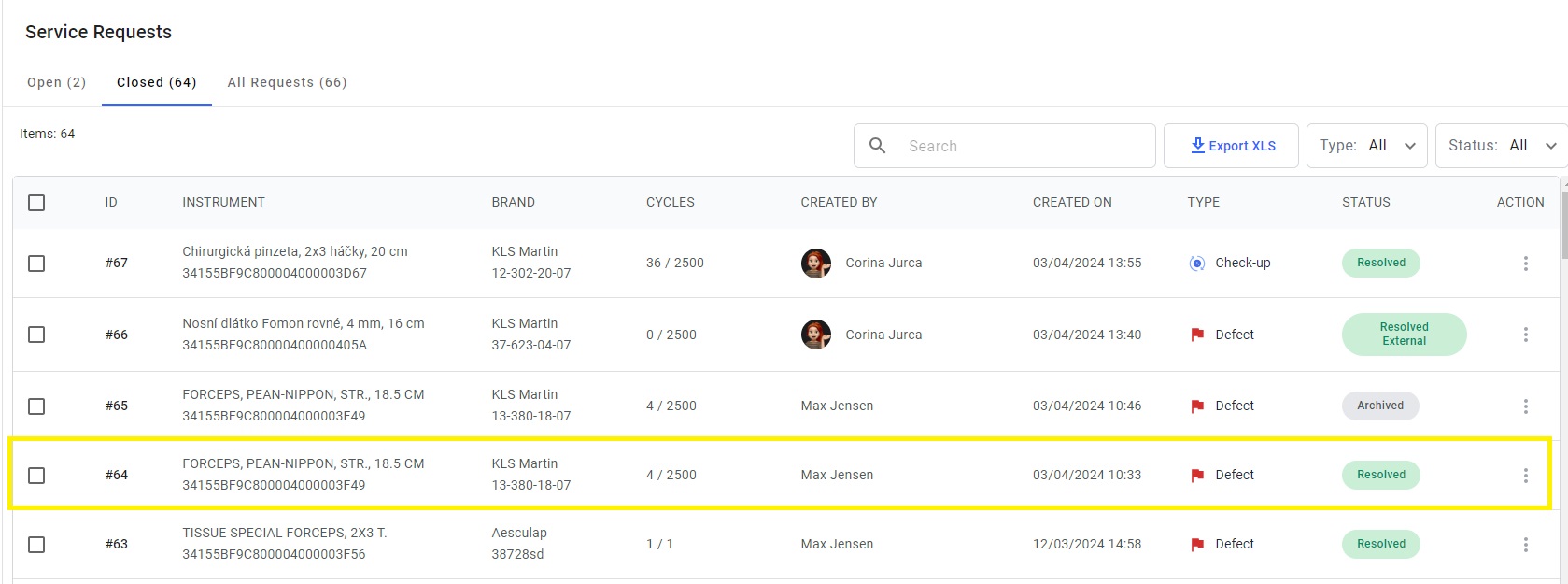
In the Service Request tab, users can view a comprehensive list of all the instruments that have been requested for a service check, along with their respective status updates. It has 3 tabs: Open, Close and All requests.
Open:
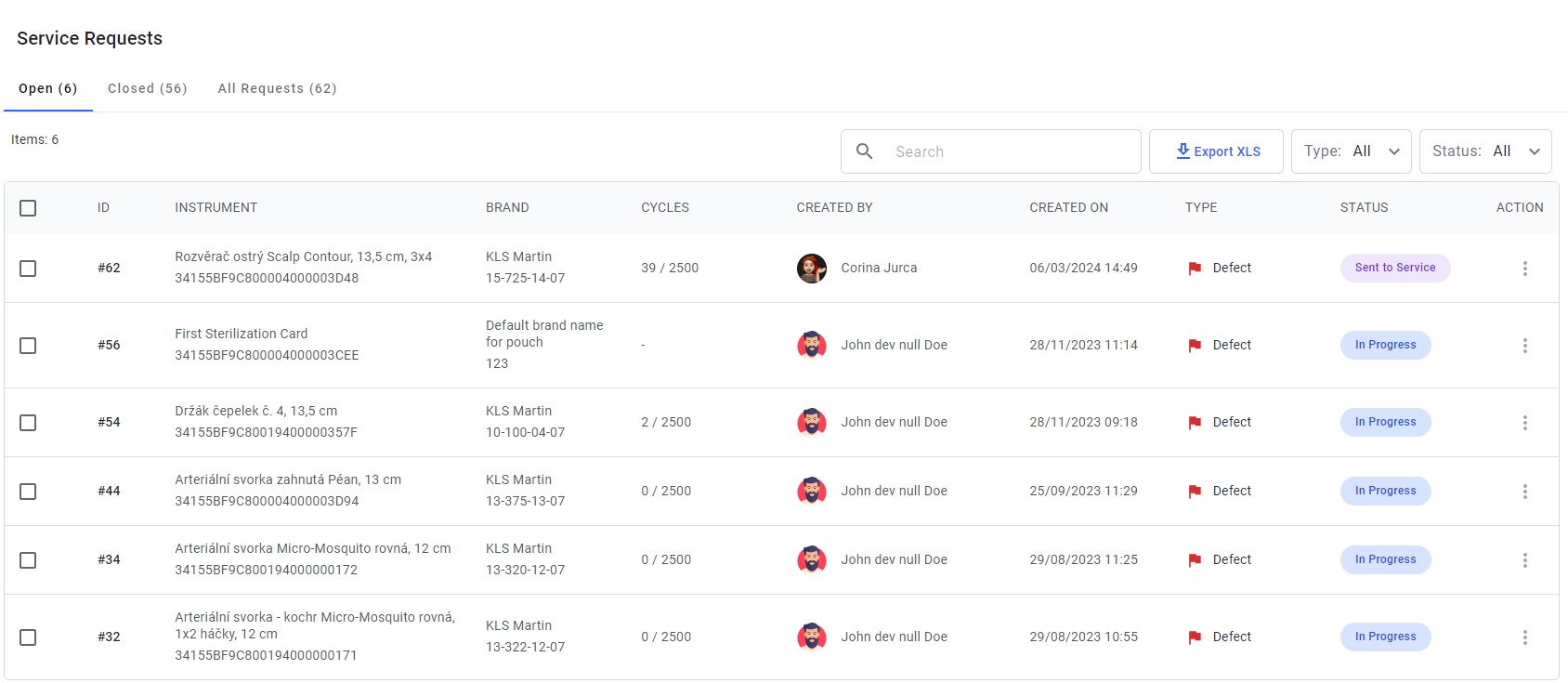
Within the “Open” tab, users will find a table view showcasing detailed information about instruments requested for service. This includes the instrument’s ID, name, brand, type of service required, and its current status.
Close:
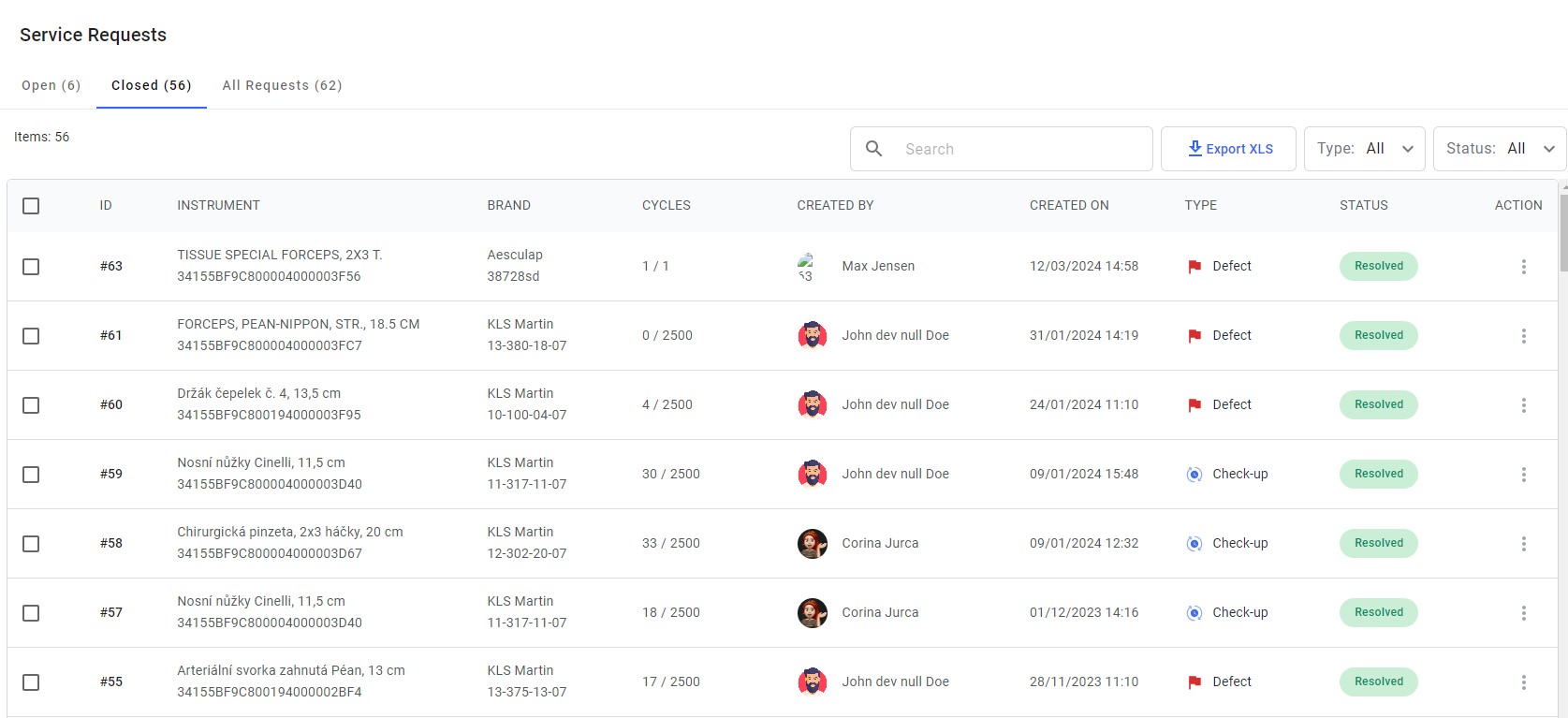
All the resolved and closed service requests appear in the close tab.
All Requests:
In All Requests tab, the user can see open, close and resovled service request.
How to Request a service check for instruments
An instrument can be submitted for a Service request via Smart Or Info station or Packing station
Open the Info station application
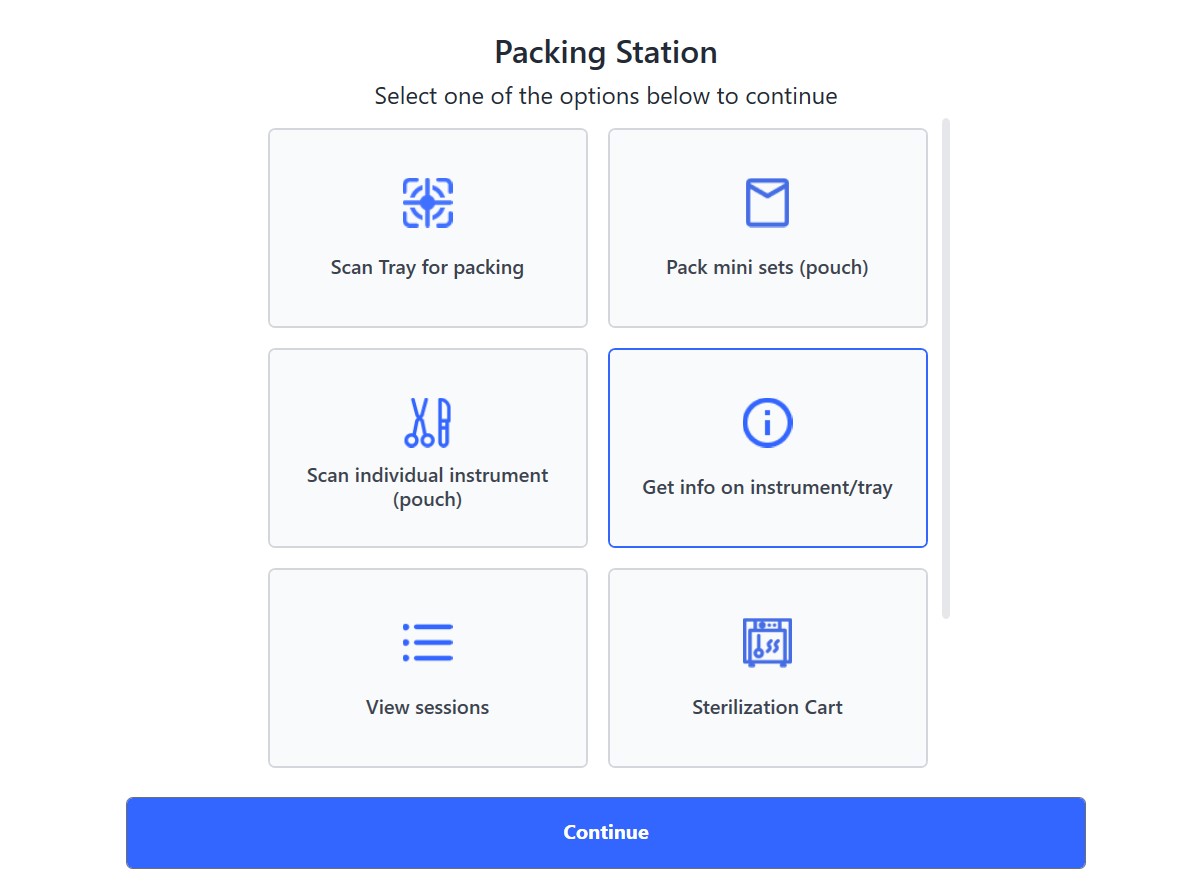
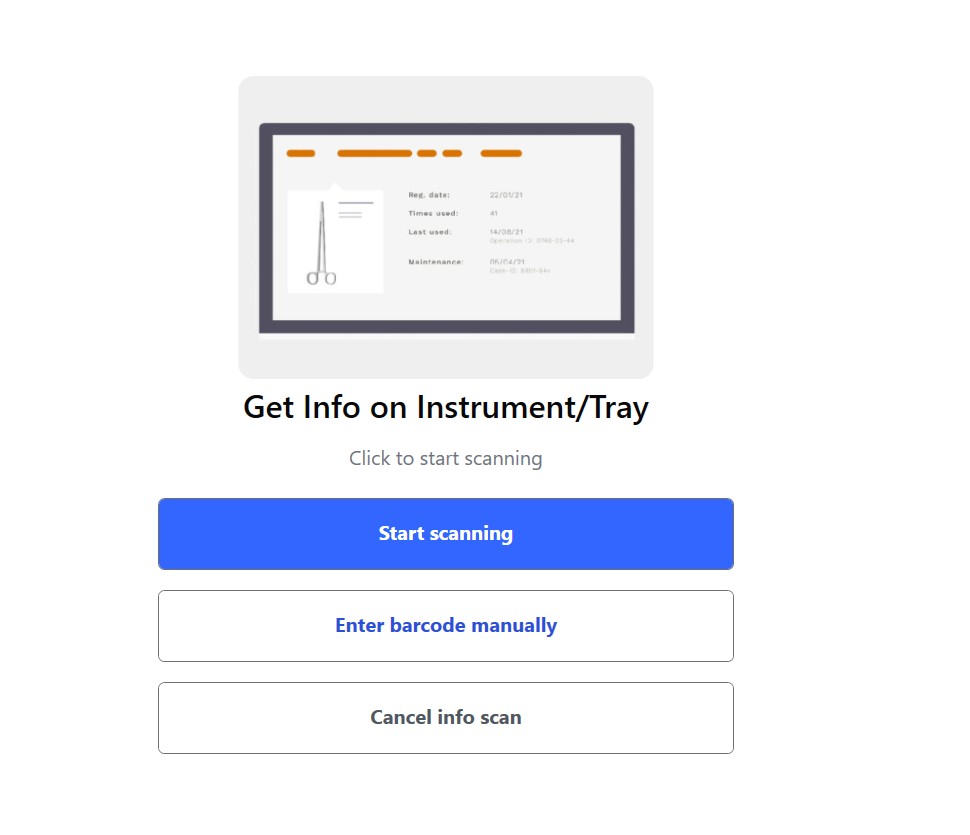
Scan the instrument that has to be sent for a service check
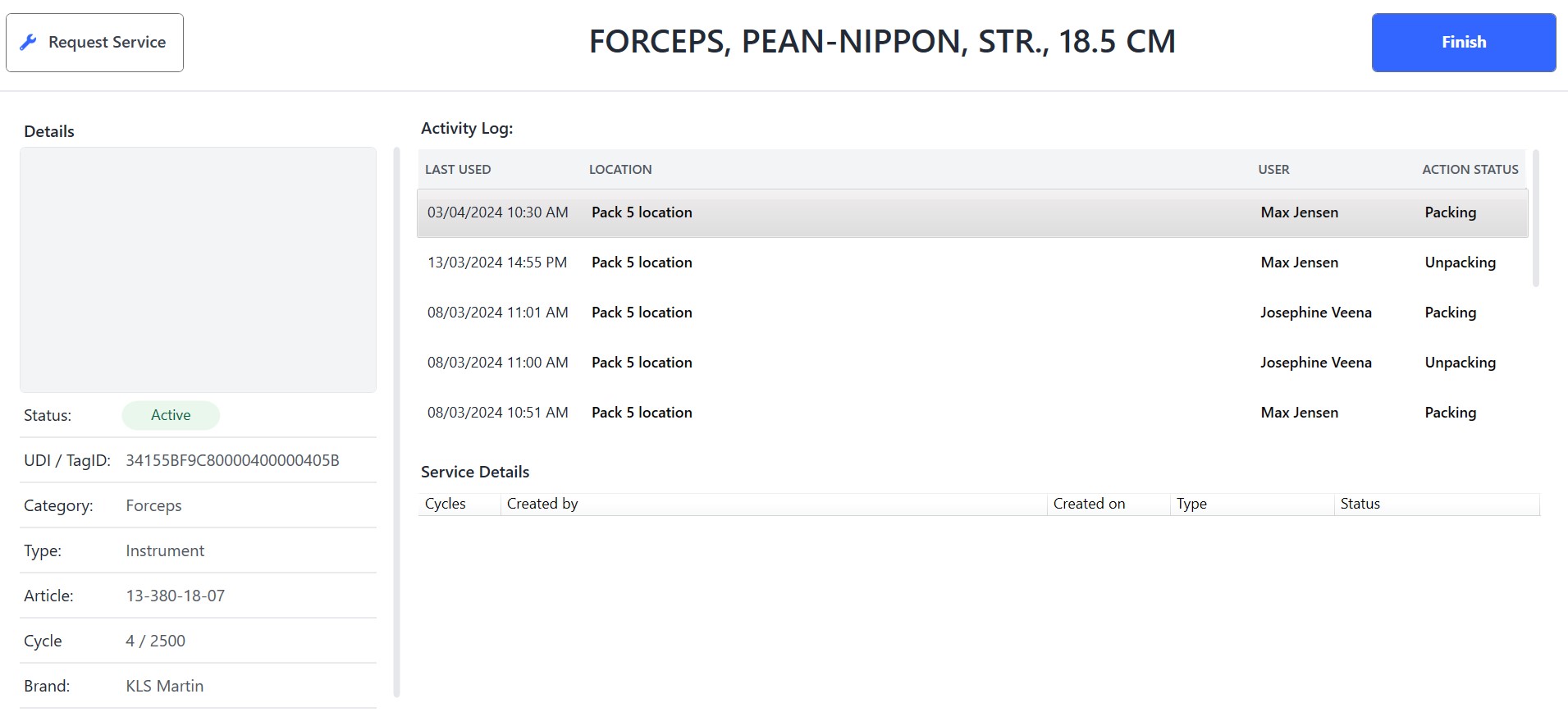
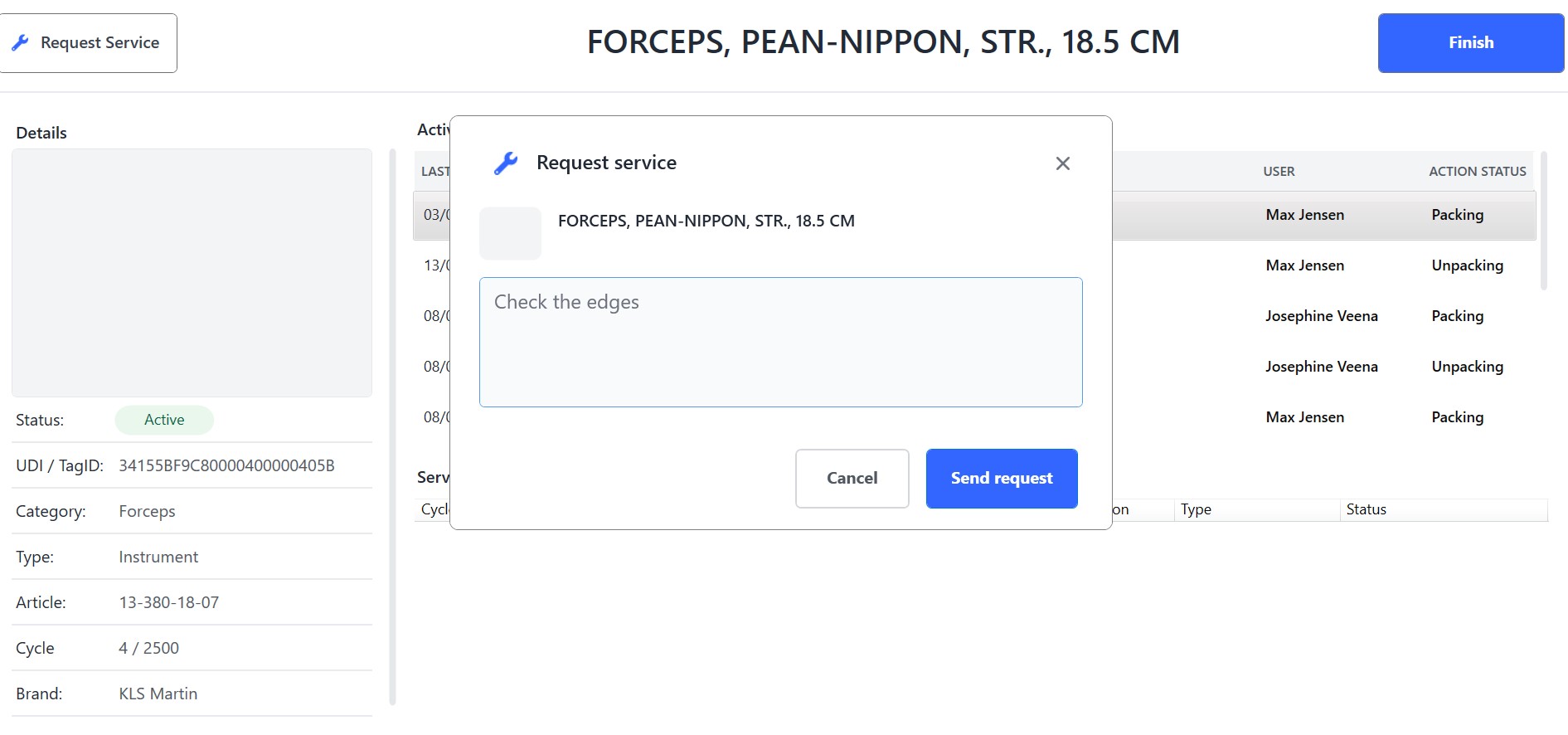
Select the “Request Service” button located in the upper right corner.
User can wrtie any comments and click the send request button
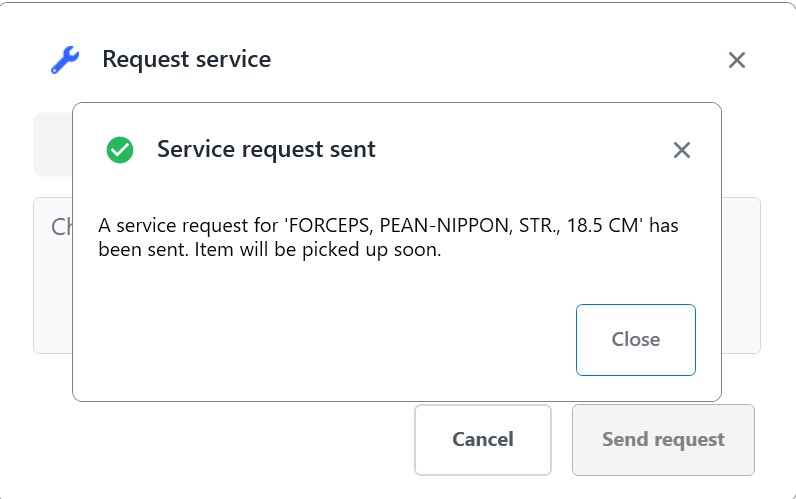
Service request is sent and the instrument will be picked up by the service team. Service check can be done internally or externally based on the condition of the instrument.
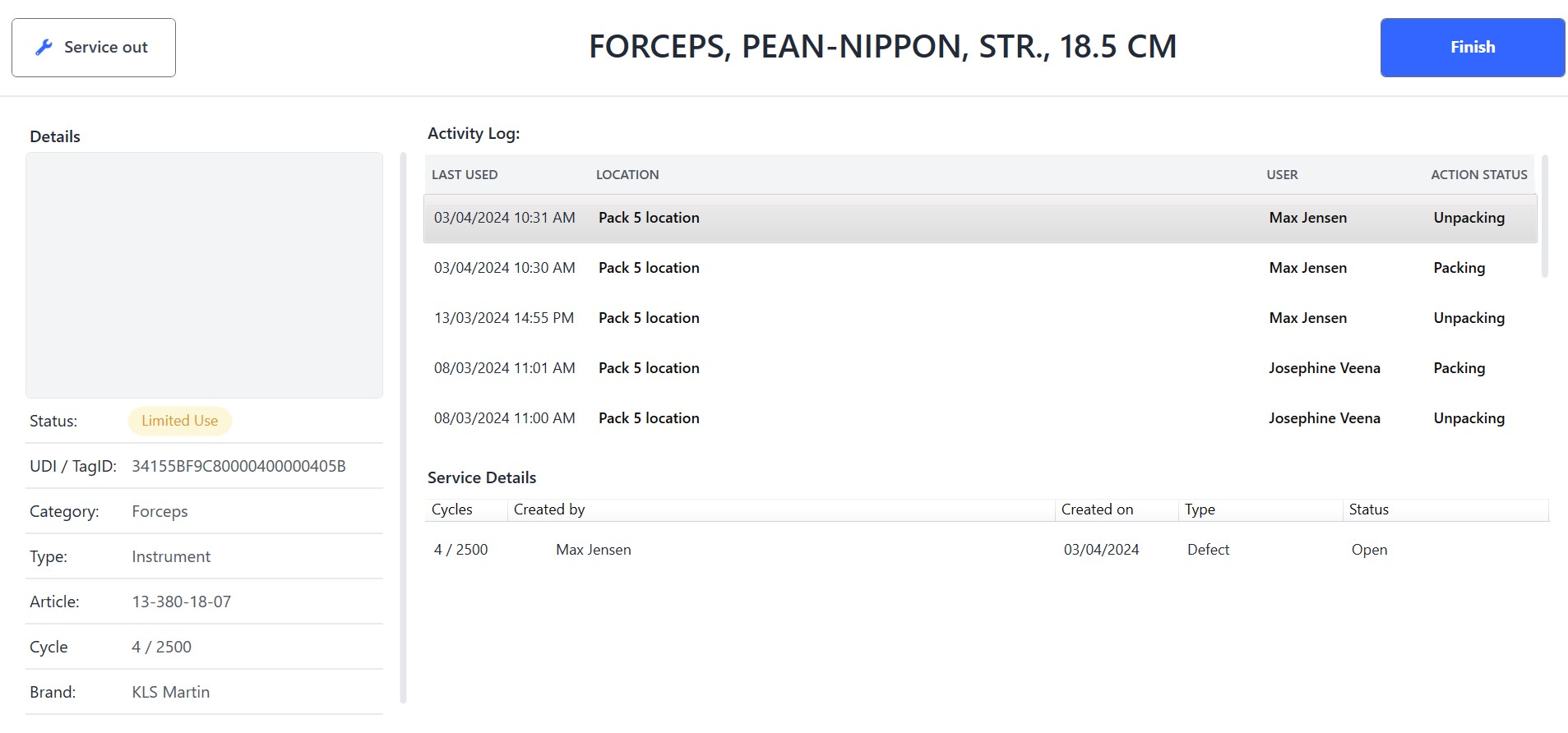
The status of the isntrument is changed from active to limited use
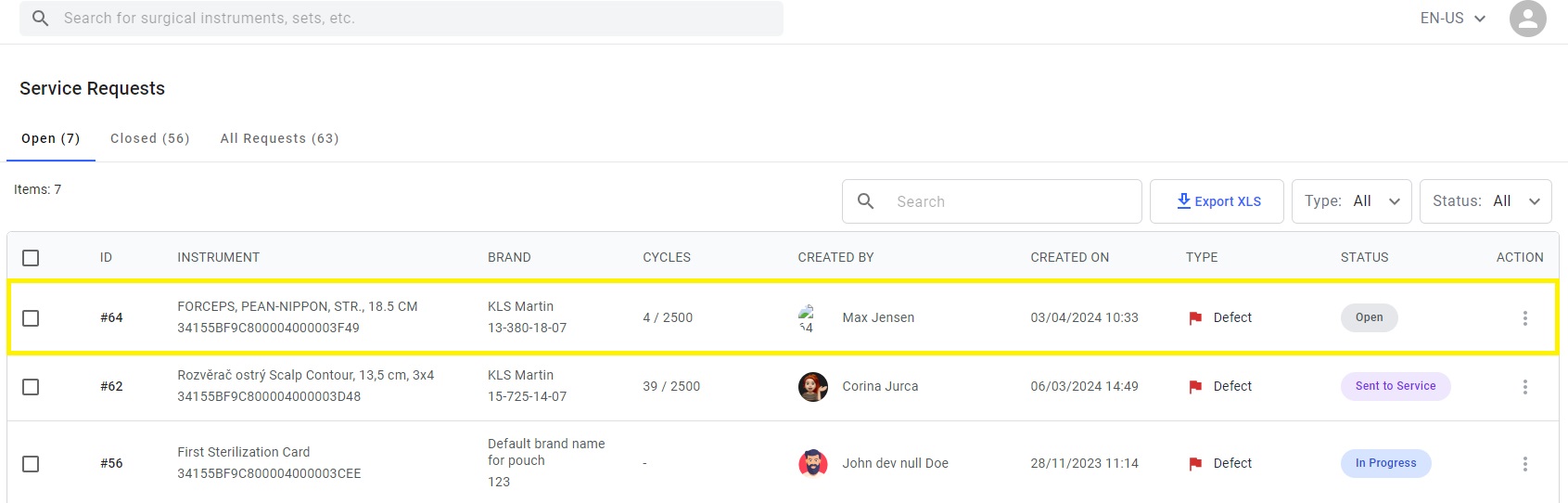
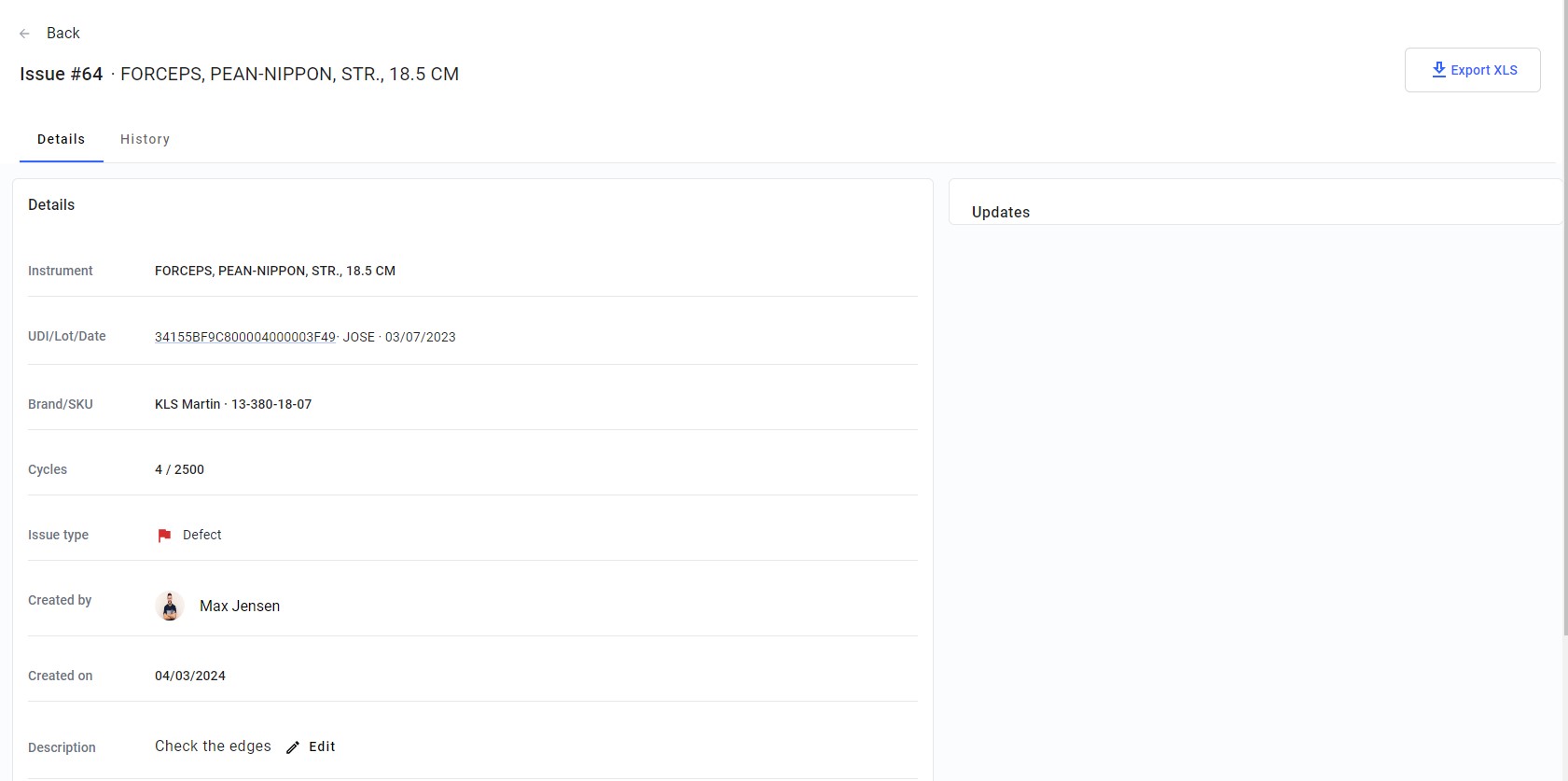
The user can now view the details of the service request within the Admin station interface. The table view below, includes the instrument’s ID, name, brand, type of service required, and its current status.
By clicking on an instrument, users can access its full details. Currently the Update section on the right has no details. Once the User updates the status there will be details in the Update section.
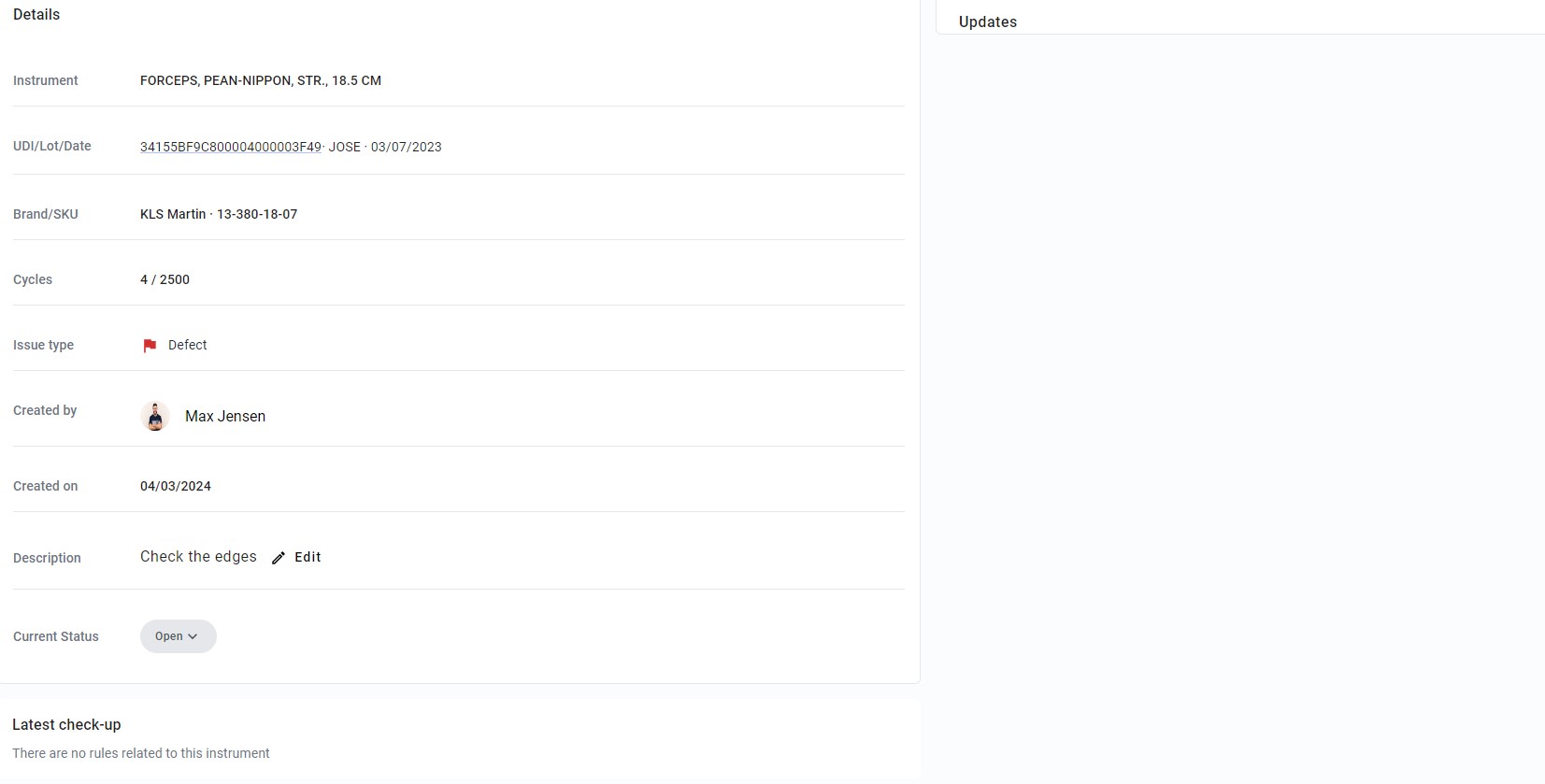
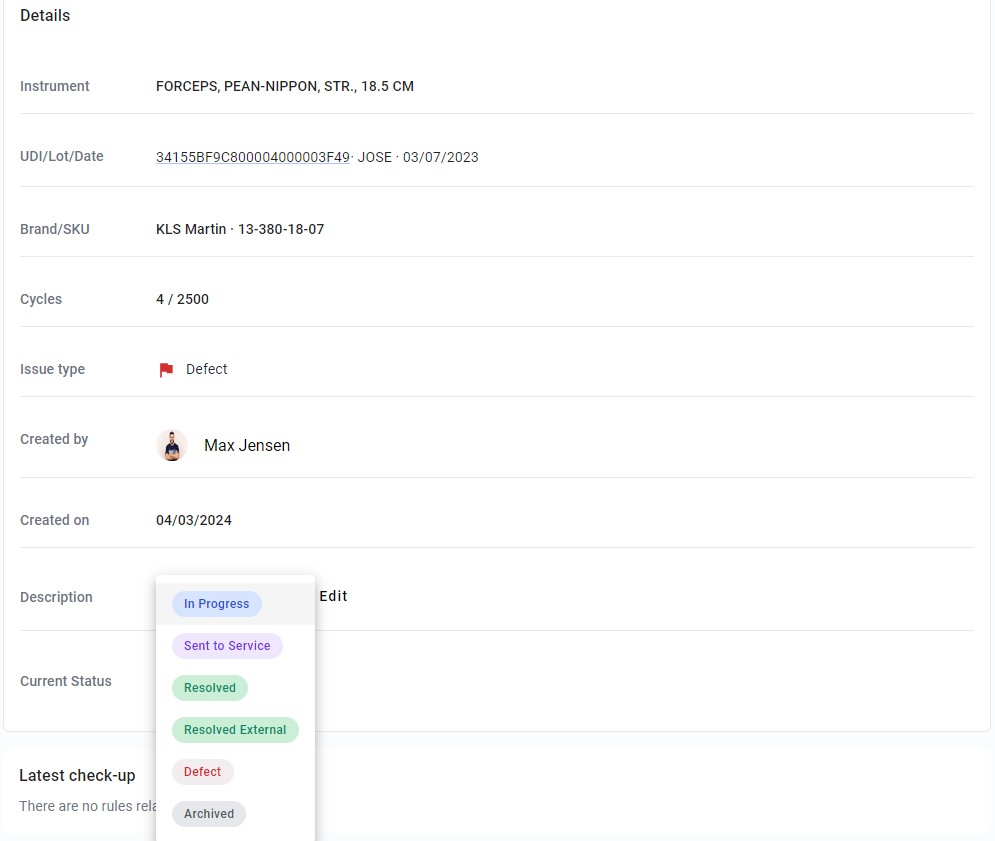
Click on the current status to change it. There are 6 status
| Status | Description |
|---|---|
| In Progress | The item is currently undergoing internal service check |
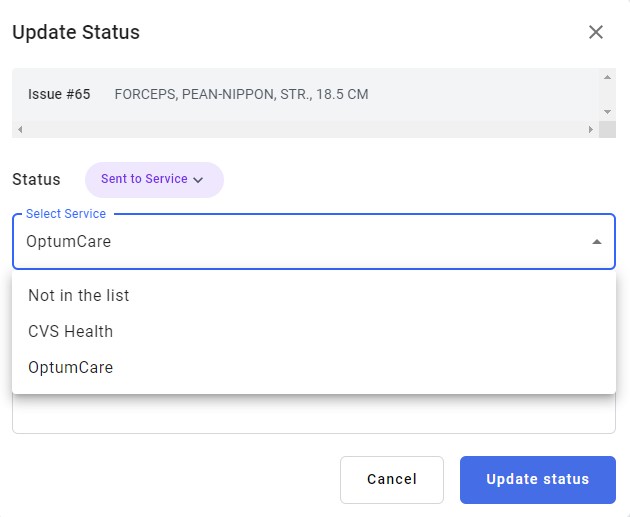
| Sent to Service | If an item requires external inspection because internal checks cannot be conducted, it will be forwarded to the designated service centres |
| Resolved | An item has successfully passed the internal service check |
| Resolved External | An item has been checked and serviced through the service centres |
| Defect | An item is faulty and cannot be used anymore |
| Archieved | If a service request needs to close without checking the instrument. For example, a service request has been created by mistake |
Select the service center, add comments and click on the update status button.
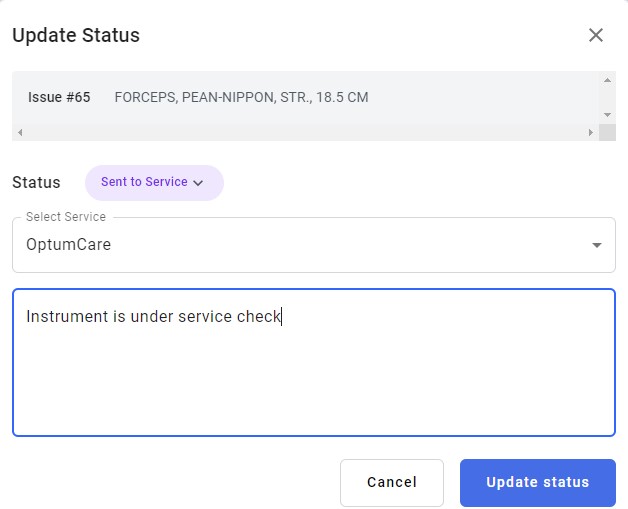
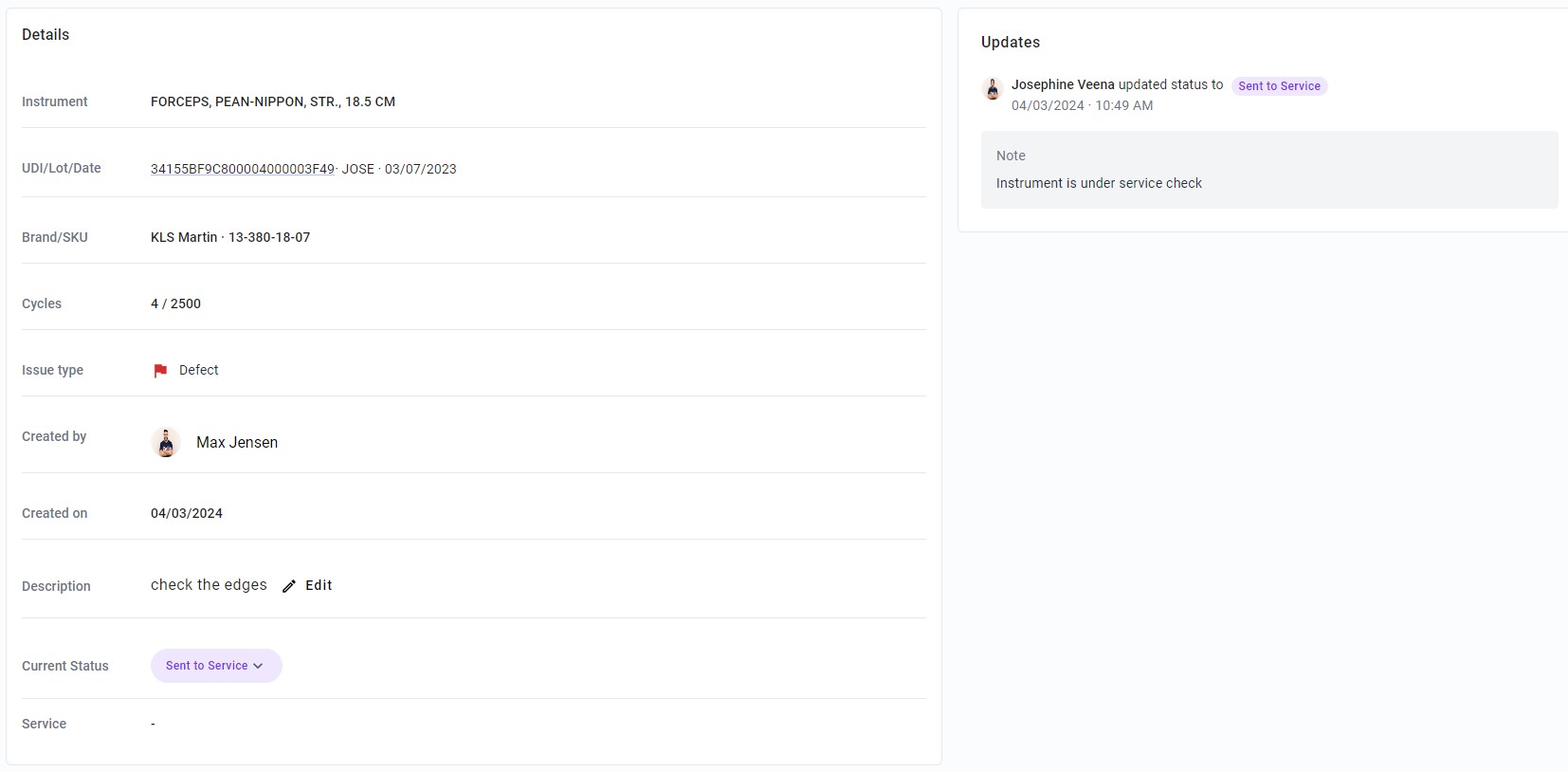
Now the updates appear in the right side of the details page.
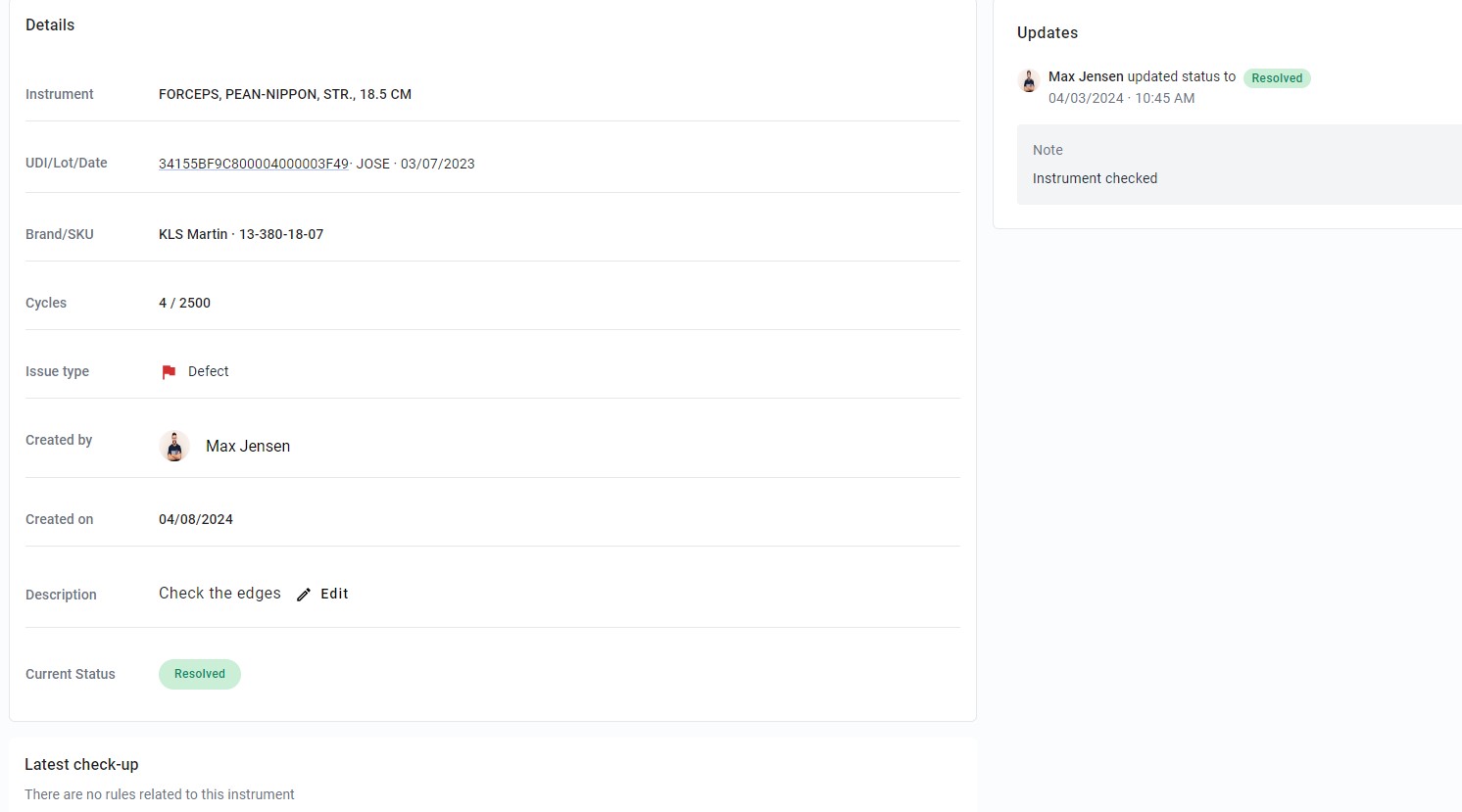
Status resolved is selected to close this service request
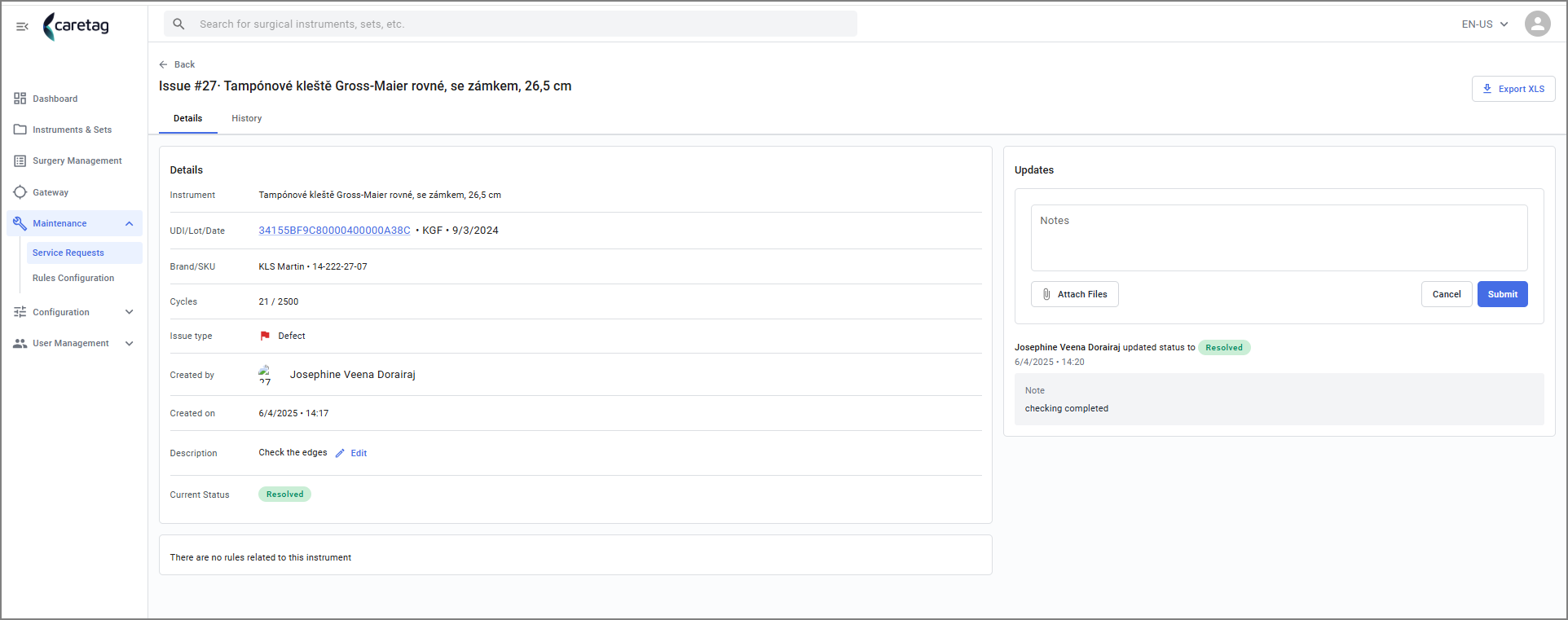
- There is also a provision to attach files/images on the right sie.
Resovled requests appear in the Closed tab
Rules Config
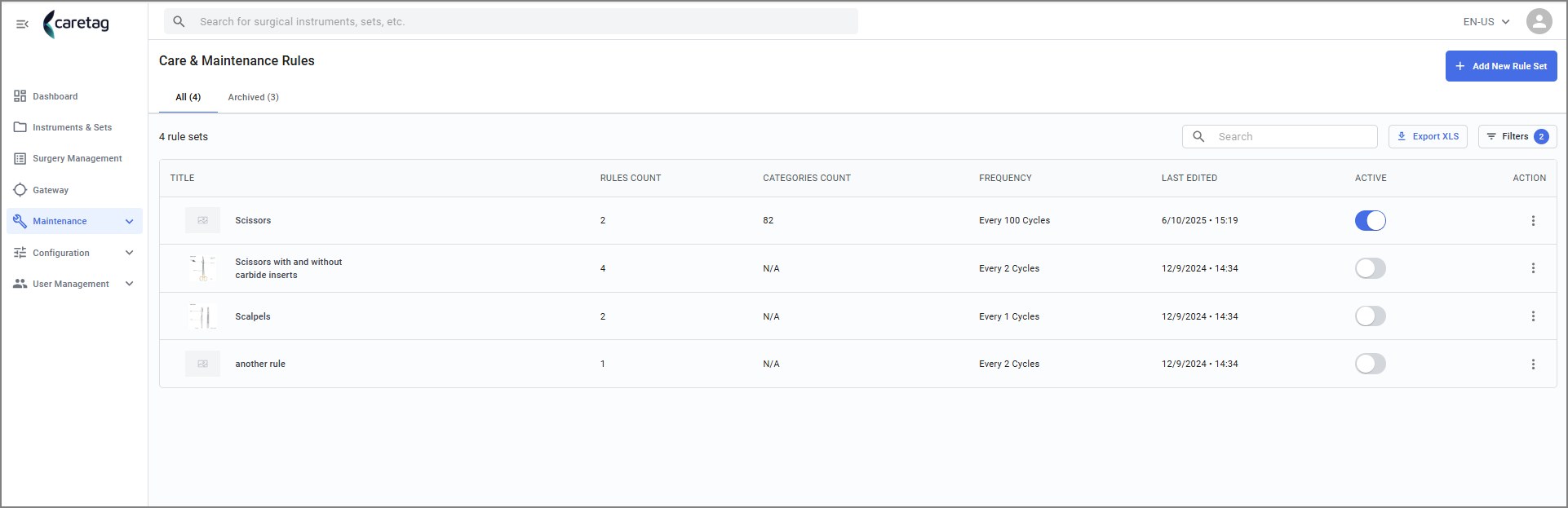
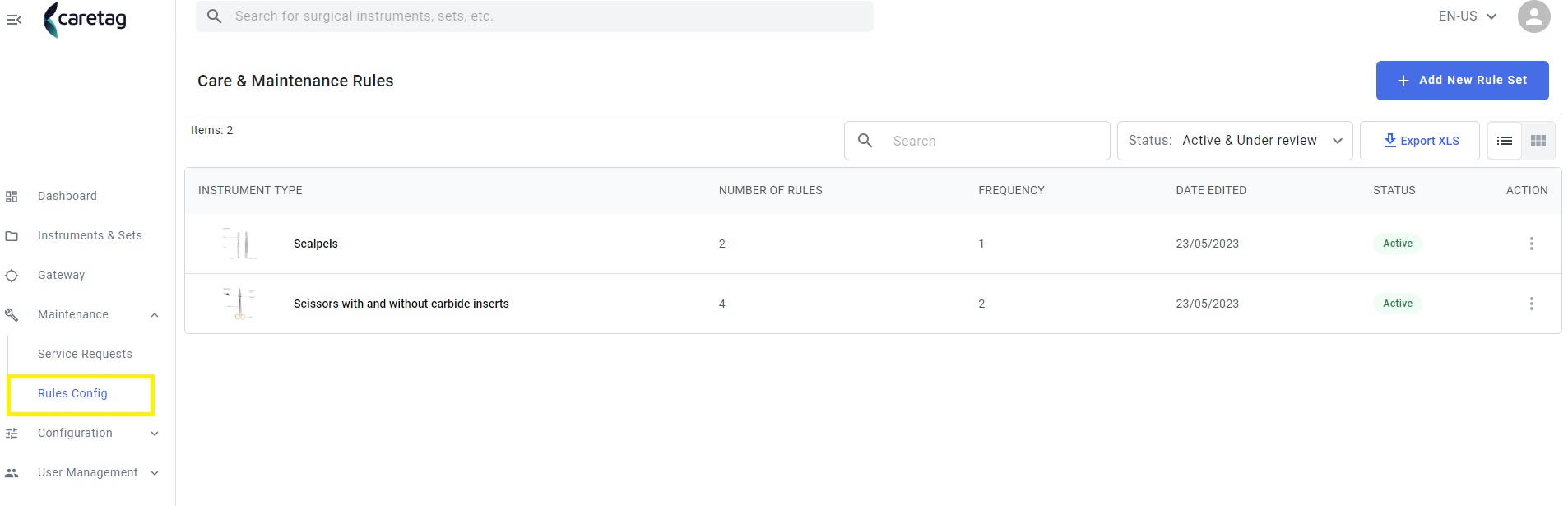
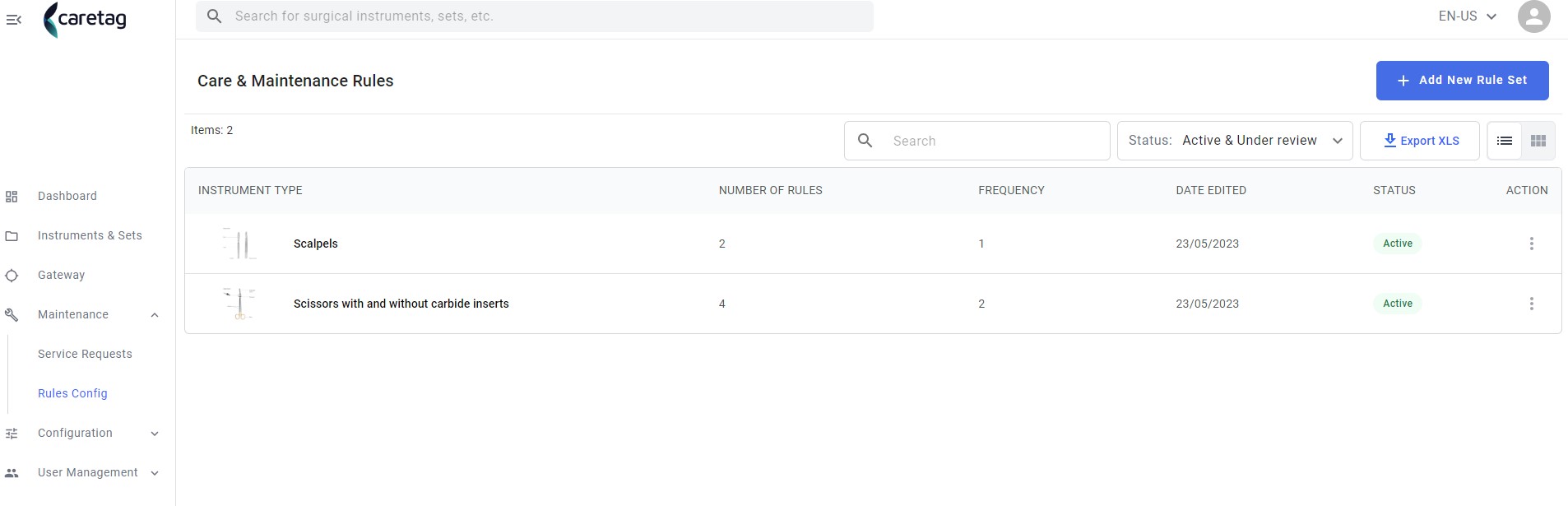
In the Rules Configuration section, users can access a dashboard presenting the care and maintenance rules for instruments. Within this interface, a table is displayed, providing information on instrument types, the number of associated rules, recommended frequency of maintenance, date of last edit, current status, and available actions.
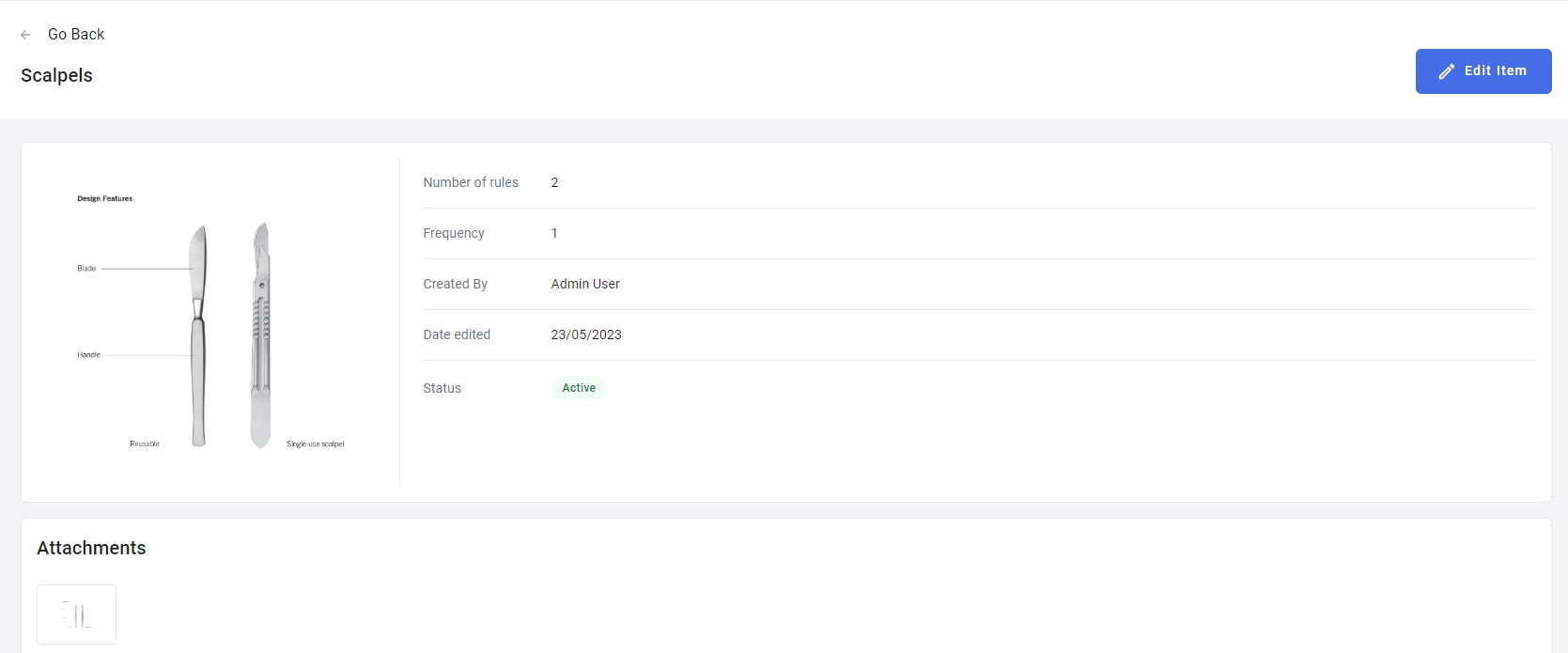
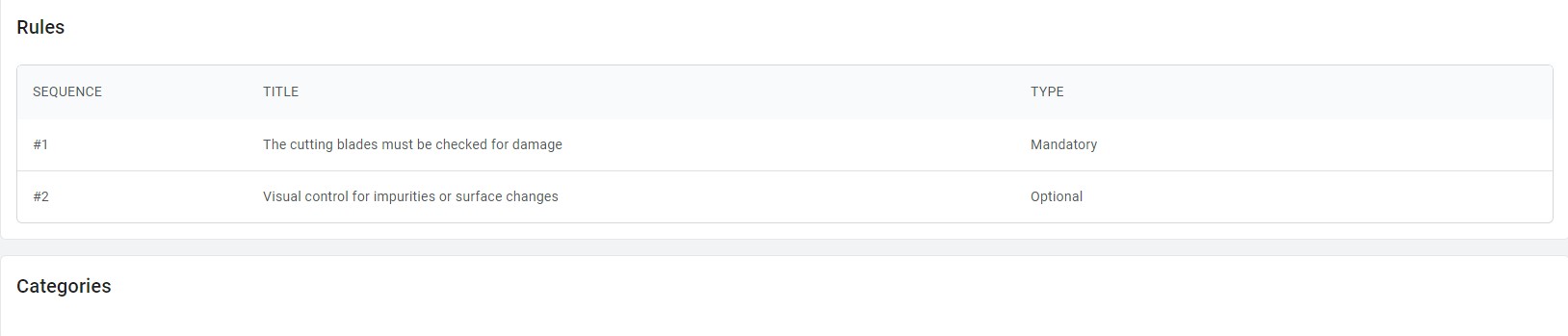
In the user guide, upon clicking on an instrument, users are directed to a dedicated page displaying a picture of the instrument along with details such as the number of associated service check rules, frequency of use, rule creator, date of creation, and current status. Additionally, users can access attachments, view existing rules, and categories related to the instrument.The user can also edit the rules by clicking on Edit Item button.
Add New Rule Set
- Click on the Add new rule set button
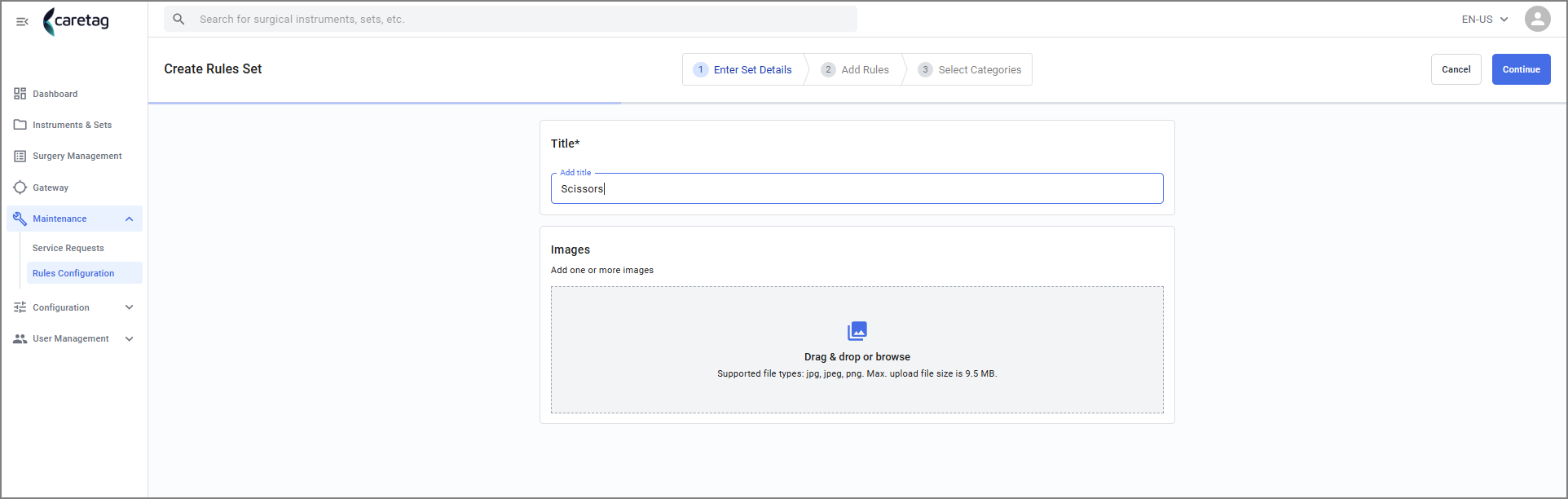
- Add title and attachments(optional) related to that rule set and click continue.
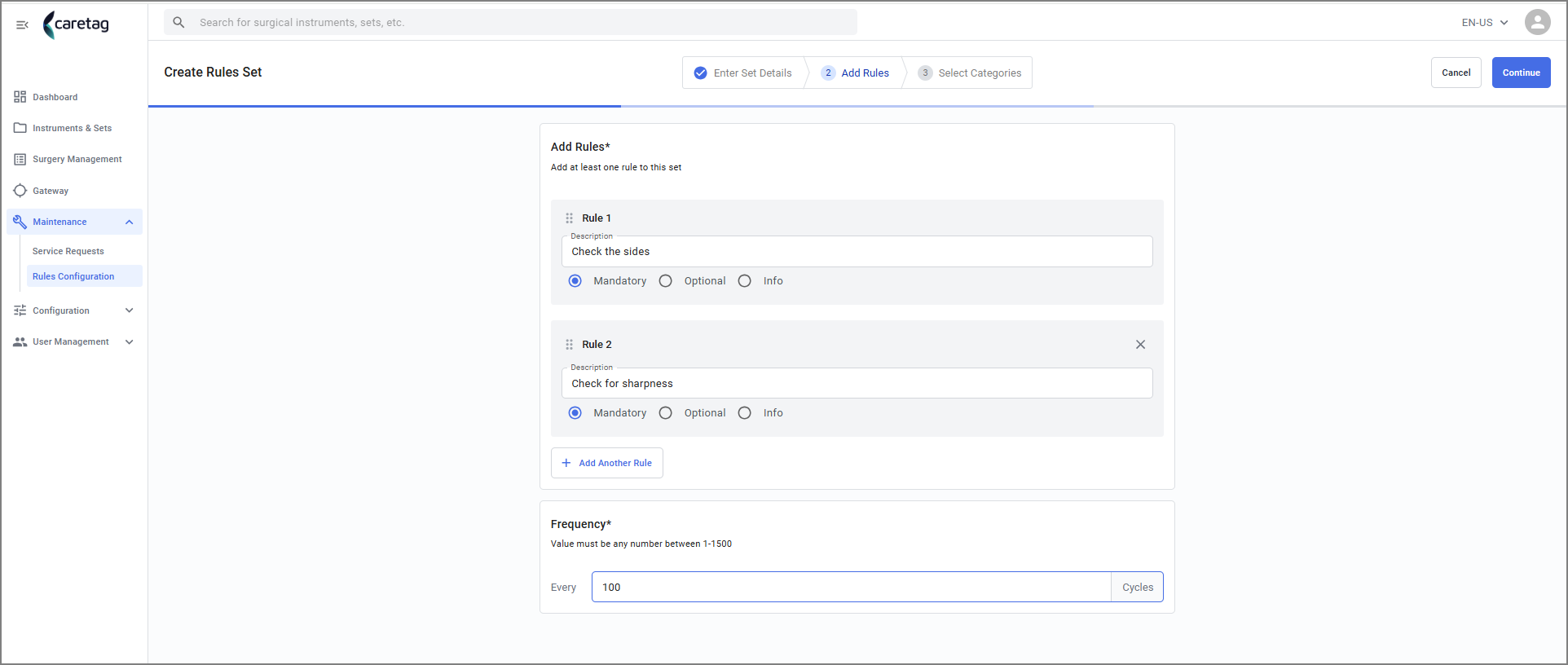
- Add the rules, user can add more rules by clicking on the Add another rule button.
- Enter the number of frequency.
- Select the category, user can select one or more categories
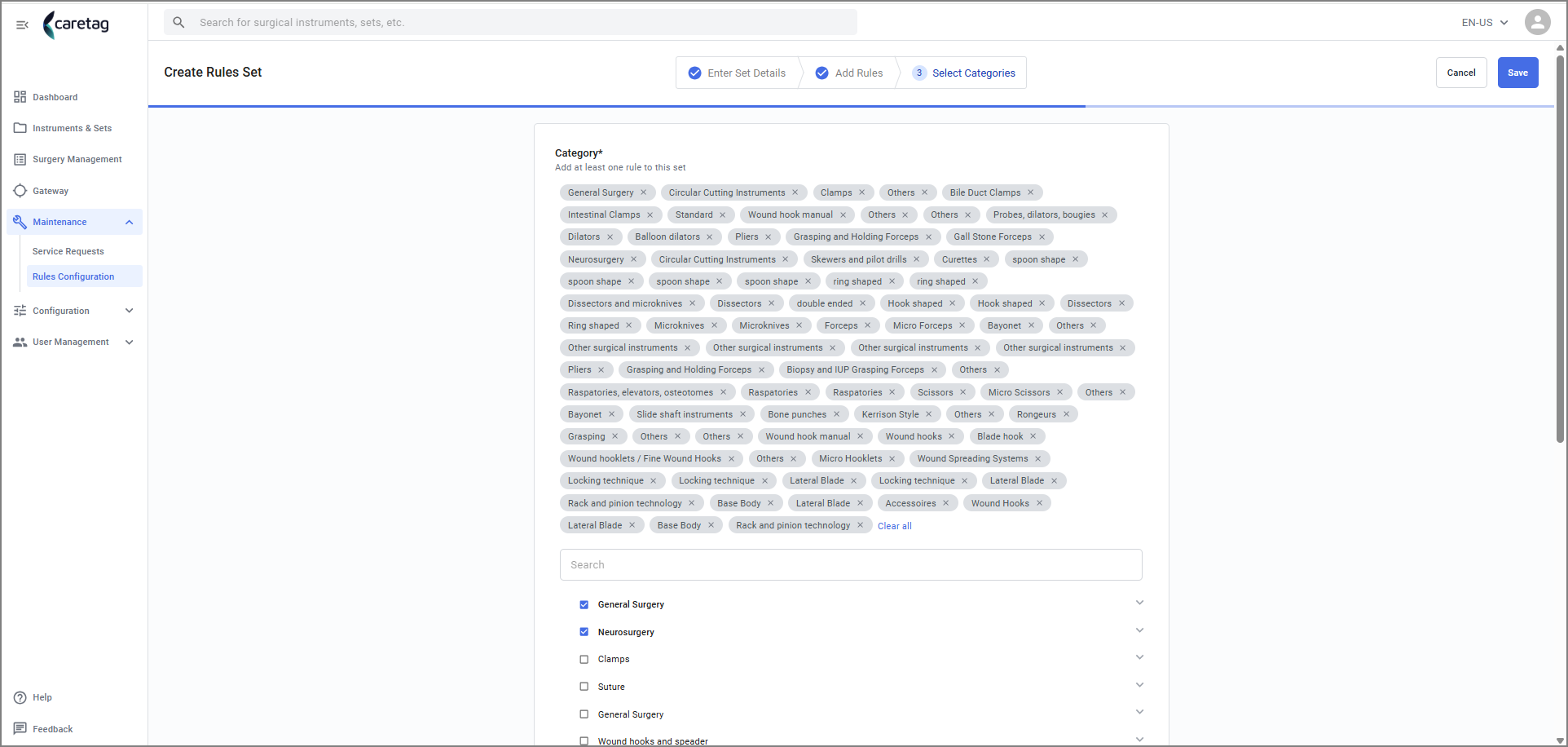
Click the save button to save the new rule set.
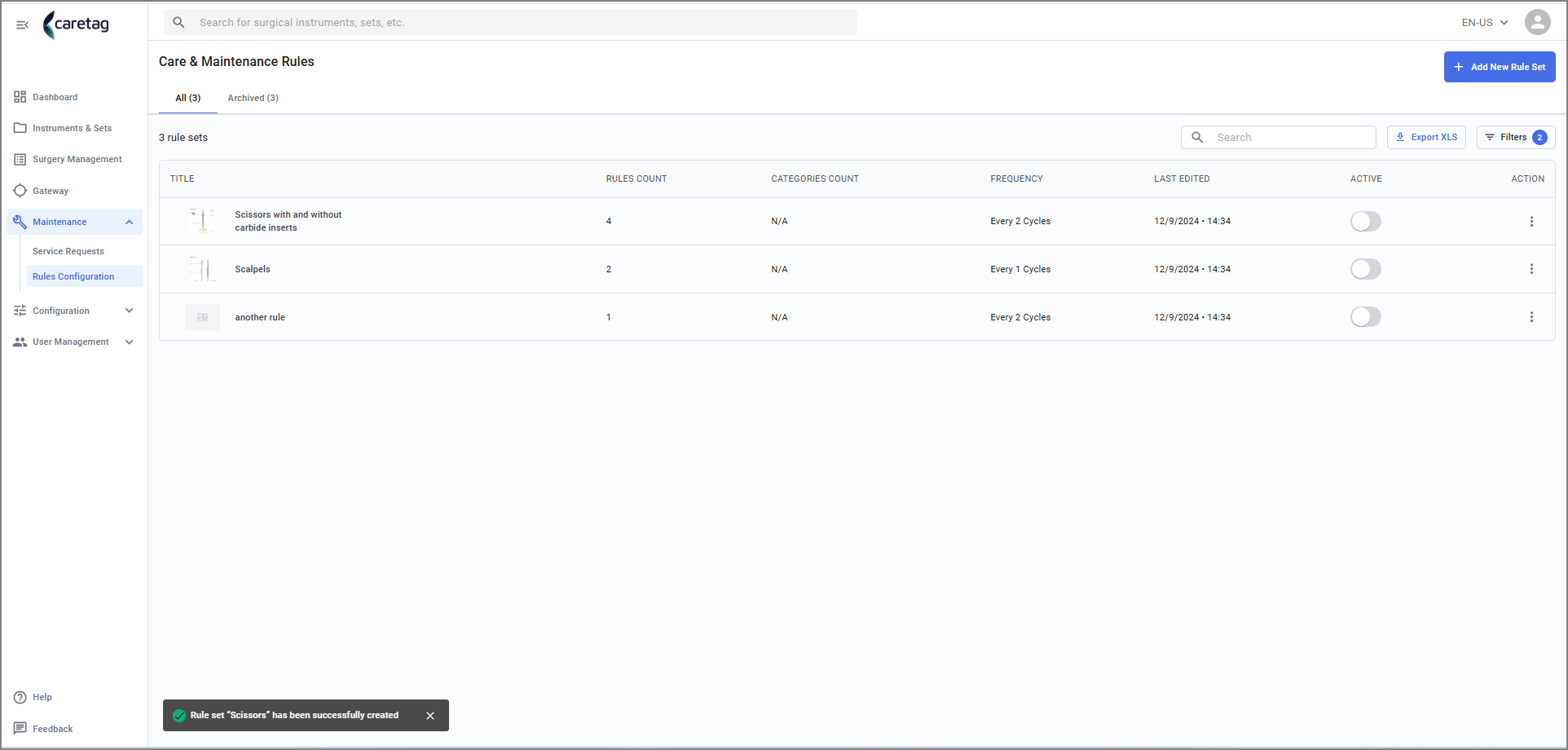
- Now the newly created rule set will appear in the Care and Maintenance dashboard
Click the save button to save the new rule set.