Admin Station / Surgery Management - User Manual
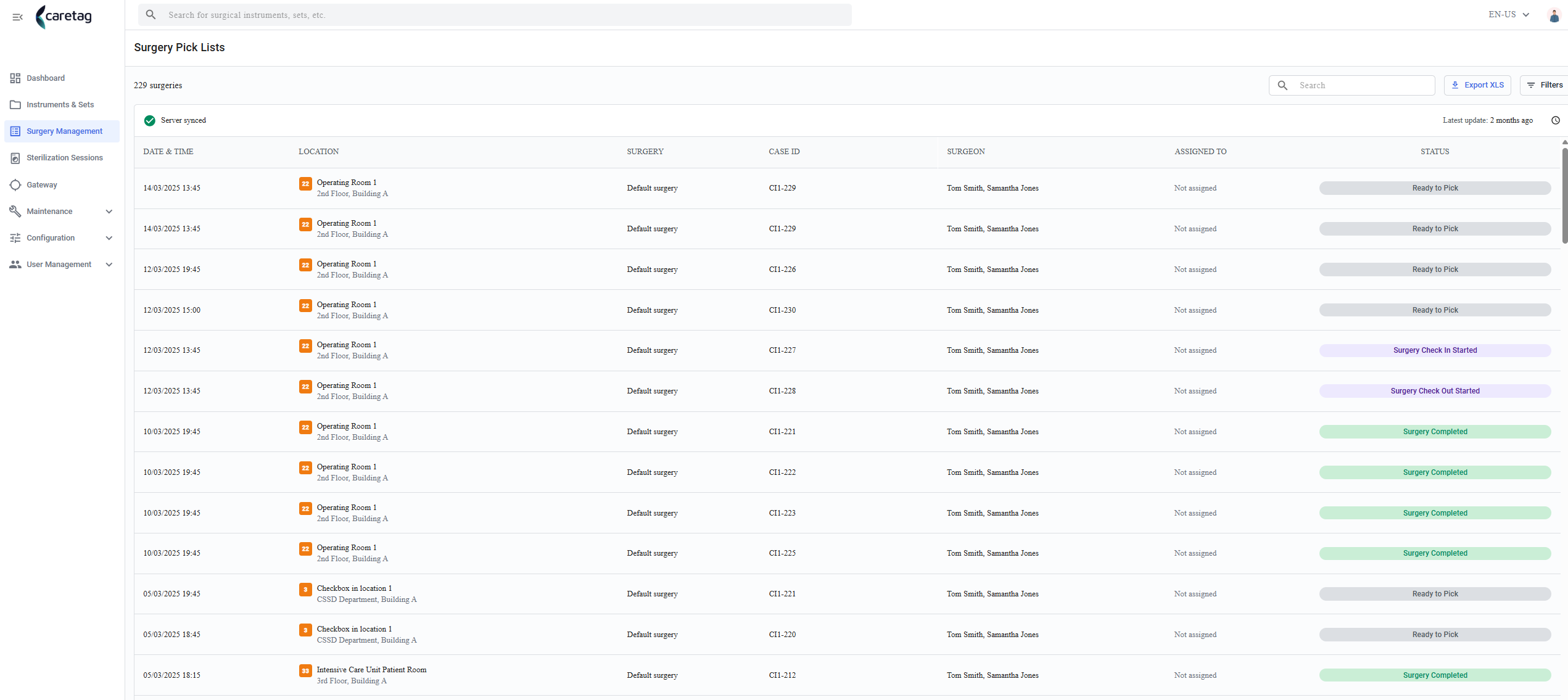
This section gives an overview on the surgeries scheduled. These are displayed with surgery date and time, name, location, the doctor that will perform it and status.
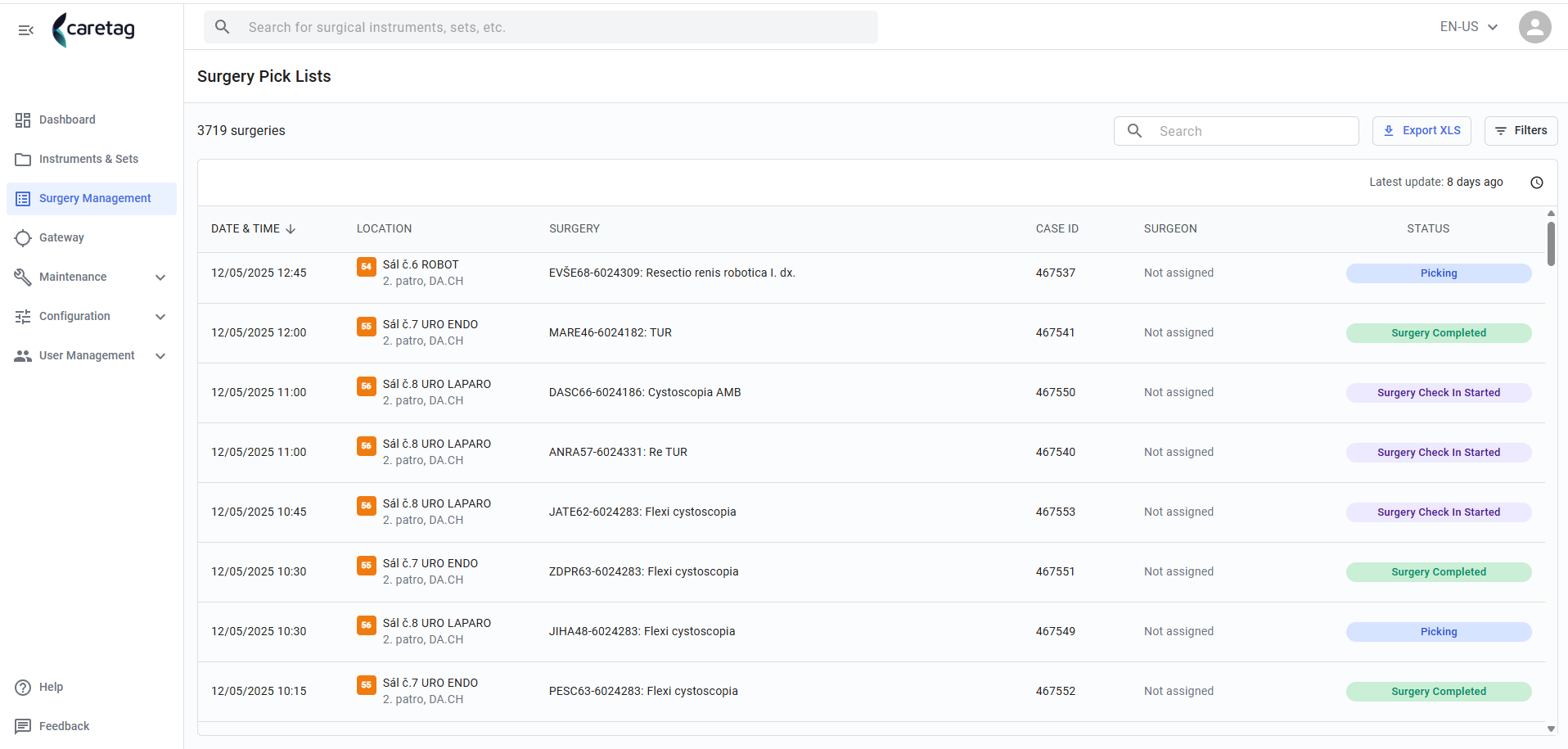
Status
| Status | Description |
|---|---|
Planned/Ready to Pick | :Surgery is planned and the user can preapre the sets |
Picking | :User packing the sets in the Case cart/Trolley |
Picking completed | :All sets required for the surgery are packed in Trolley |
Picking force completed | :User unlocks the surgery to pack Extra sets or planned sets missing in the Trolley |
Surgery Check in started | :Items checked in |
Surgery Check out started | :Items checked out after the surgery |
Surgery Completed | :All items checked in are checked out and the surgery is completed |
Surgery force completed | :If any items checked in are not checked out then the user has to force complete the surgery |
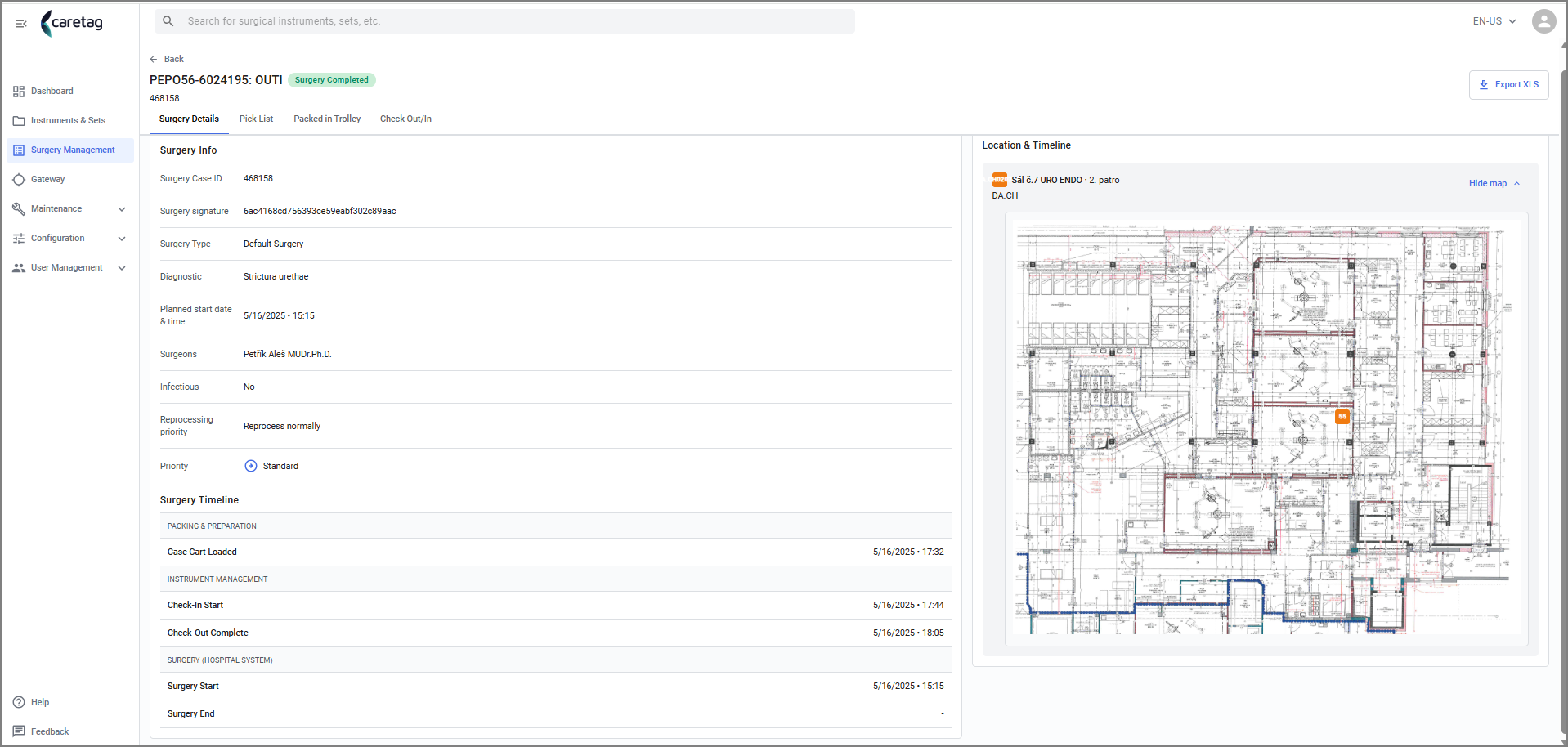
- Selecting one surgery, opens a preview panel where all the details are displayed.
- It has 4 tabs: Surgery details, Pick list, Packed in Trolley and Check-in/out
-
Choose a surgery to view the full details.
-
In the Surgery Details tab it shows the surgery ID, type, diagnostic, date,surgeon name, process and status.
- The Pick List specifies the trays, pouches, and disposables required for this surgery.
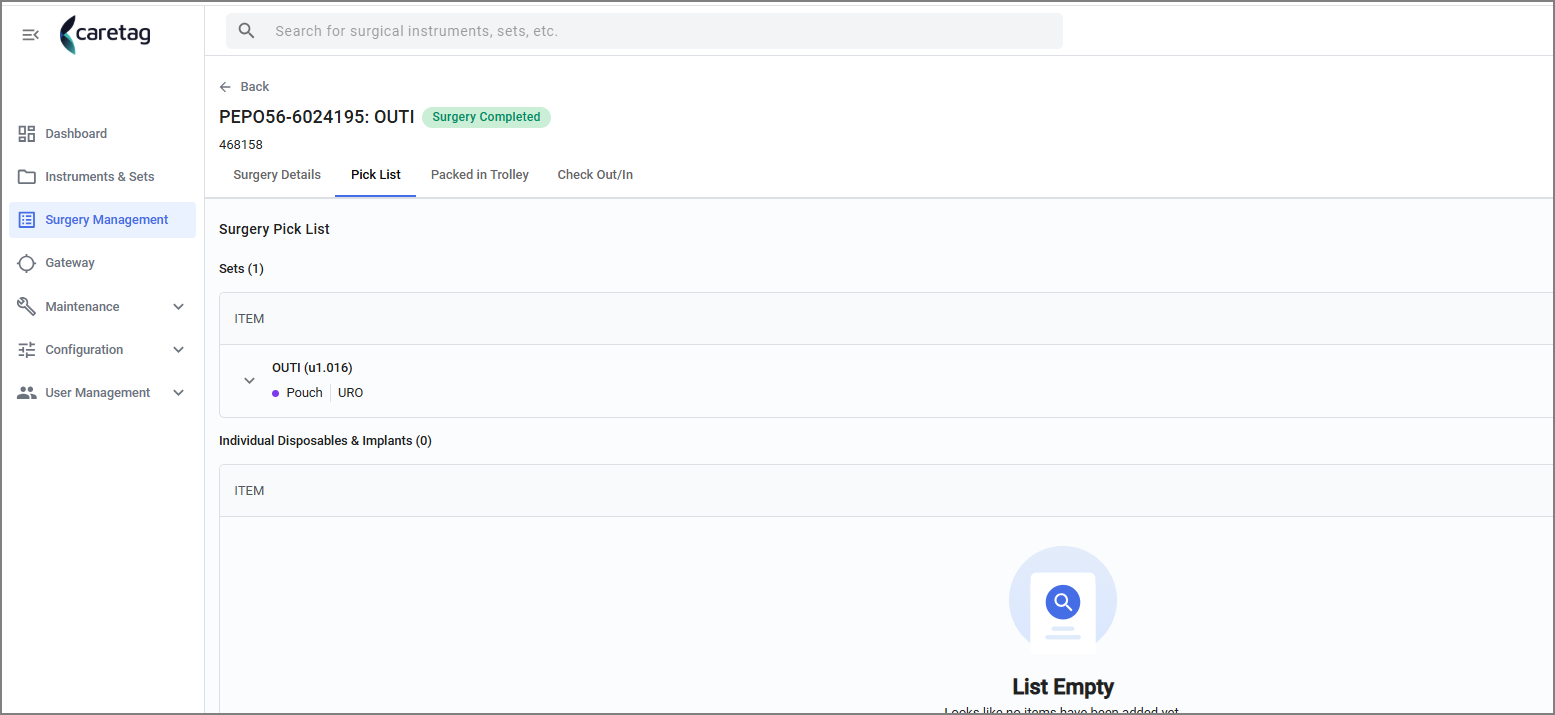
- Click on the drop down arrow to view all the instrumets in the pick list.
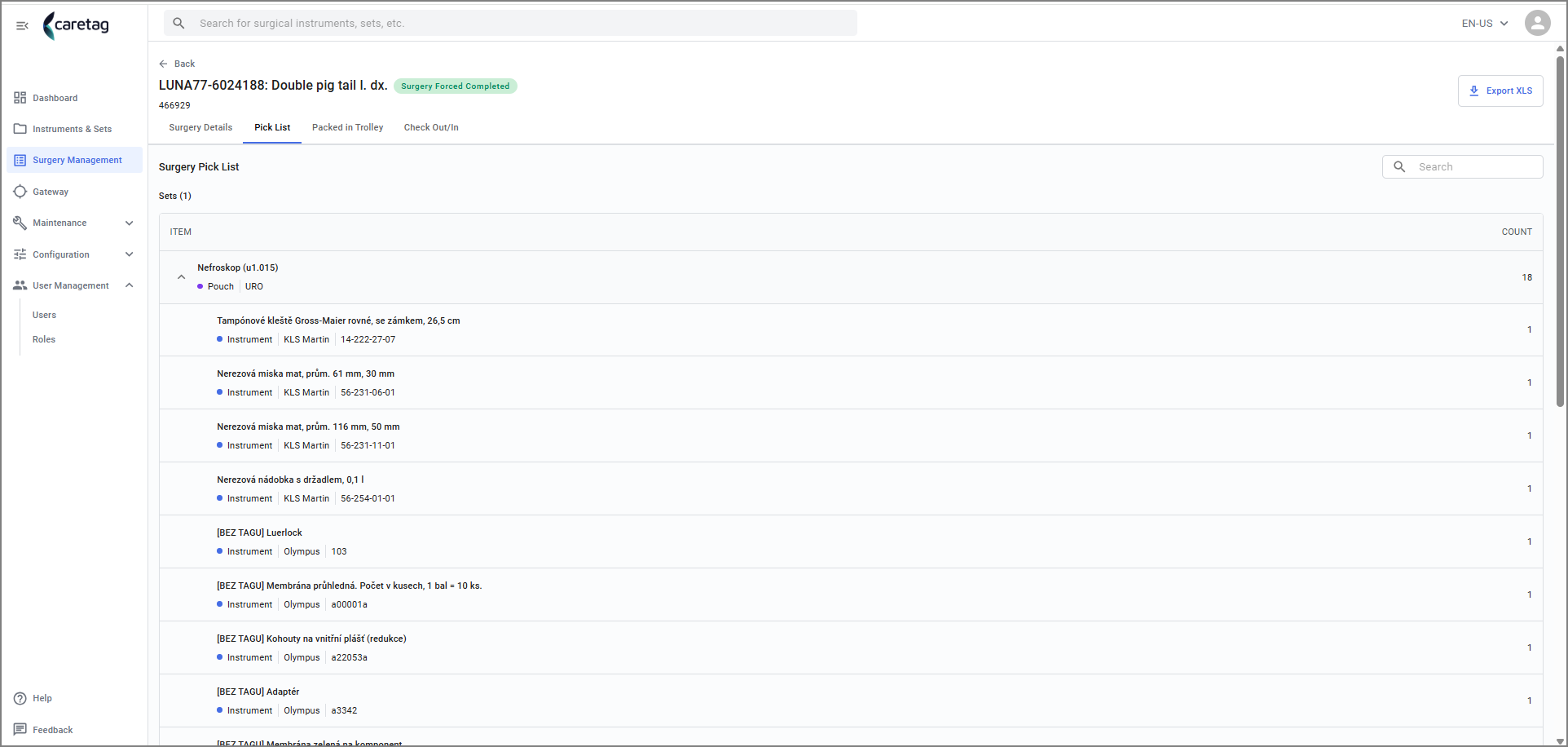
-
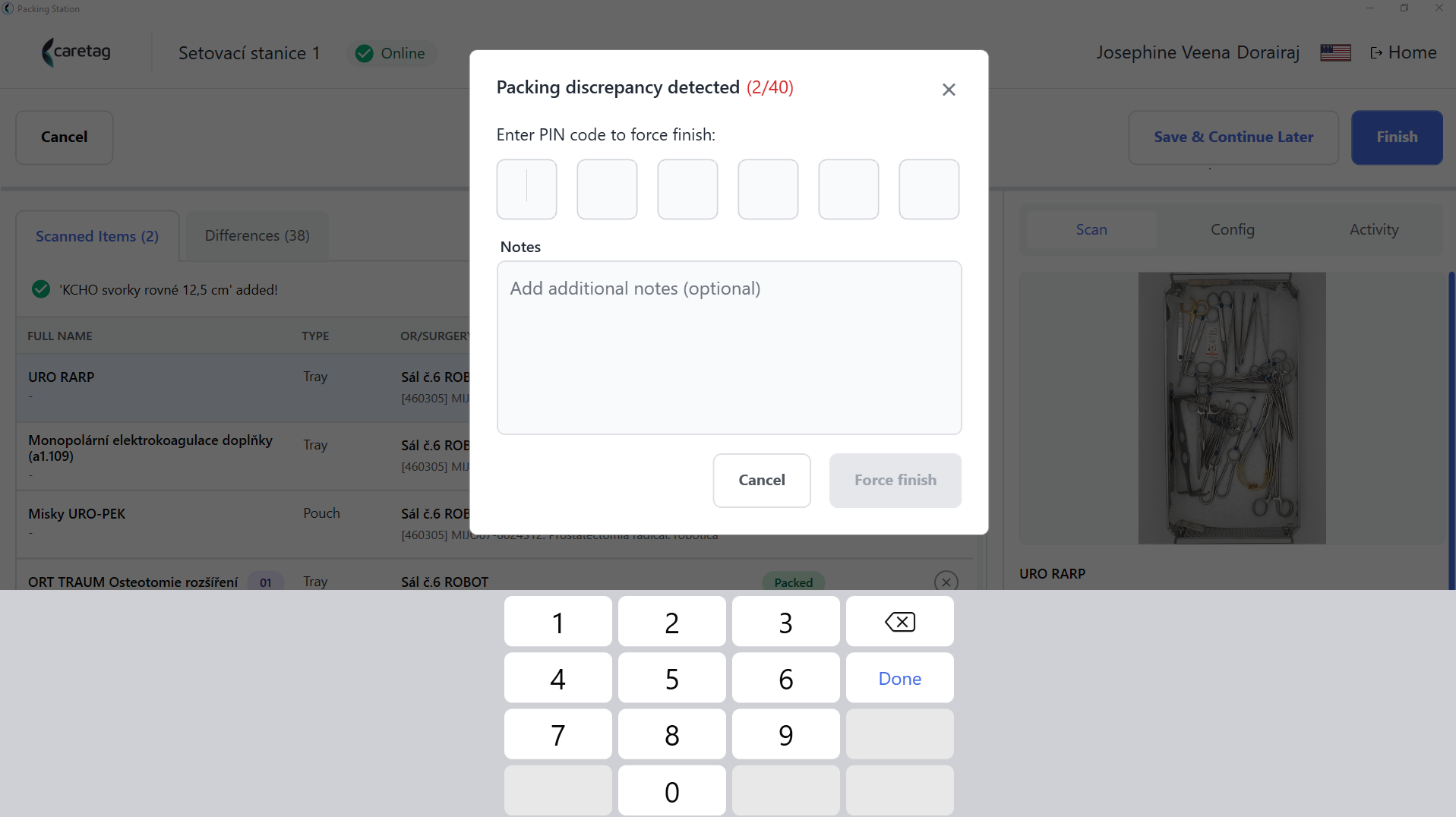
In the packing station, pack case cart option, user scans the required items and completes packing the case cart by either scanning all the items listed in the pick list or unlocking the surgery if any items are missing or not needed.
-
To do a force finish, user needs to enter their pin and can add notes.
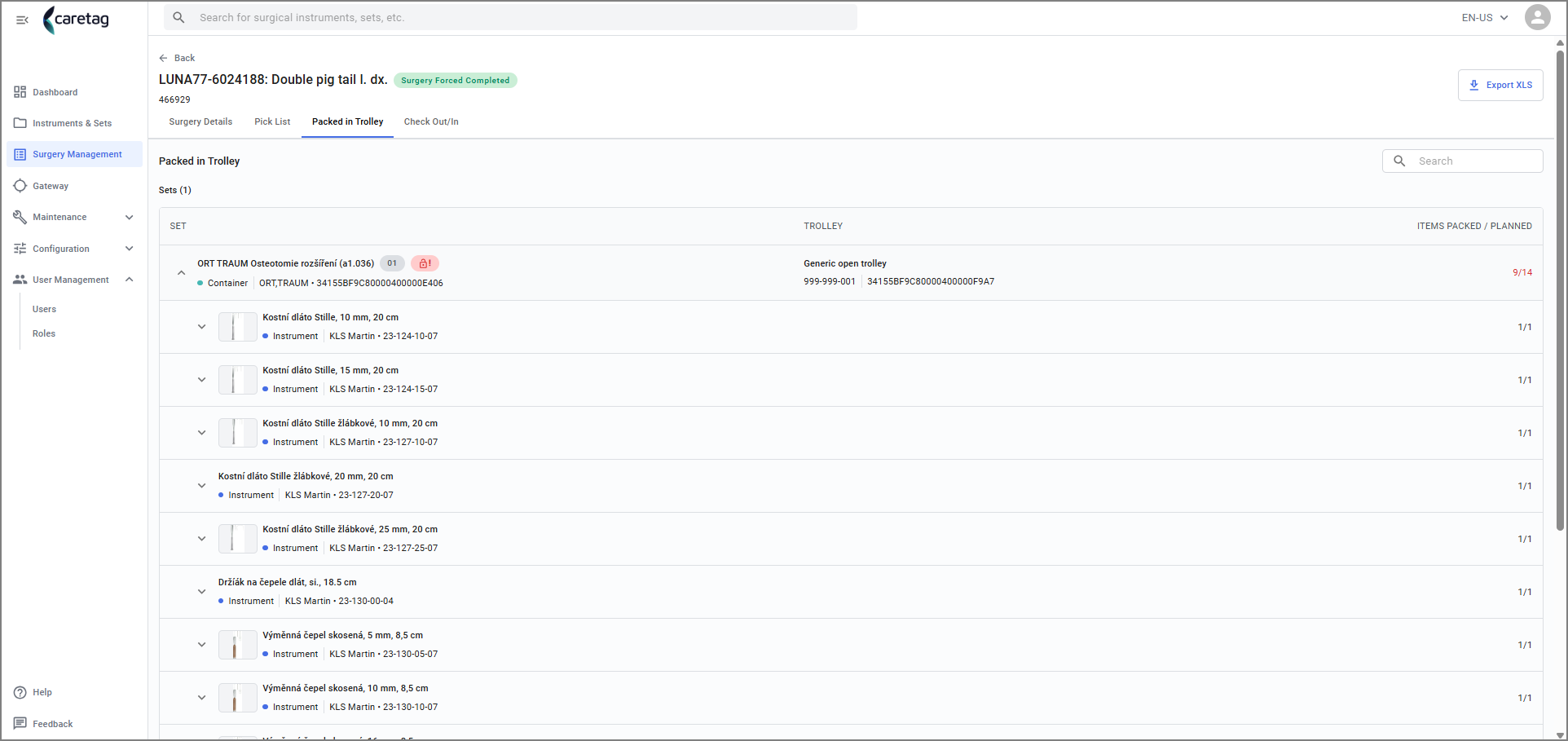
- Packed in Trolley shows the items(trays/pouches/disposables) picked in the case cart in the packing station.
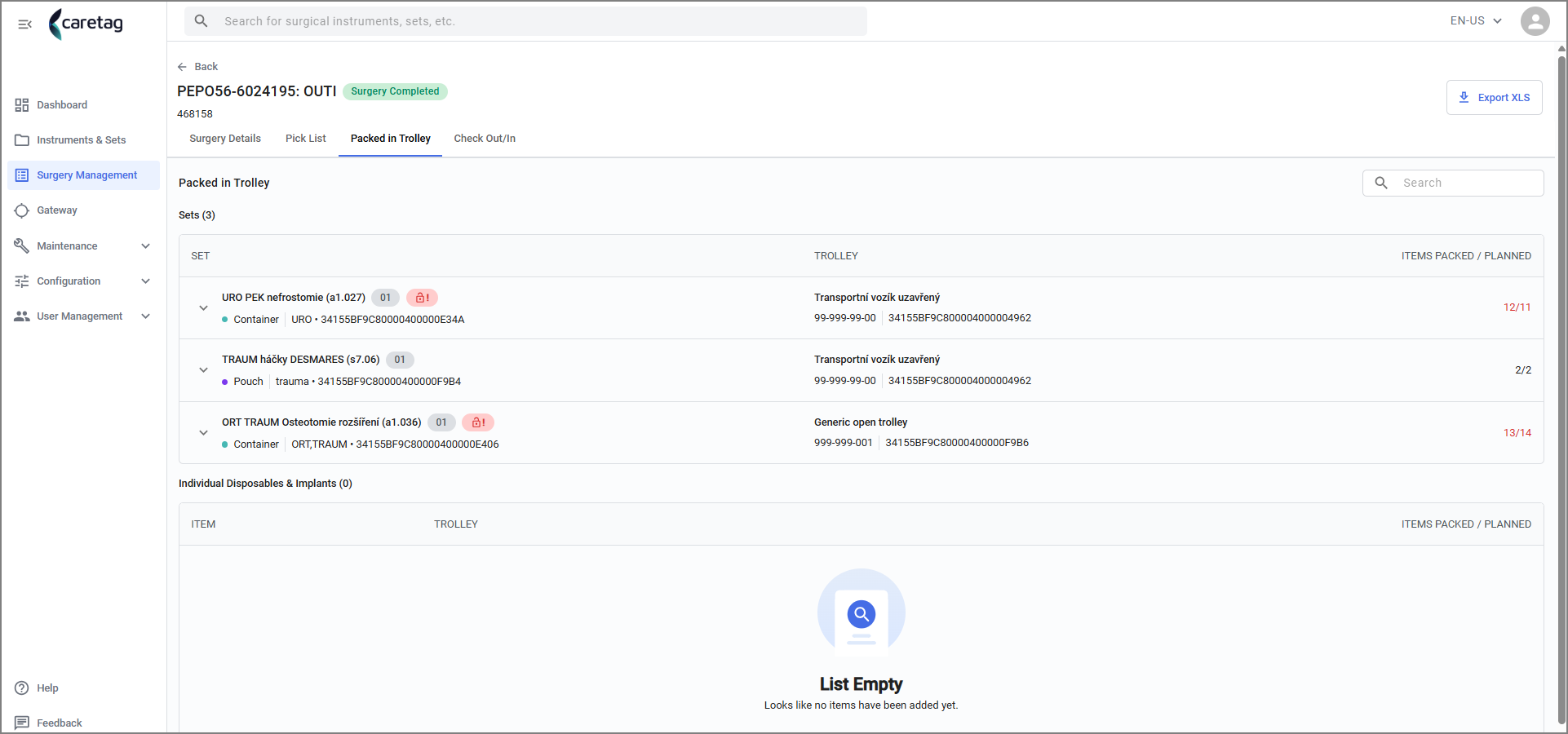
- Click on the drop down arrow to view all the instruments that are packed in the trolley.
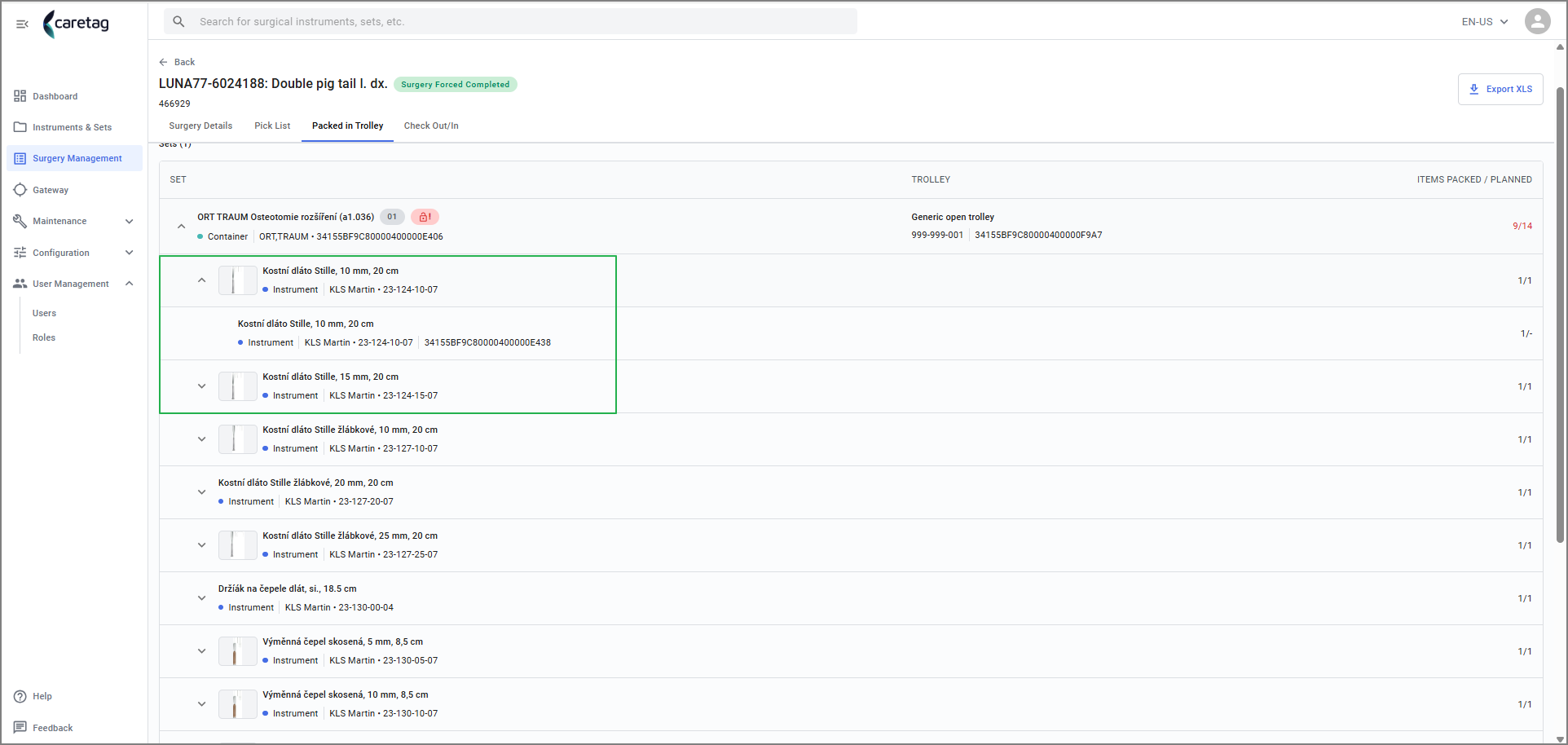
- Click on the instrument to view the tag ID.
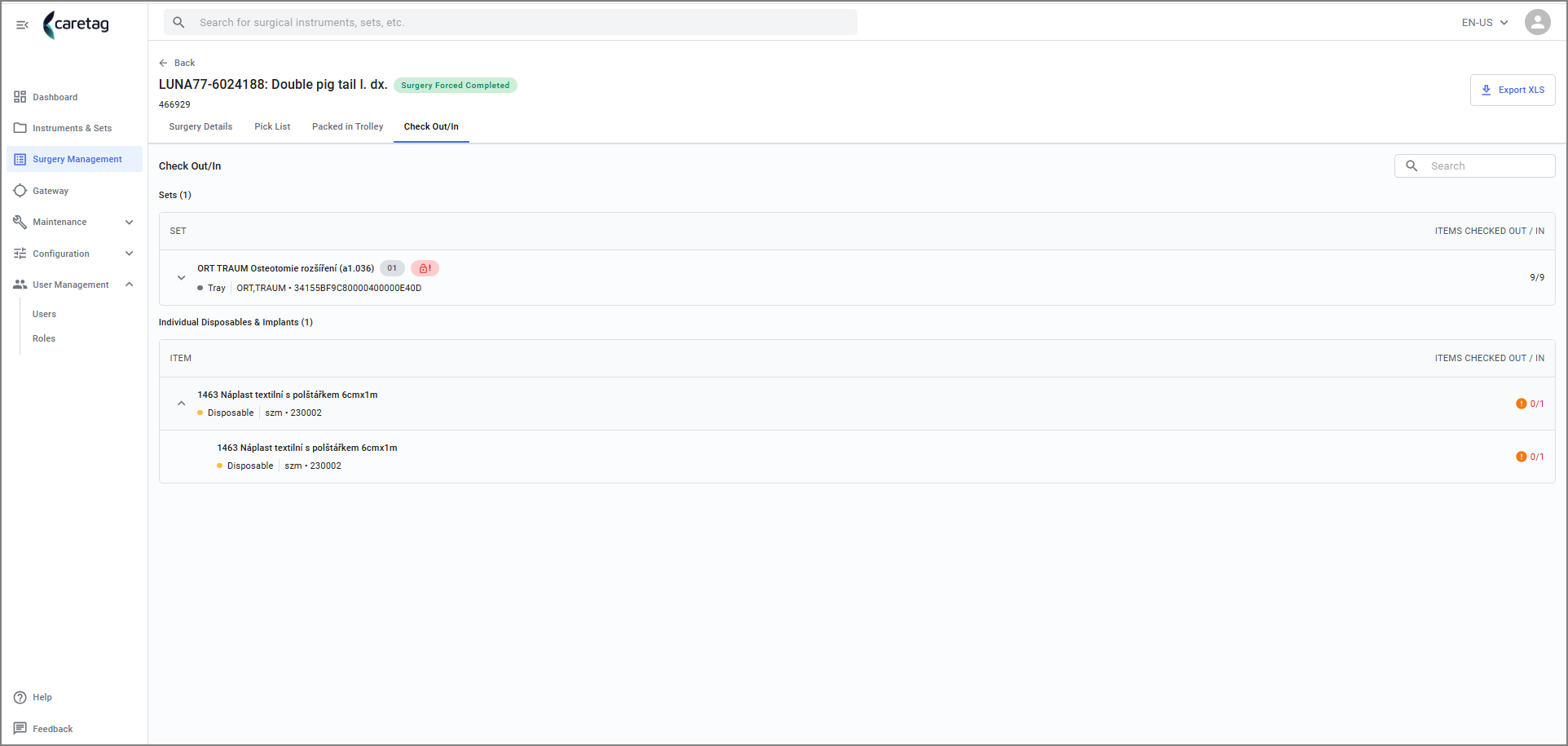
- Check in/Out - Here it shows the items checked in for the surgery and checked out after the surgery has completed.
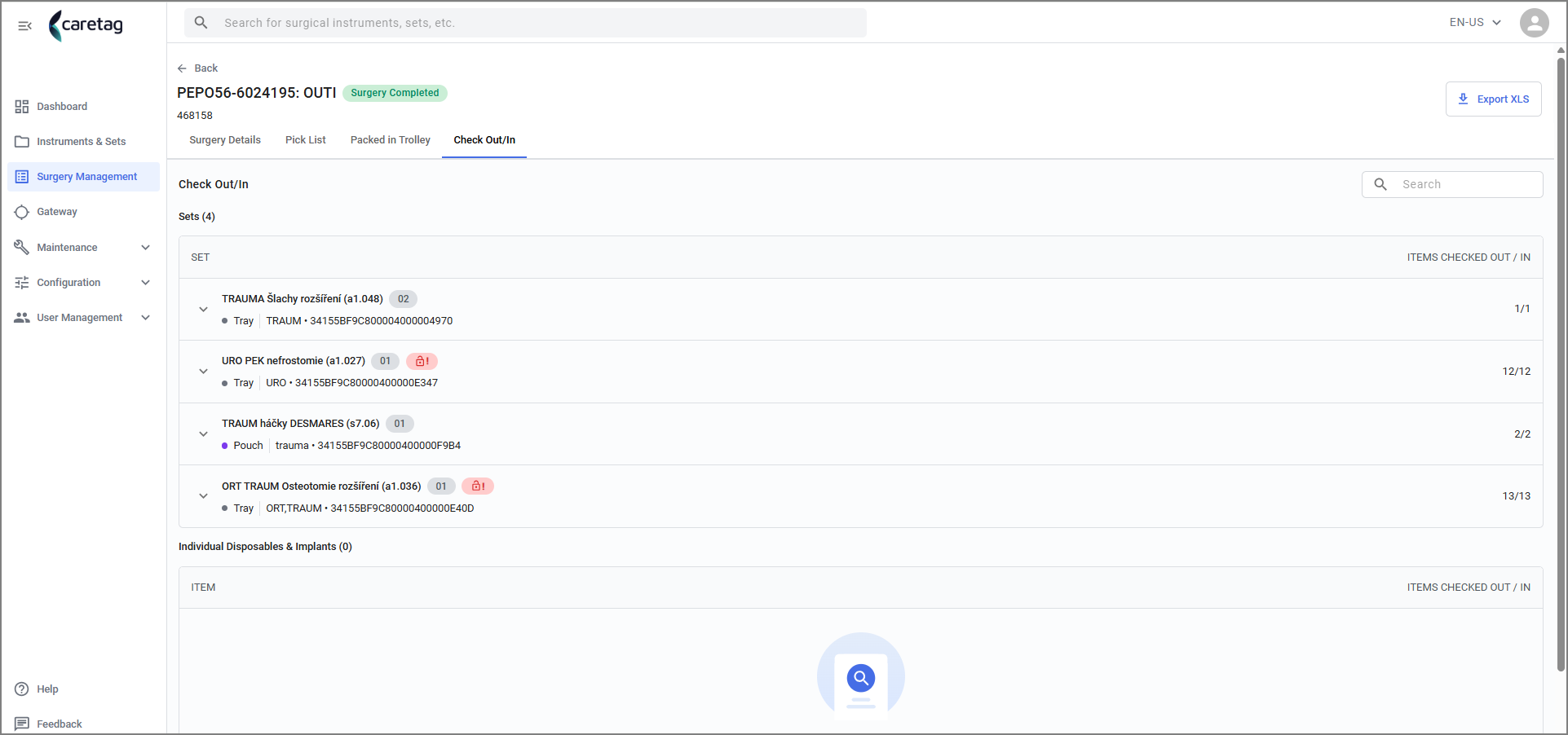
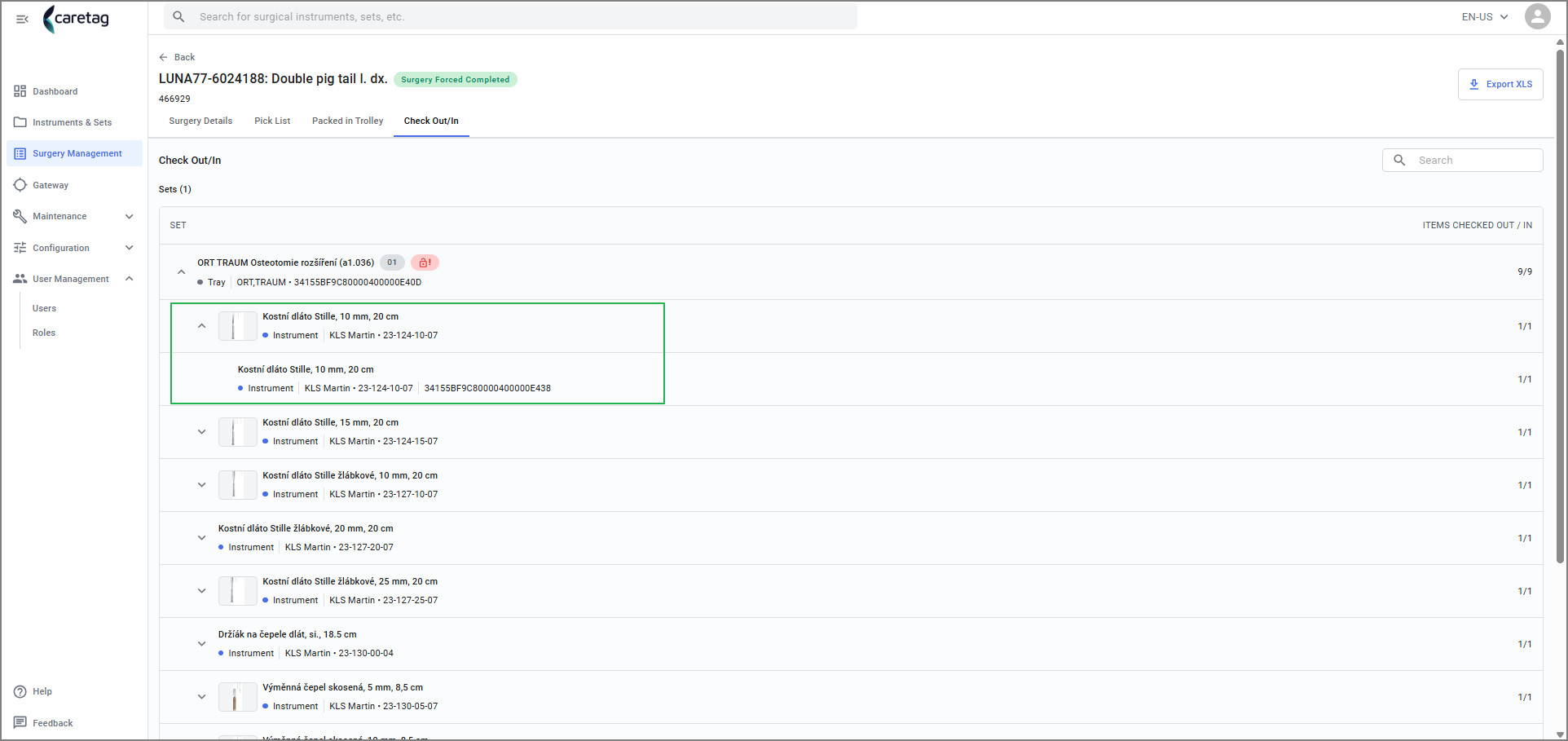
- Click on the drop down arrow to view all the instruments that are checked-in/out
- Click on disposables to view the details.
- To View the full details of the item, click on it and it will open the full details page of that specific instrument.