Admin Station / Gateway - User Manual
- The Gateway section contains two tabs: Trays and Trolleys. Both tabs primarily focus on the location of packed items.
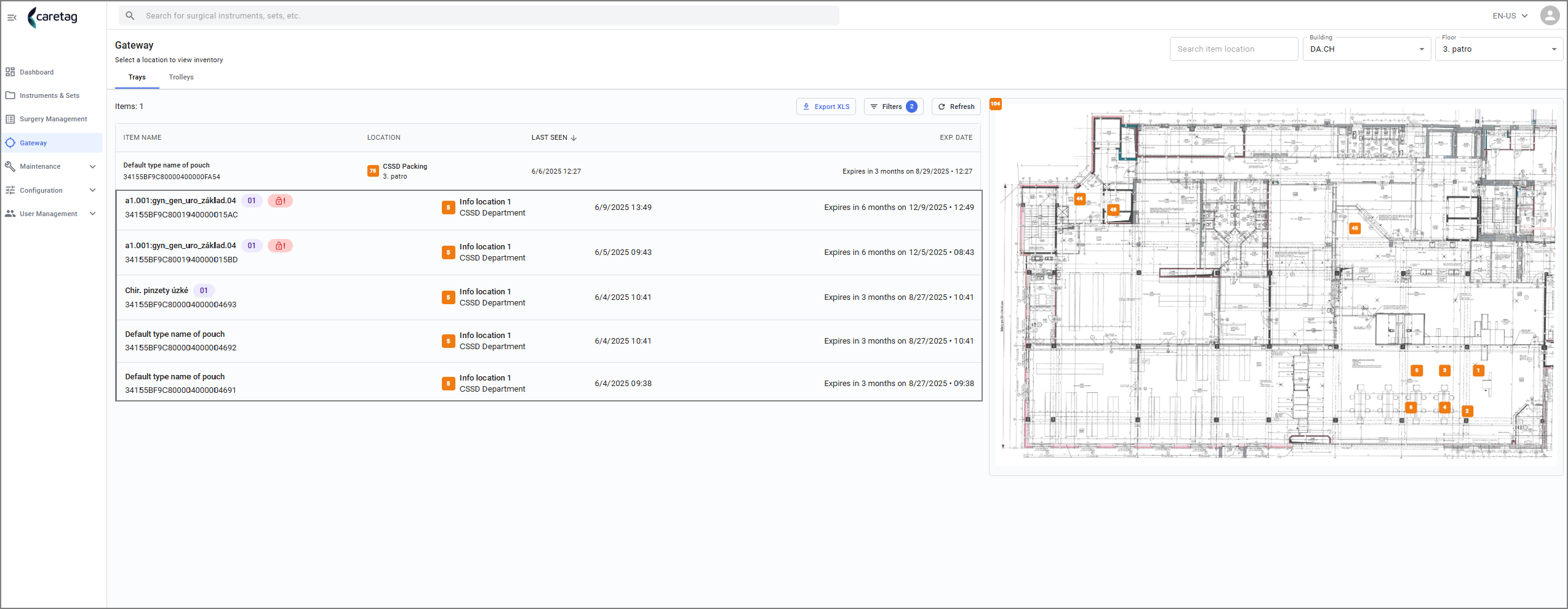
Tray Tab
- The trays tab is displayed in the center of the page in a table view with 4 columns.
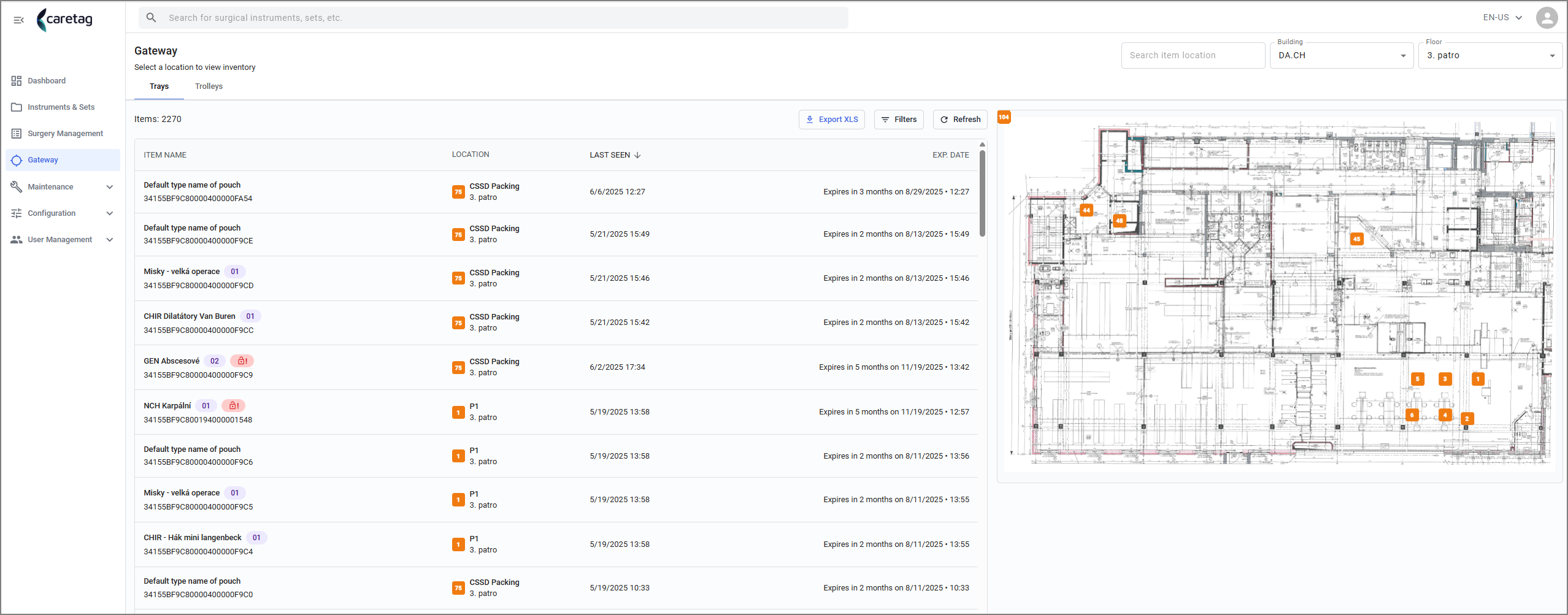
| Details | Description |
|---|---|
Item Name | Name of the Tray |
Location | Where the item is located in the building |
Last Seen | Last seen Date and time of the item |
Expiry Date | Expiry date and time of the item |
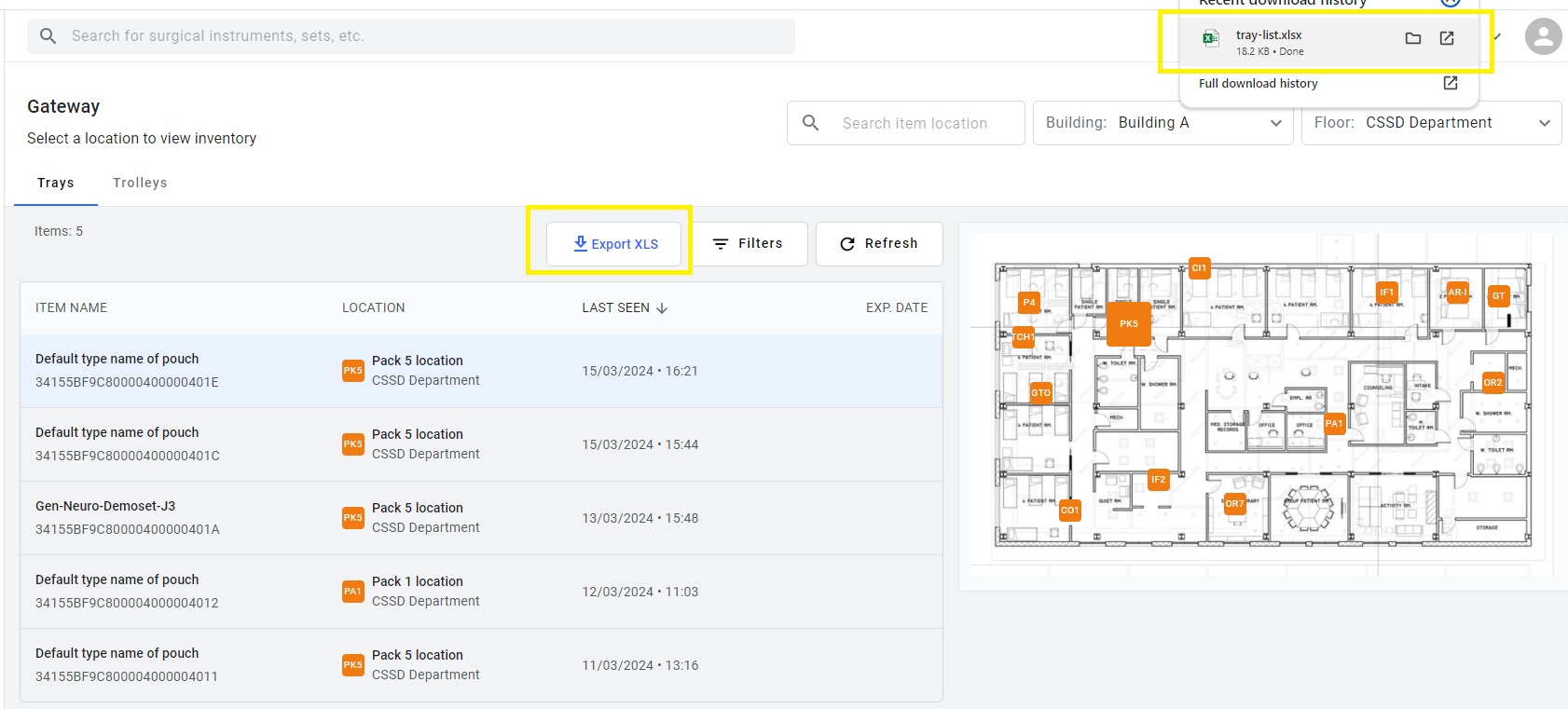
Buttons: - The tray tab has 3 buttons: Export XLS, filters and Refresh
Export XLS: The table can exported as an EXCEL file
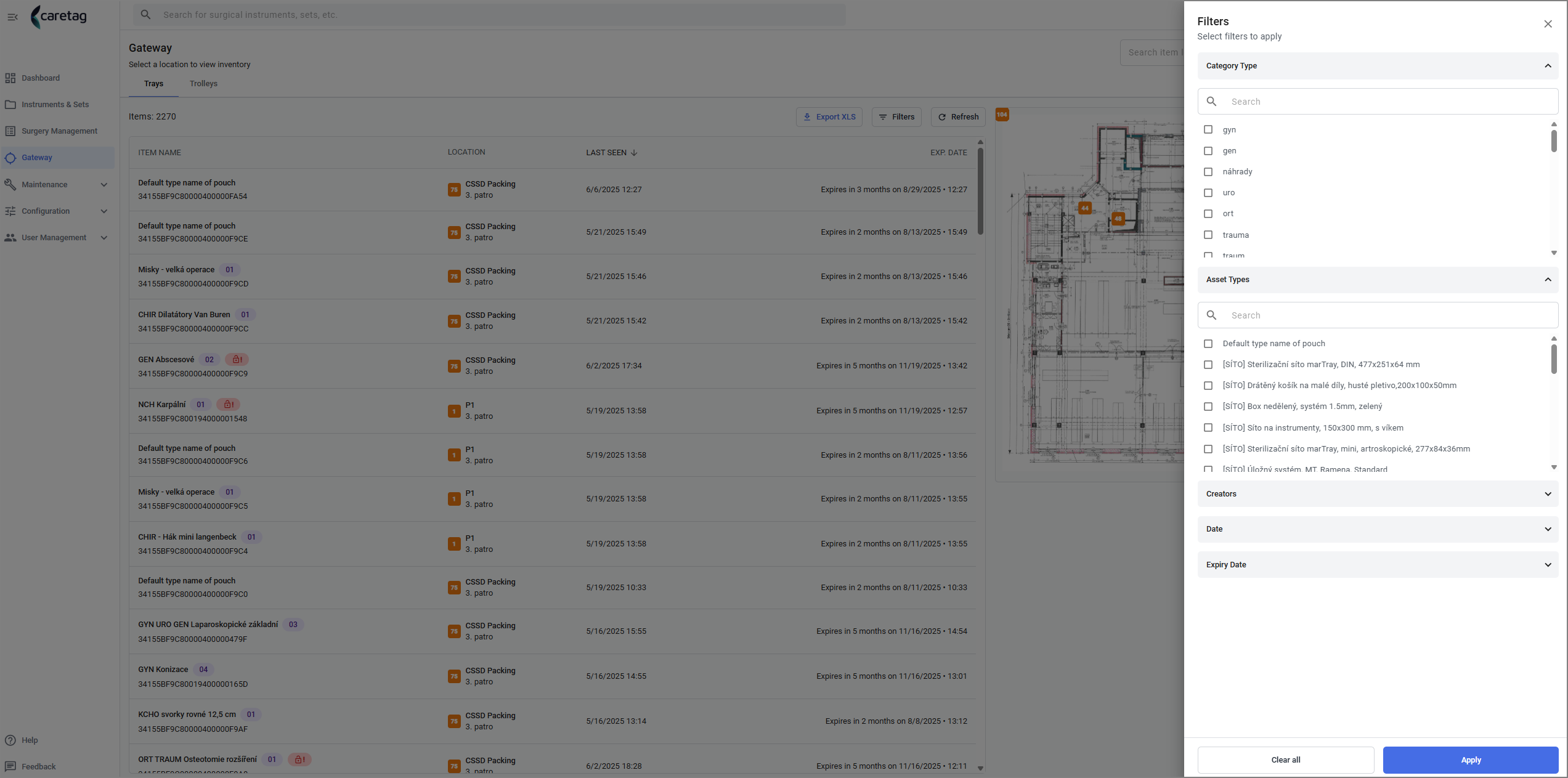
Filter: The user can filter to optimize the search.
Refresh: Refresh button is used to refresh the Gateway page to view the latest packed items.
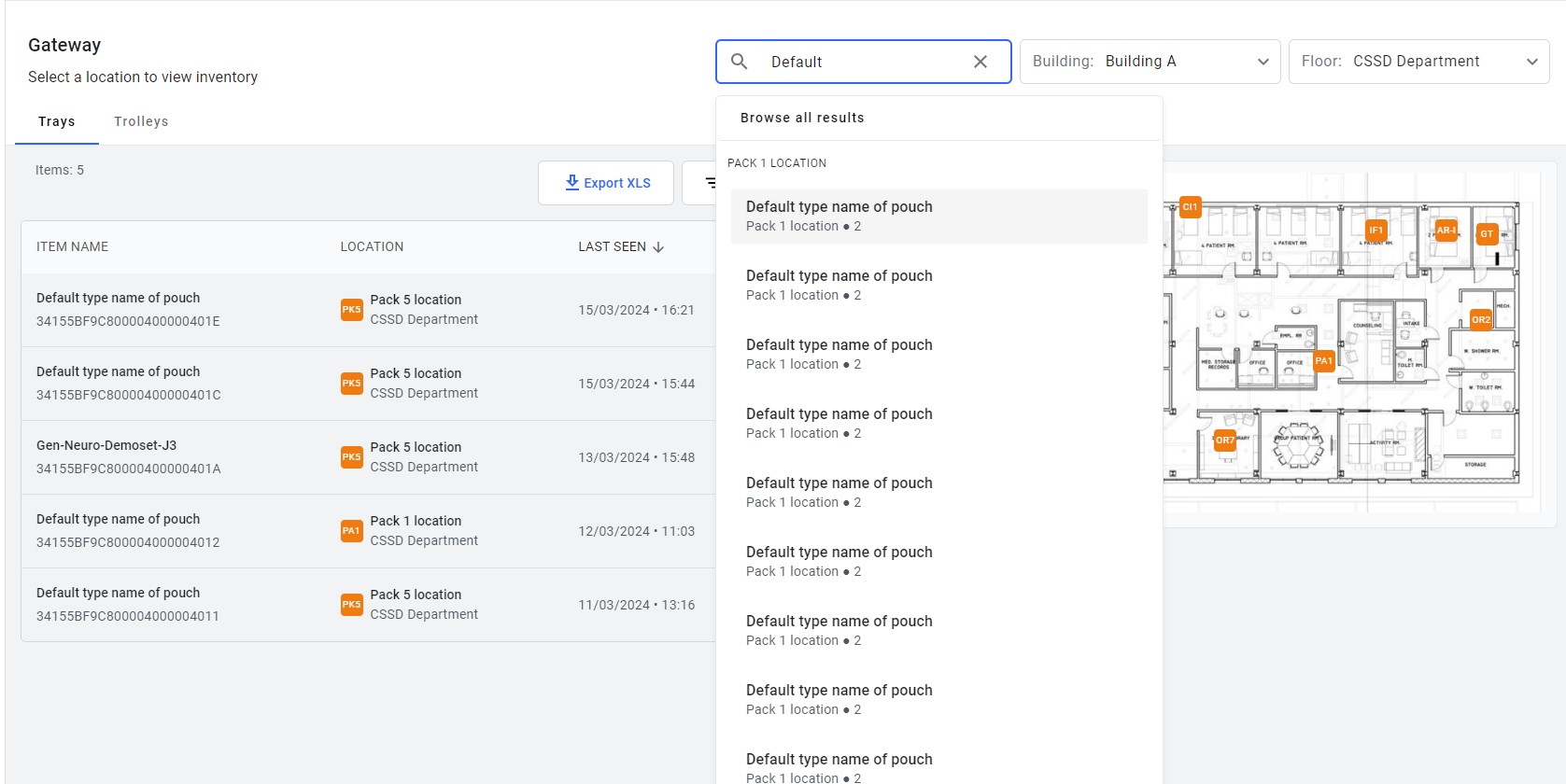
Fields on the top right: Search bar, Building and Floor.
Search Bar: It allows the user to search for the location of the Packed item. Once the search is done it displays the location in the building.
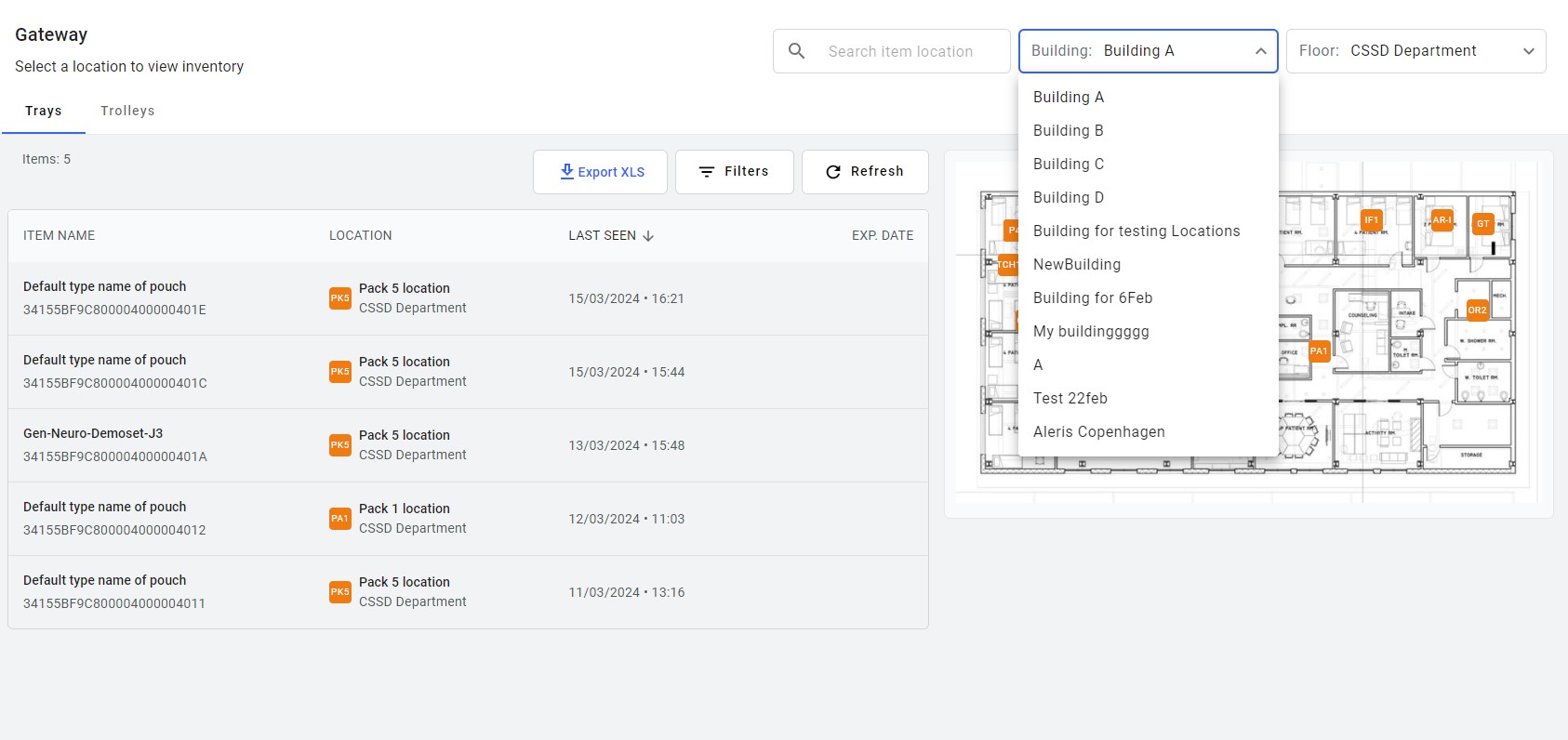
Building: The user can select the building from the list
Floor: Select the floor
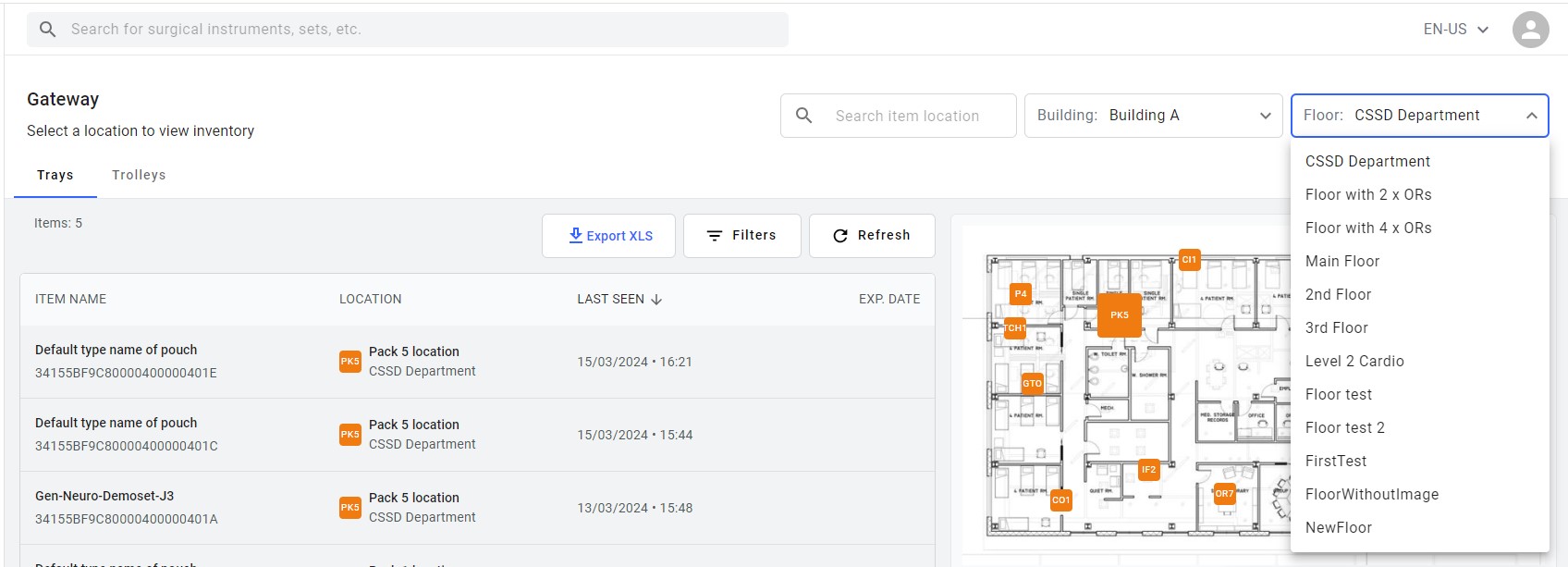
Tray Details
- Click on a packed set, it opens a window to right that display the details.
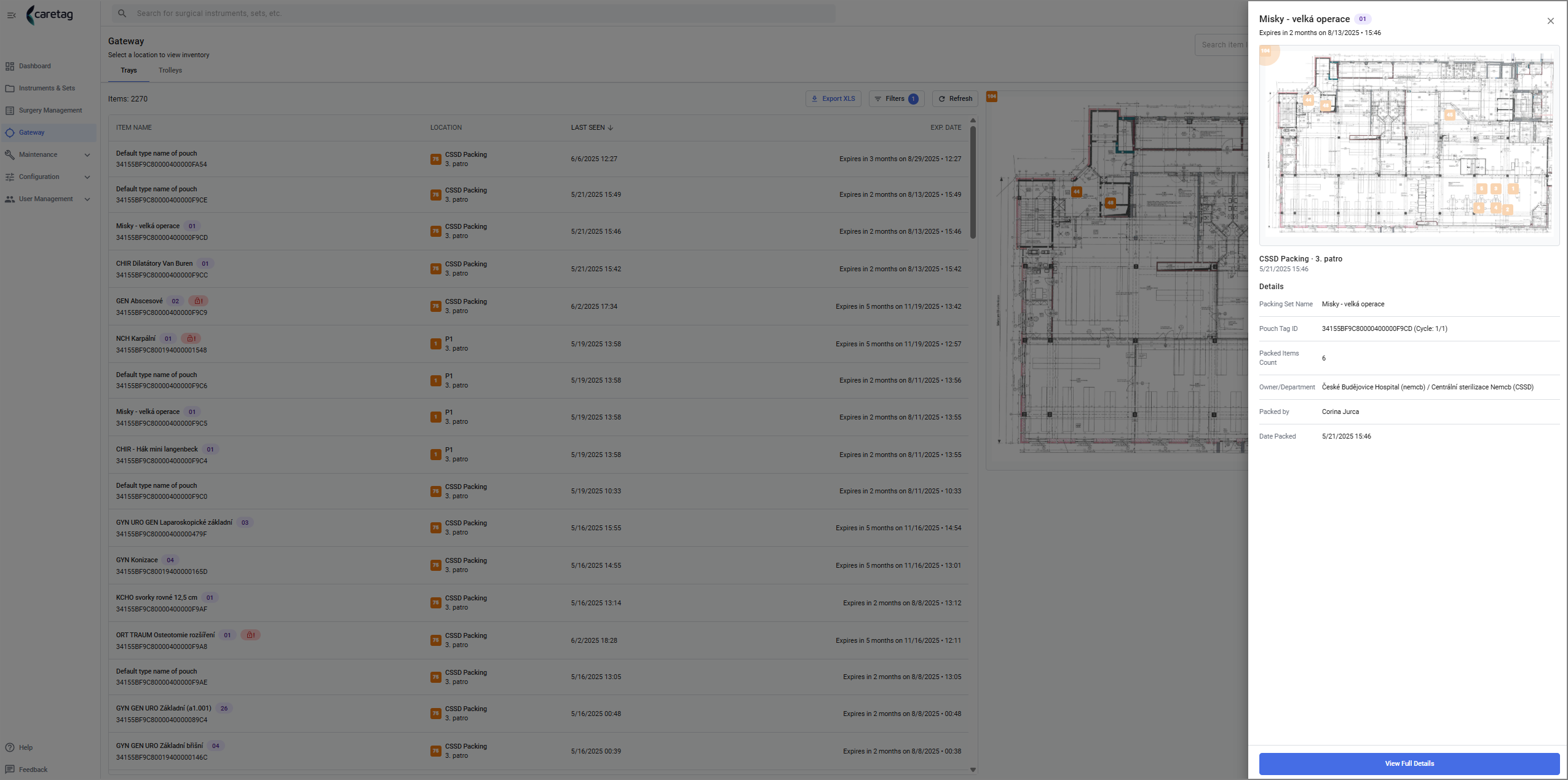
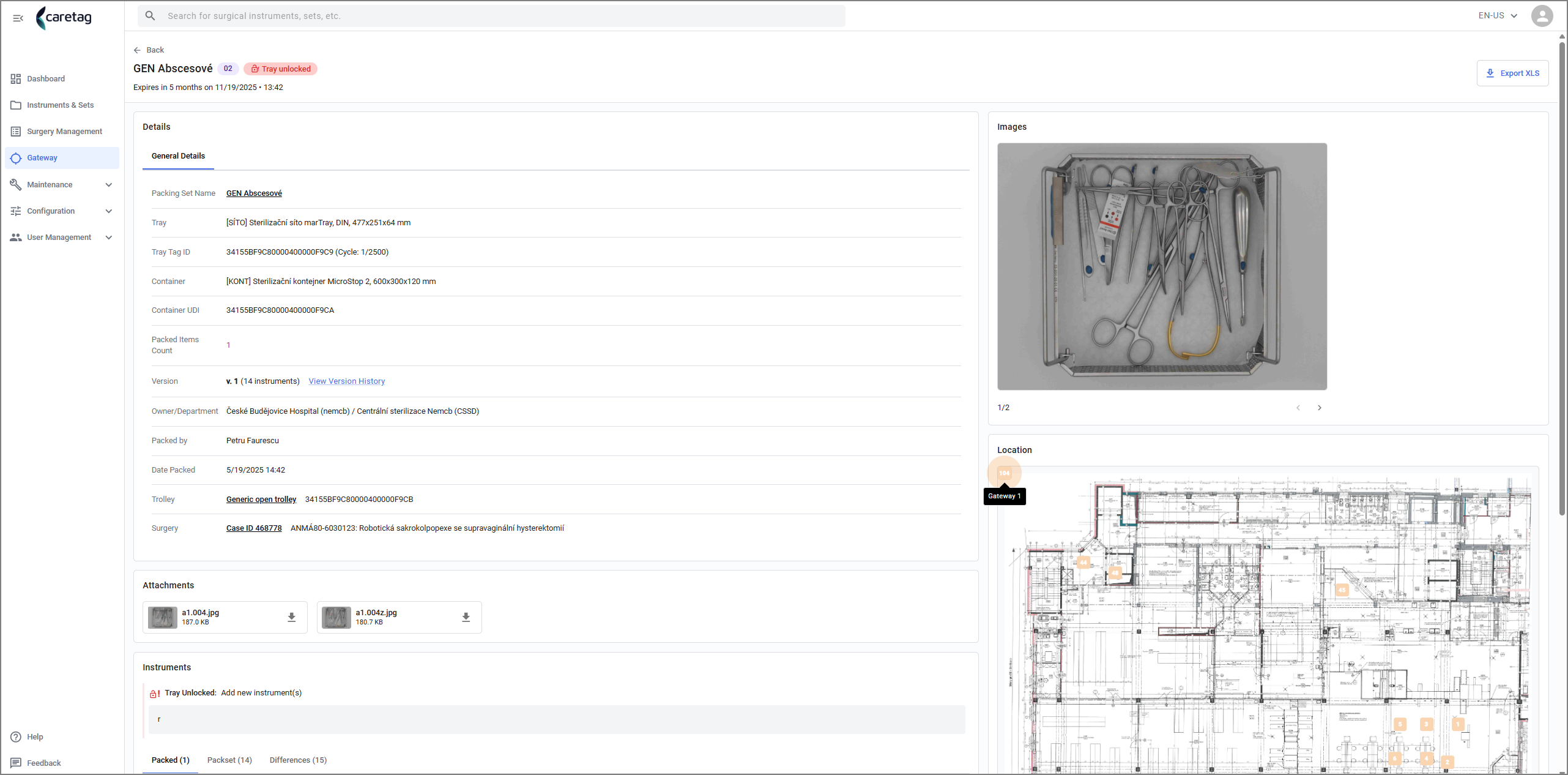
- Click on the view full details button to see the full details of the packed set.
- The full details page has 5 sections: General details, Attachments, Instruments details, Images of the packed item in the right side and the Location map.
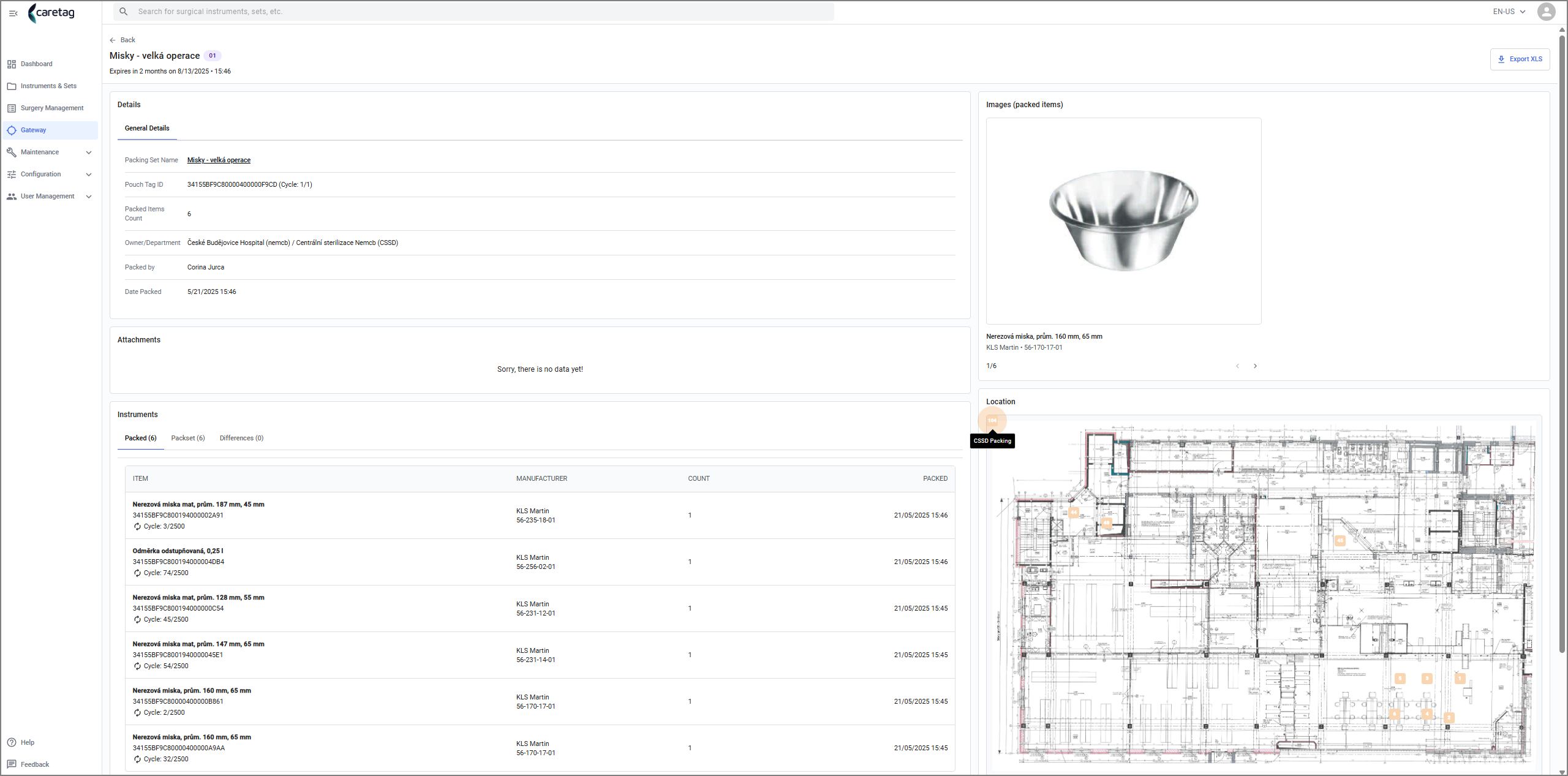
- In the below table we have provided the description of the General Details tab.
| Details | Description |
|---|---|
Packing set name | Name of the packing set |
Pouch tag ID | Tag Id of the set |
Packed items count | Number of items packed in the set |
Owner/Dept | The owner and department name |
Packed by | Who packed the set |
Date packed | Date and time of packing |
-
If there are any attachments it will be displayed below the general details.
-
In the Instruments tab it displays 3 tabs: Packed, Packset and Difference.
| Details | Description |
|---|---|
Packed | List of instruments packed in the set |
Packset | List of instruments that belongs to the packset |
Difference | Any missed/Extra items packed are displayed here |
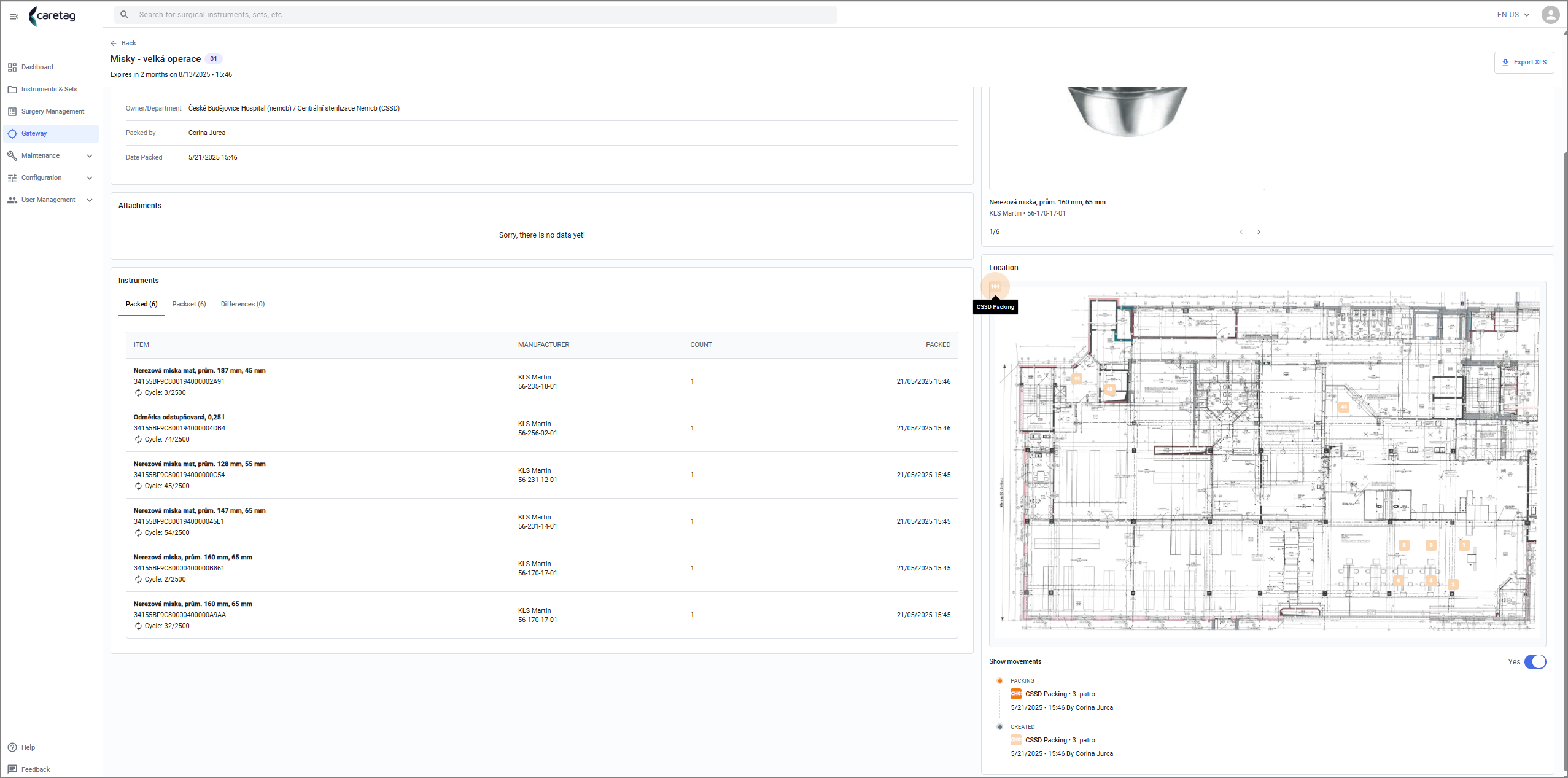
- On the right side, images of the items packed are displayed.
- Below the iamges we display the location map and show the movements.
Trolley Tab
- The trolleys tab is also displayed in the center of the page in a table view with 5 columns
- Here we show all the trolleys and their locations.
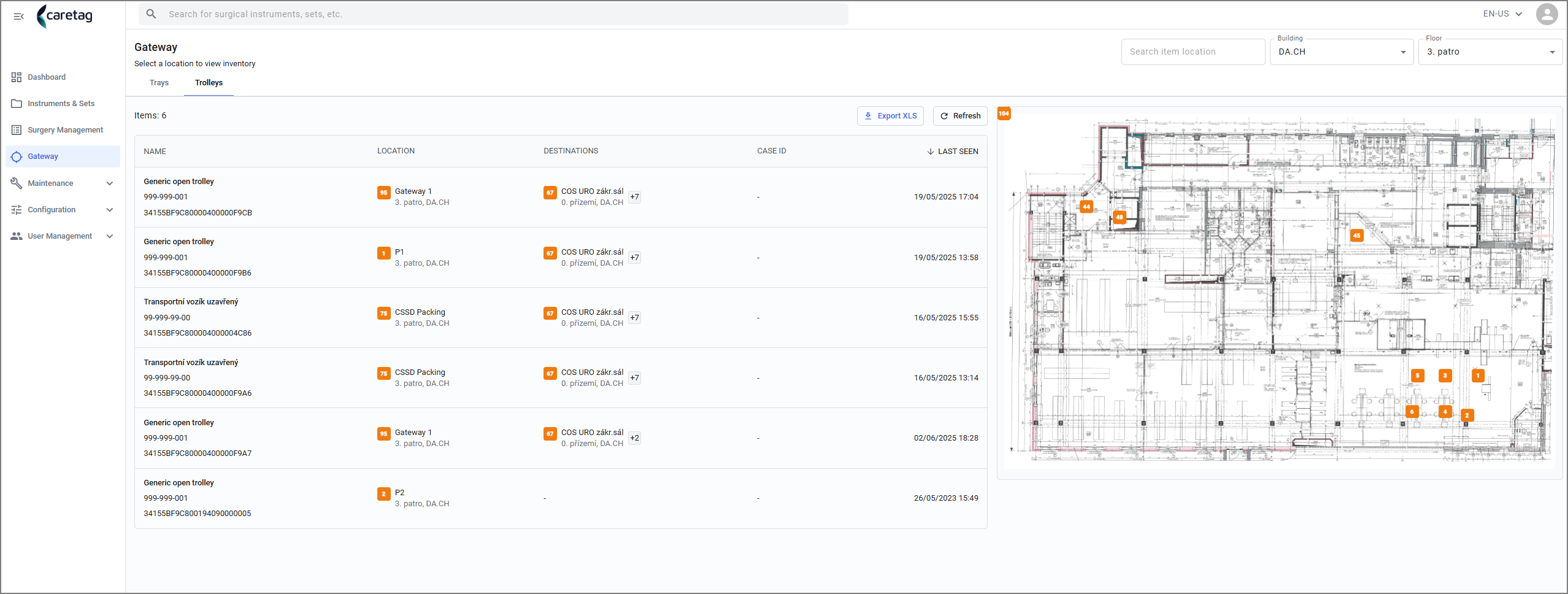
| Details | Description |
|---|---|
Name | Name of the Trolley |
Location | Where the trolley is located in the building |
Destination | Where the is the final destination of the trolley |
Case ID | Any surgery Case Ids associated to that specific trolley |
Last Seen | Last seen Date and time of the trolley |
Buttons:
- The trolley tab has 2 buttons: Export XLS and Refresh
Export XLS: The table can exported as an EXCEL file
Refresh: Refresh button is used to refresh the Gateway page to view the latest packed items.
Trolley details
- Click on a Trolley, it opens a window to right that display the details.
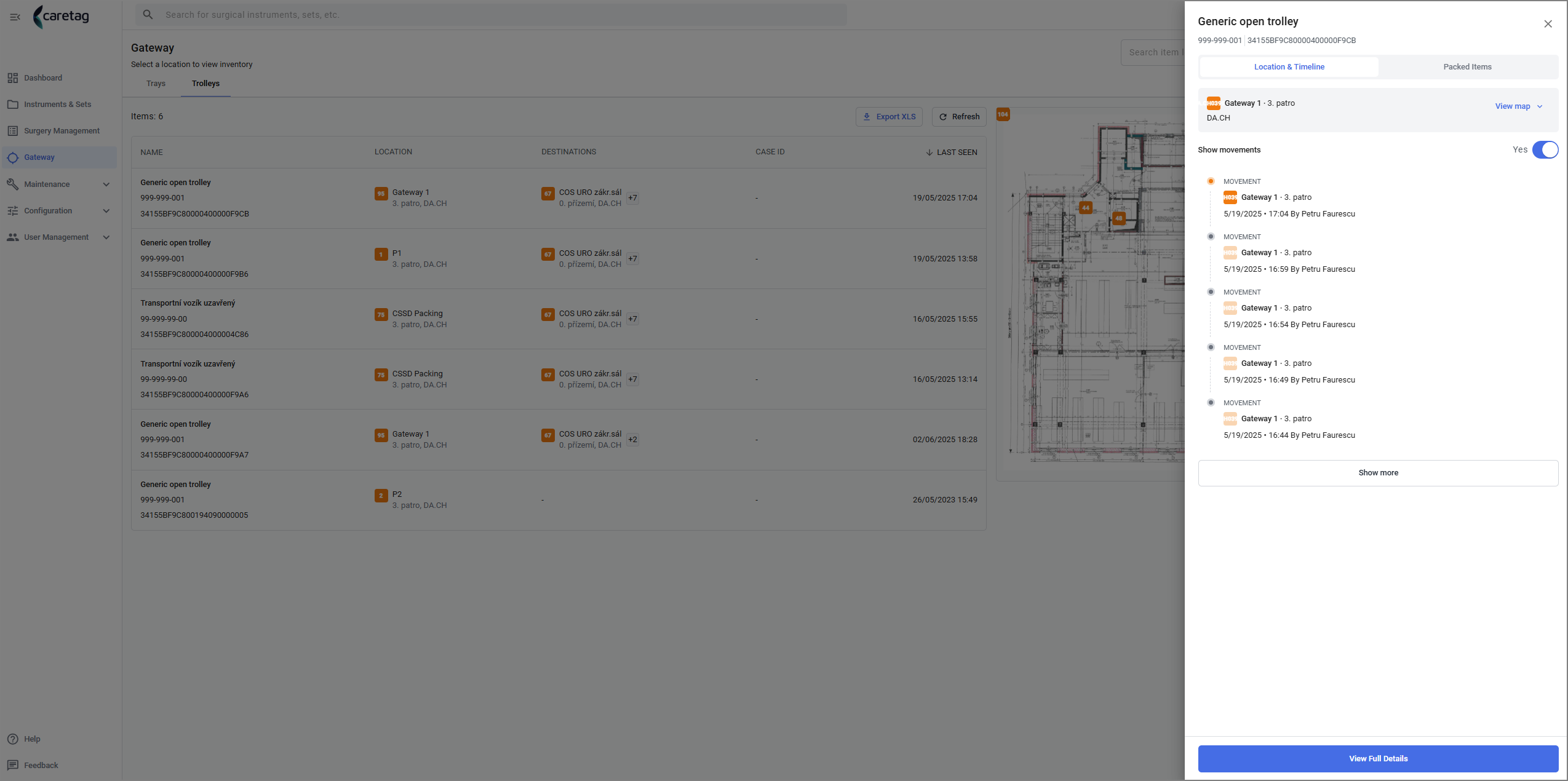
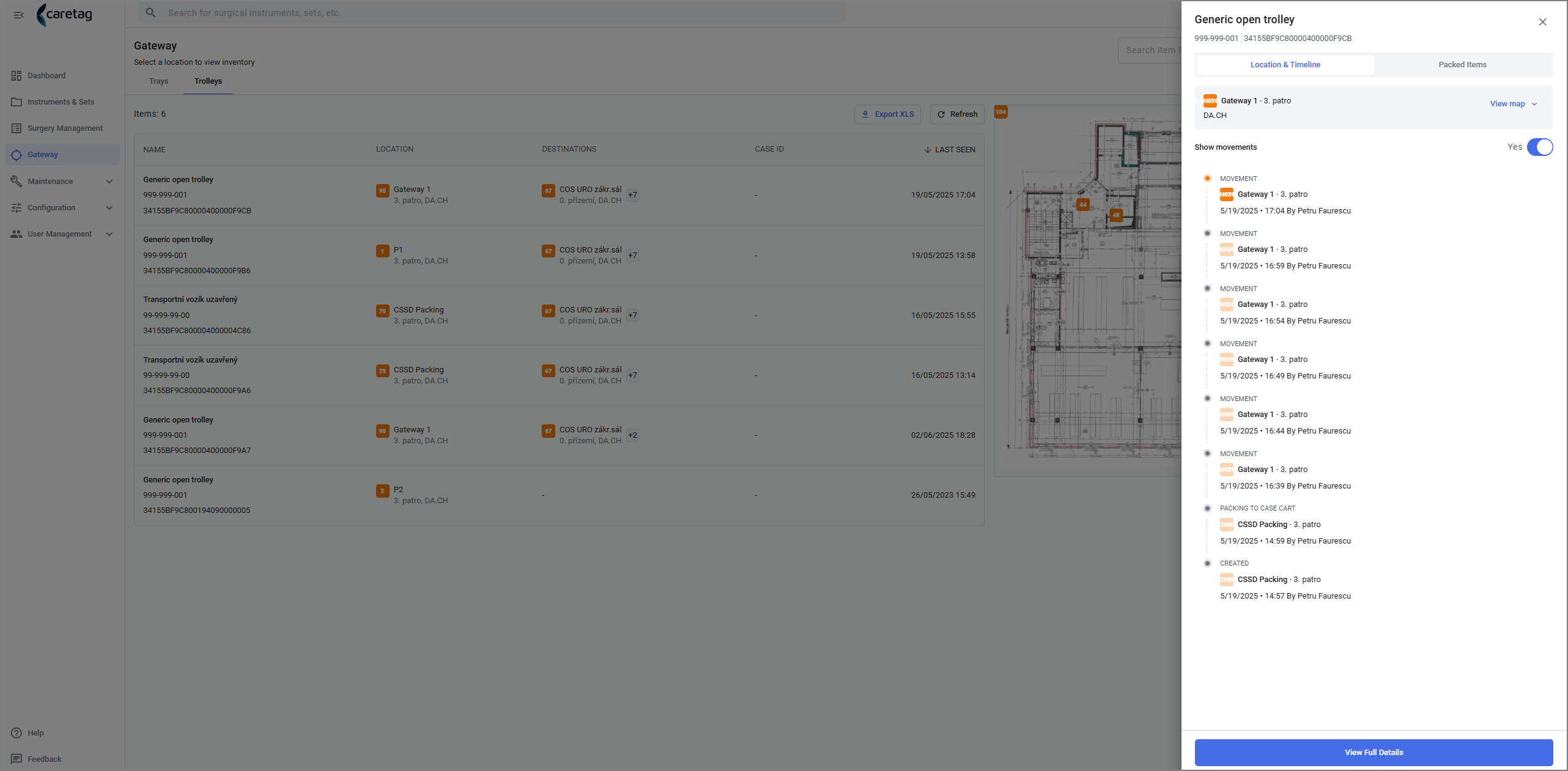
- Click on show more to see more details
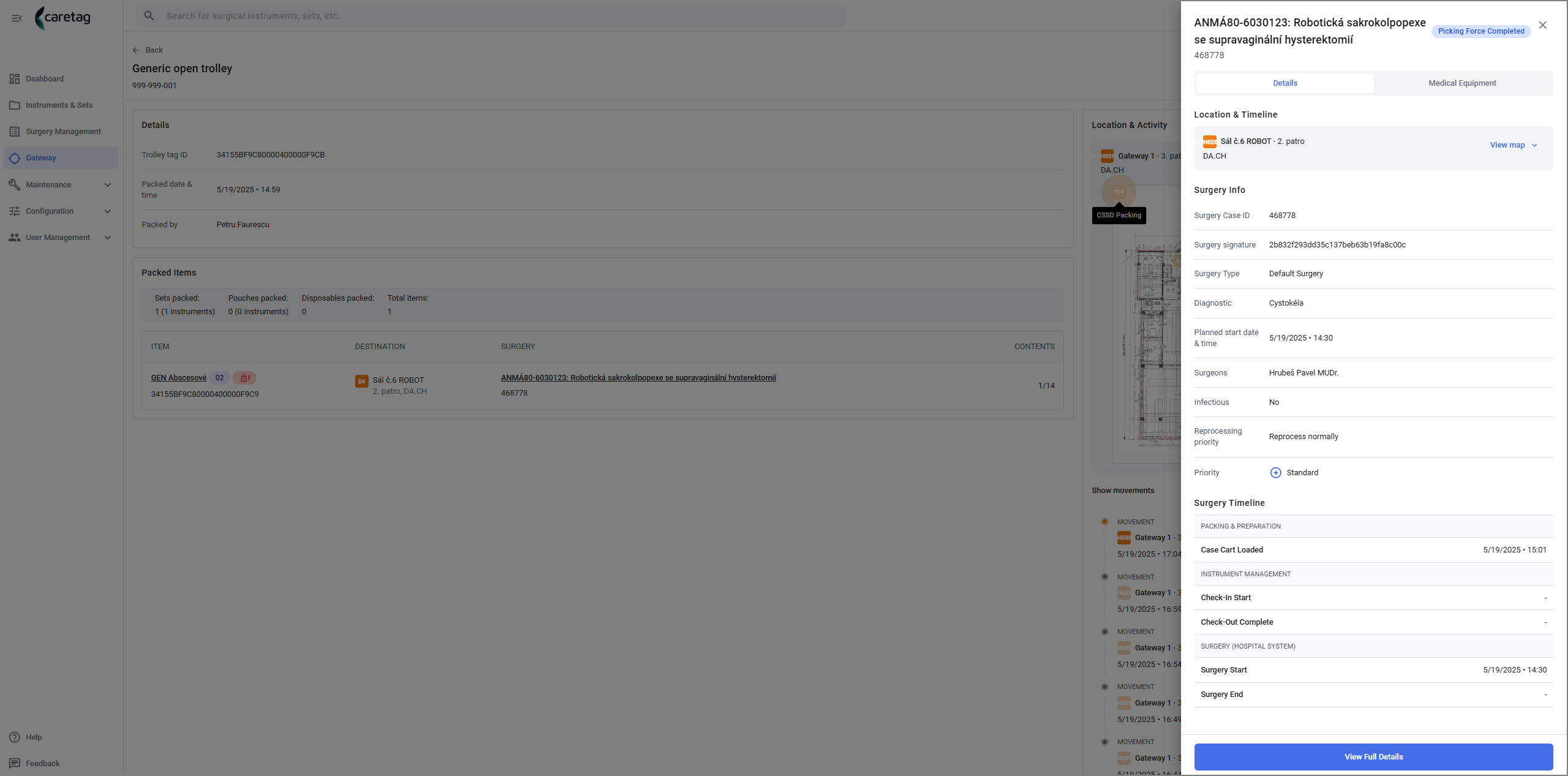
- Click on the view full details button to see the full details of the Trolley.
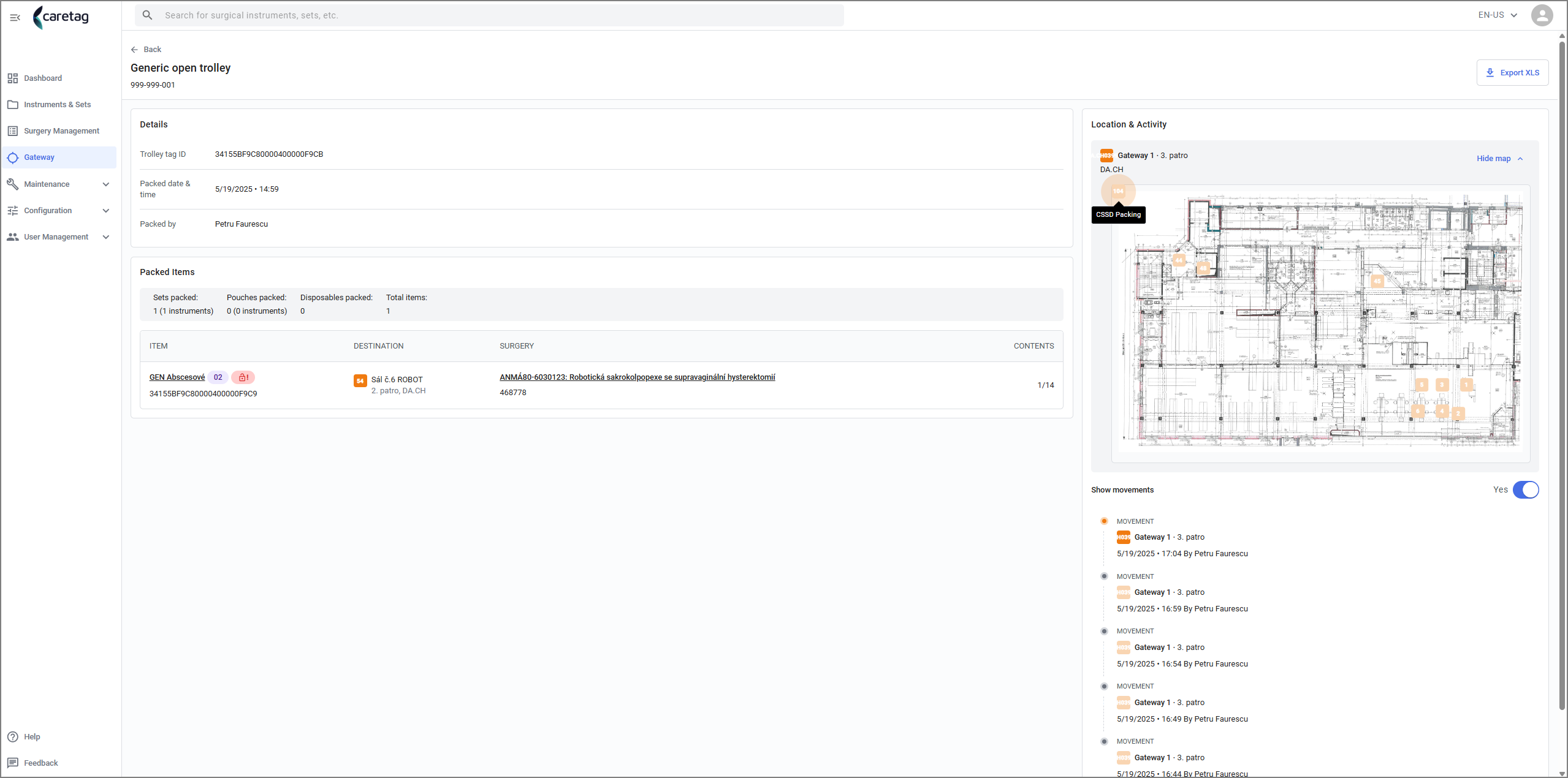
- The full details page has 3 sections: Details, Packed items and Location & Activity in the right side
Details
| Details | Description |
|---|---|
Trolley tag ID | Displays the Trolley tag ID |
Packed date and time | When the trolley was packed |
Packed by | Who allocated the containers/sets to the Trolley |
Packed items | Details of the packed items in the trolley |
Location and Activity | Displays the Map and show movements |
- Click on the packed item to view the details of the packed items
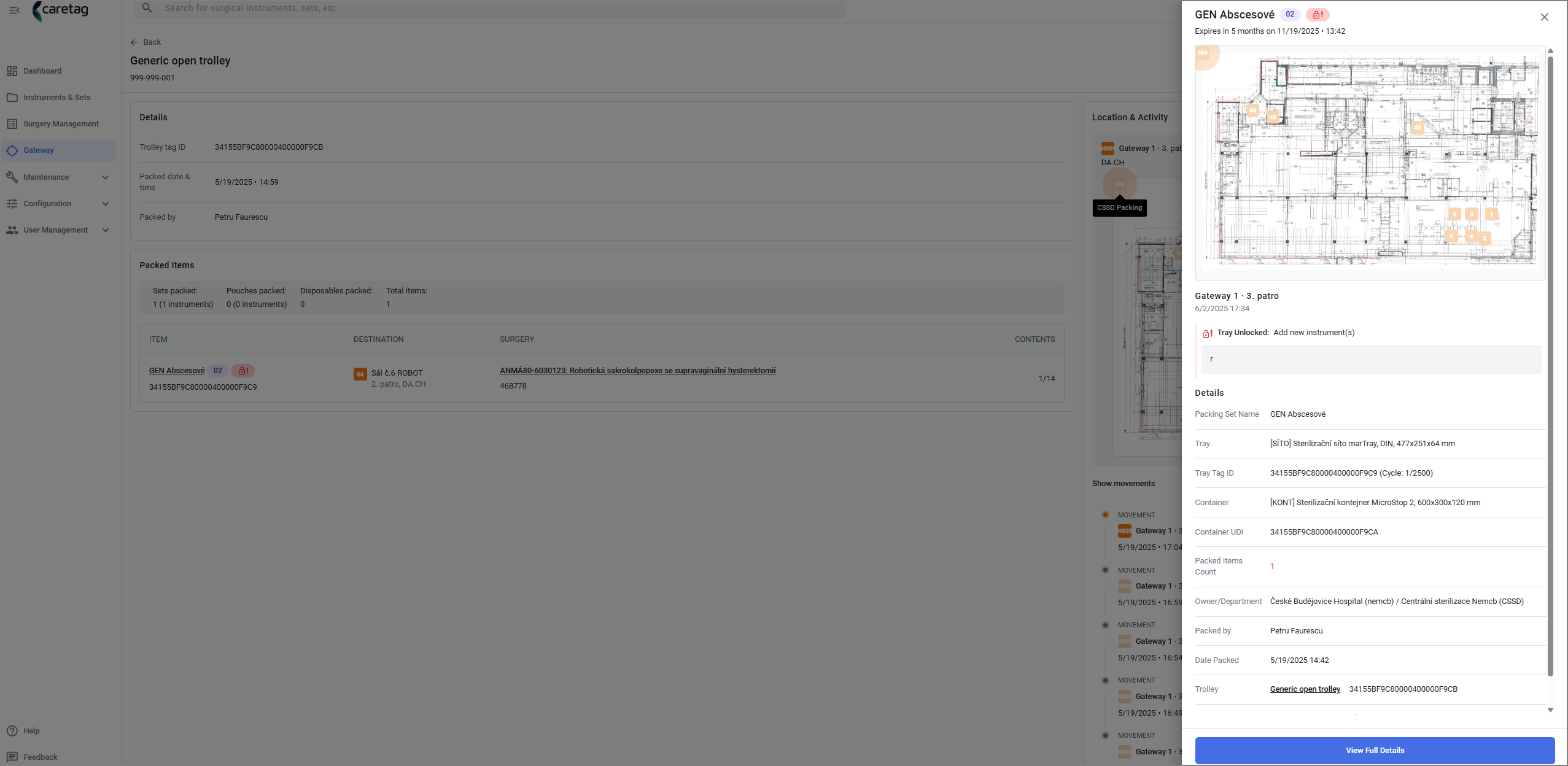
- Click on view full details to see all the details of the packed set
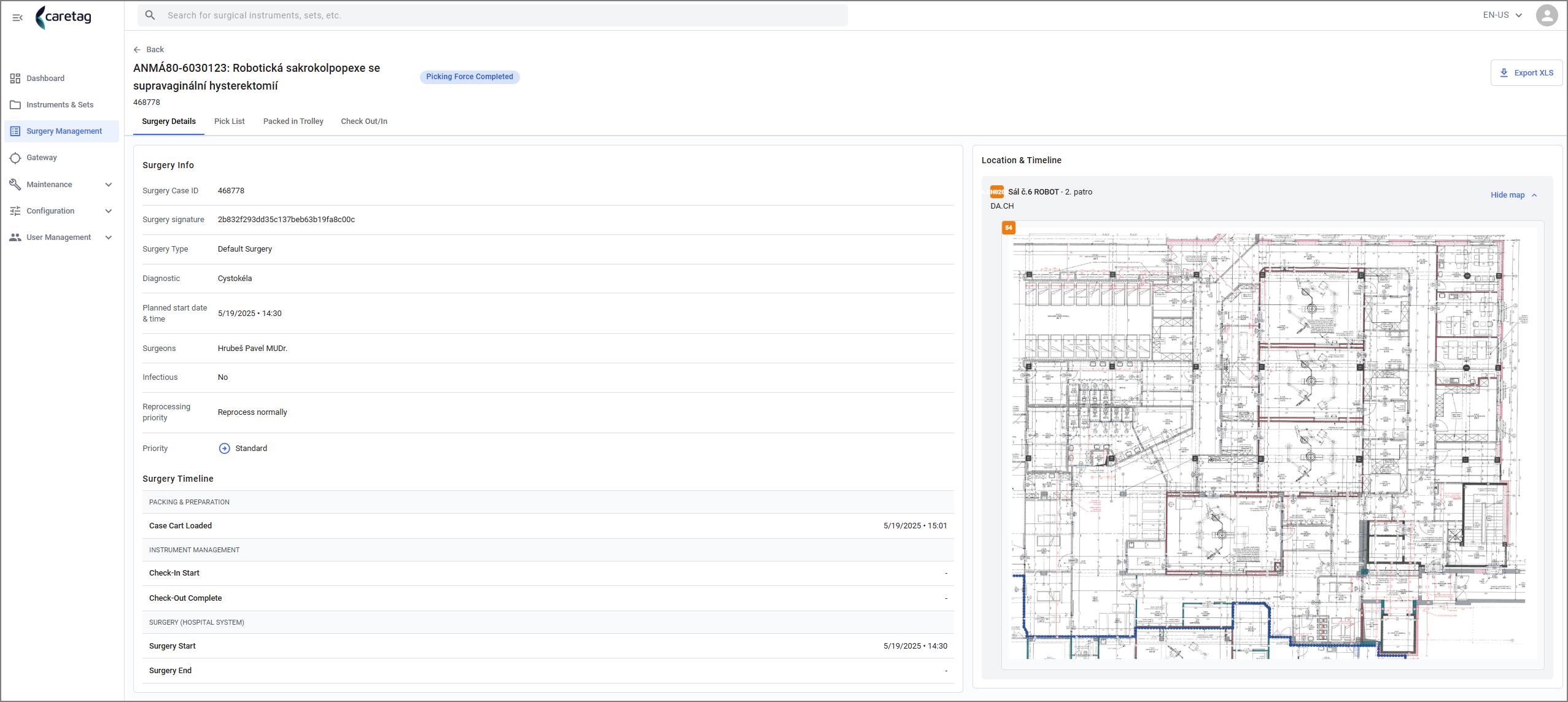
- Click on the Surgery to view the surgery details.