Get Info - Getting Started
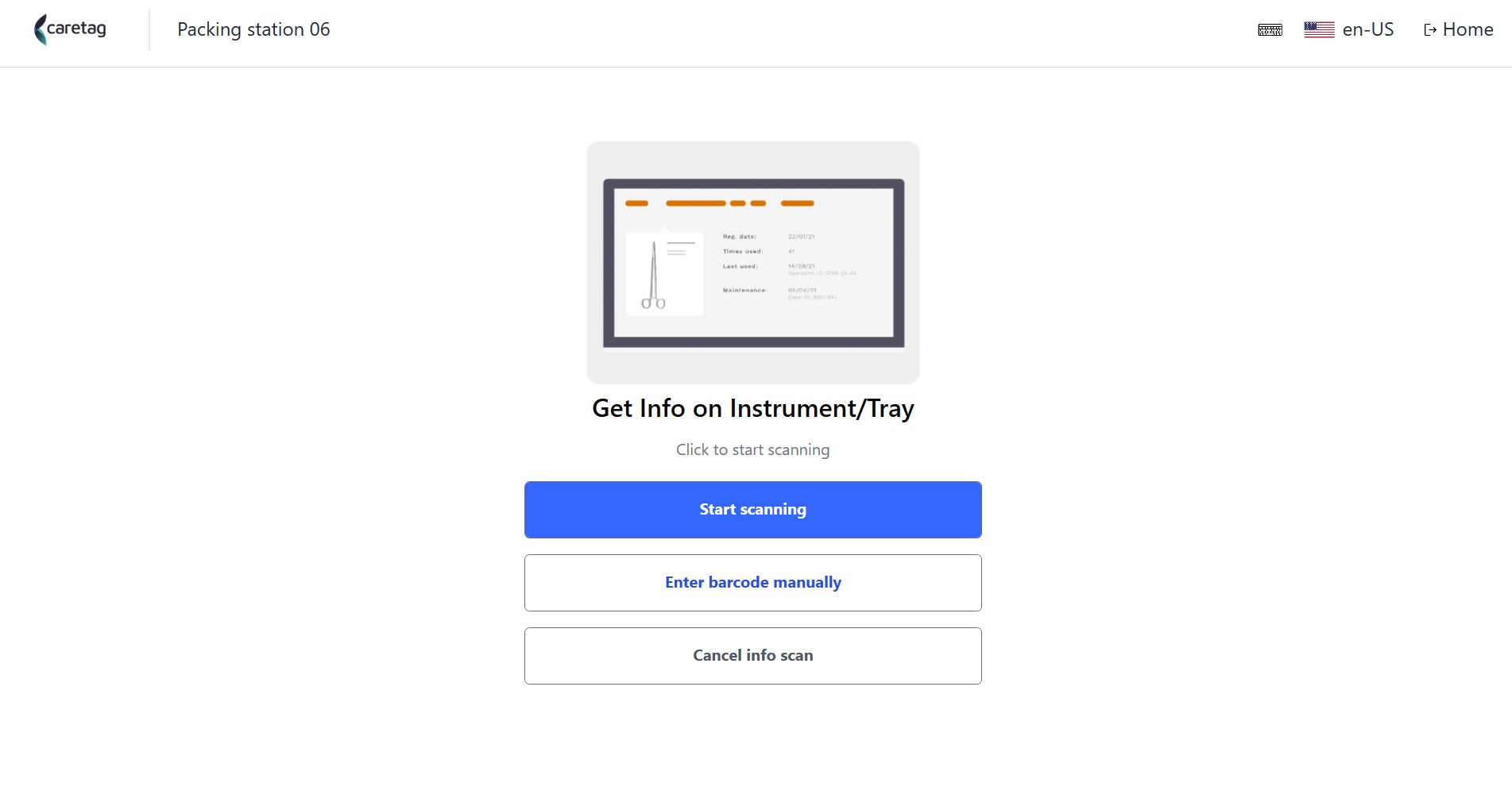
Start screen
- Select the Get Info option from one of the following stations: Technical station, Packing Station, Smart OR Info station
- Place the tag on the Reader and click stat scan button or Enter the barcode manually.
Instruments details
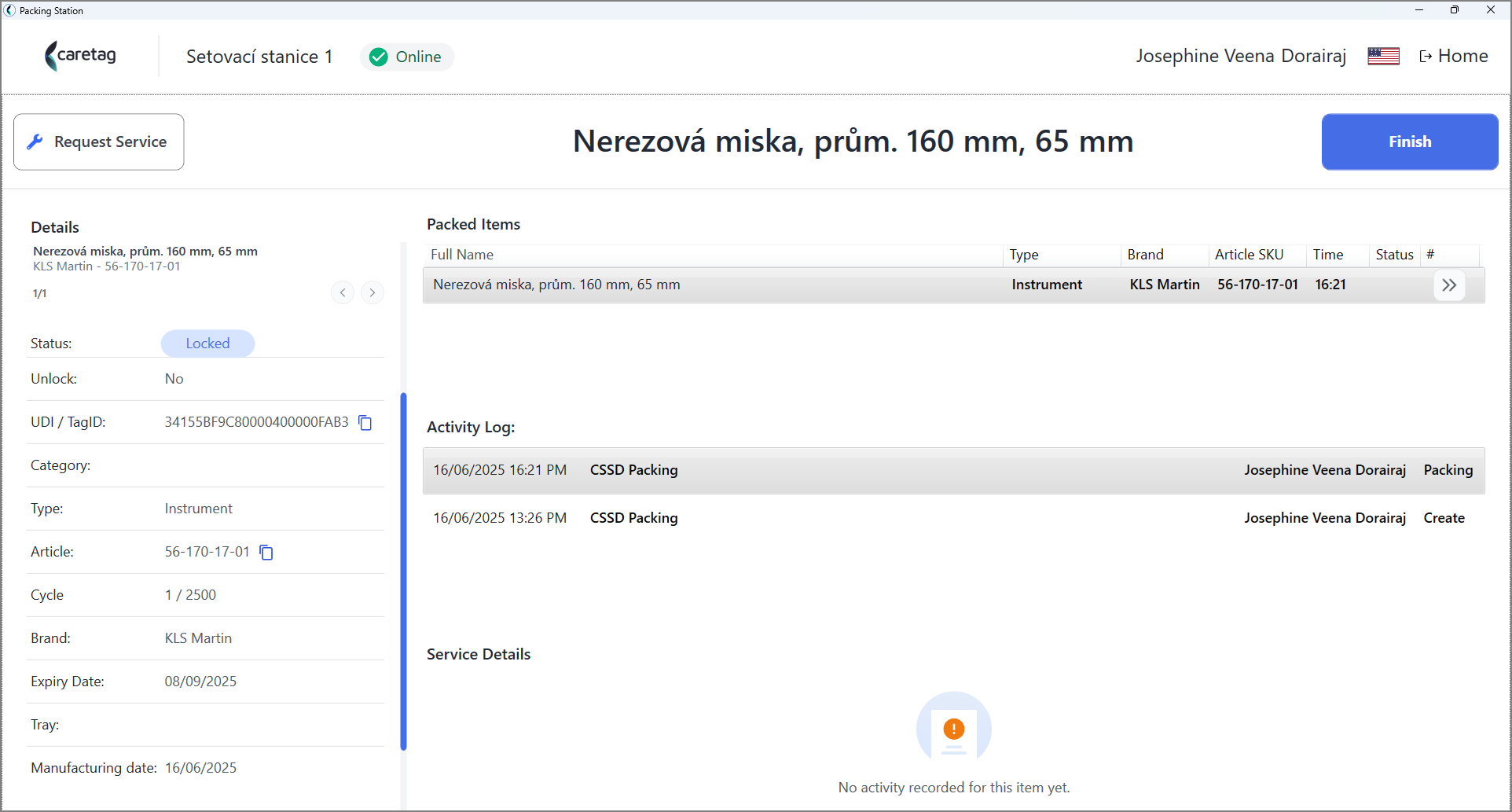
Useful information such as the status, category, article sku, brand, picture (optional), activity log, service details about the instruments can be found by scanning or by entering the barcode manually in the Get info section.
- In this scenairo the scanned instrument is packed in a pouch.
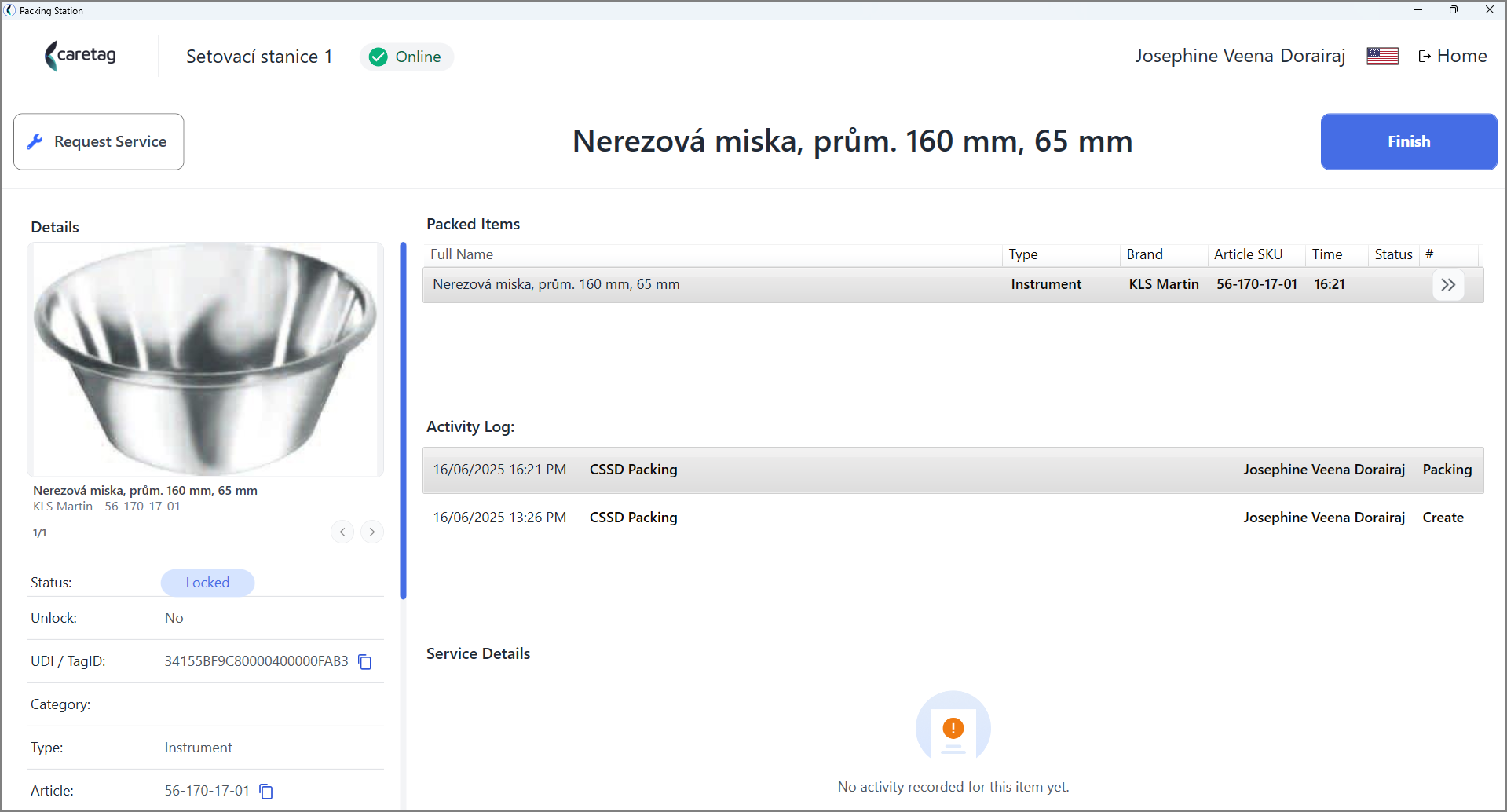
- On the left side of the screen, the details of the scanned instrument is displayed.
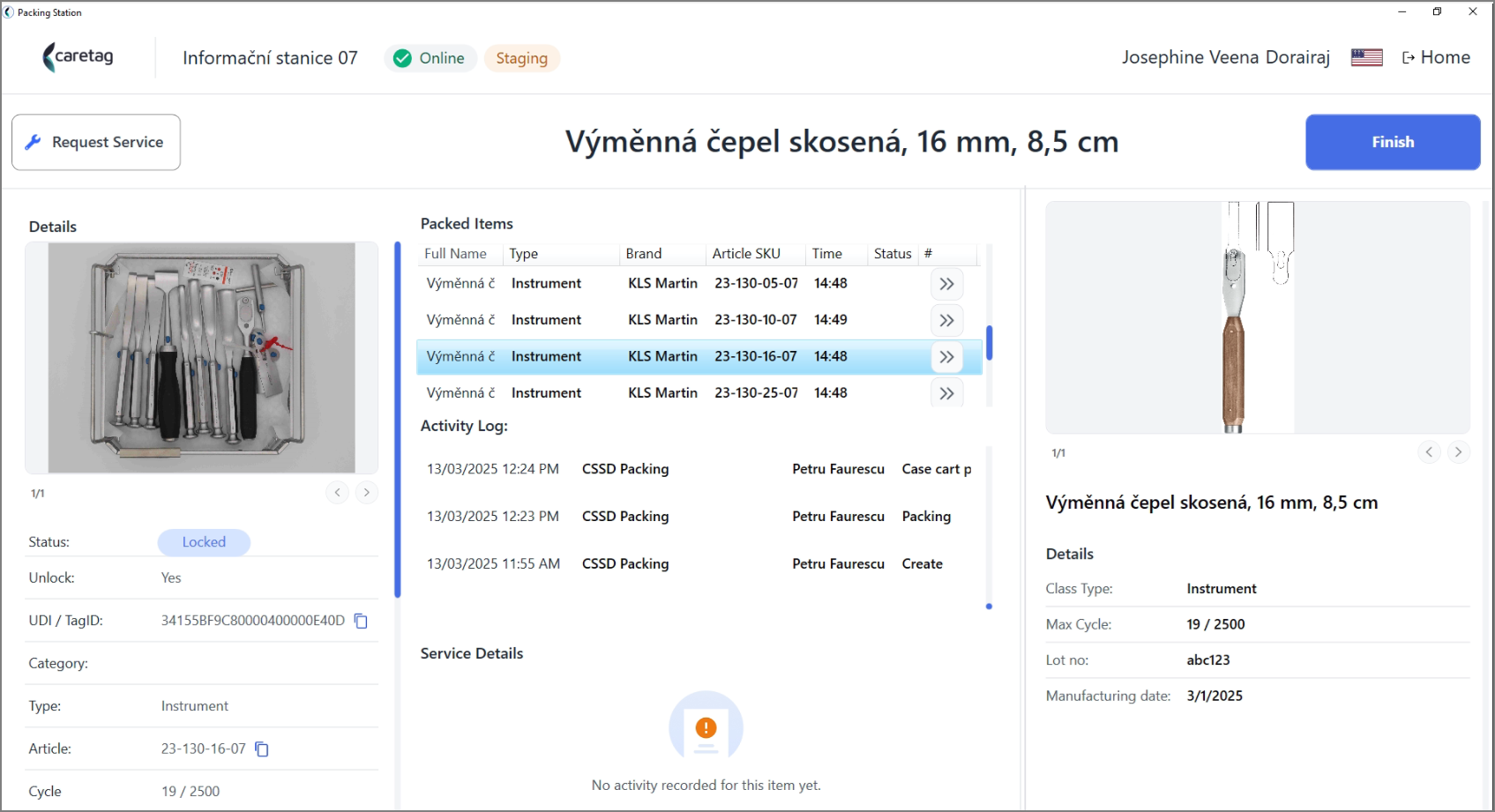
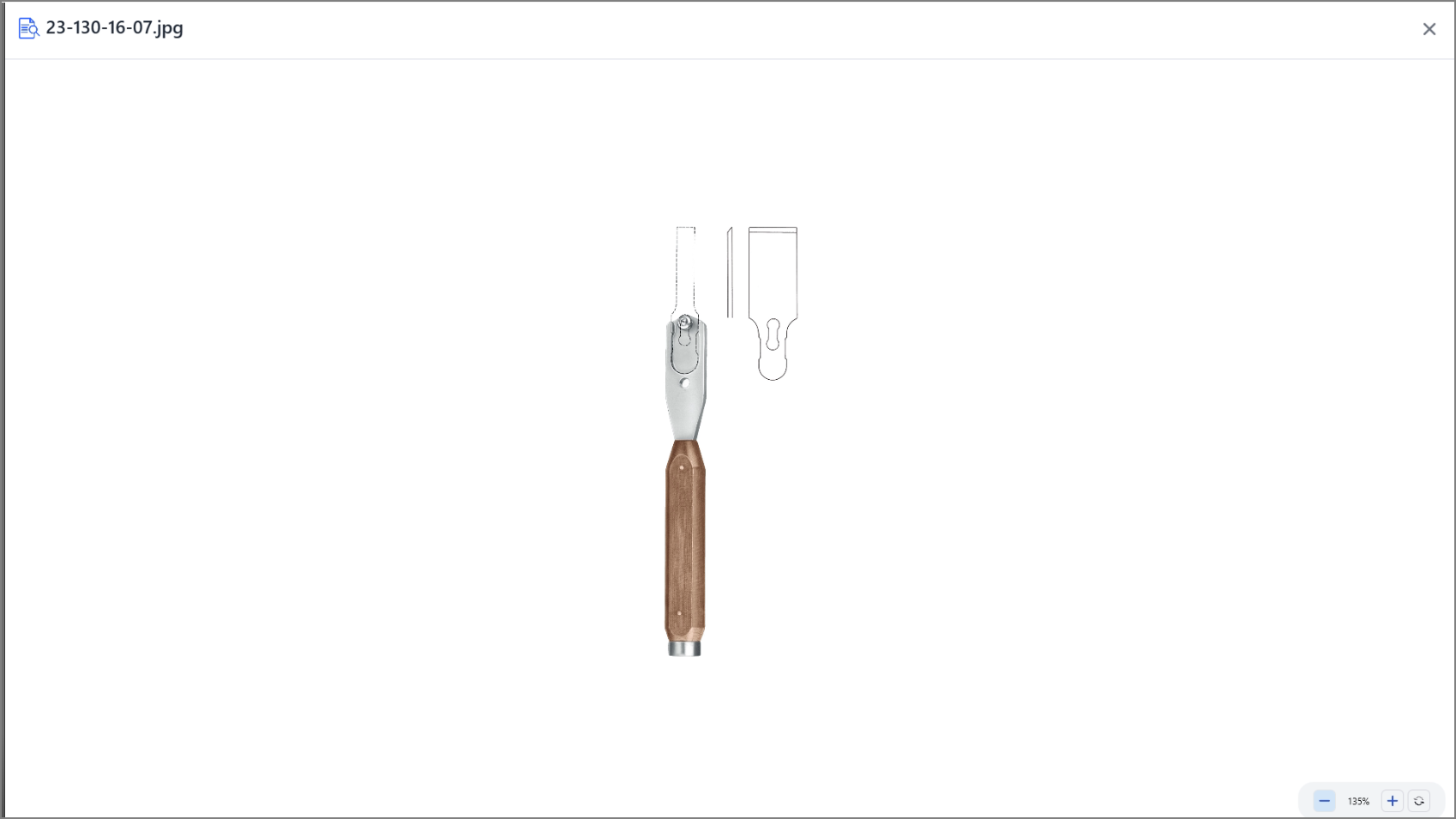
- In the second scenario the scanned instrument is packed in a tray, so it displays the picture of the tray in the left side panel and the picture of the instrument in the right side.
- Clicking the image the user can zoom in and zoom out.
- Users can submit a service request via Get Info, a detailed explanation of service requests are provided in the User manual.