Get Info
- Get Info allows the user to quickly view asset information by scanning the tags or entering the barcode manuaaly.
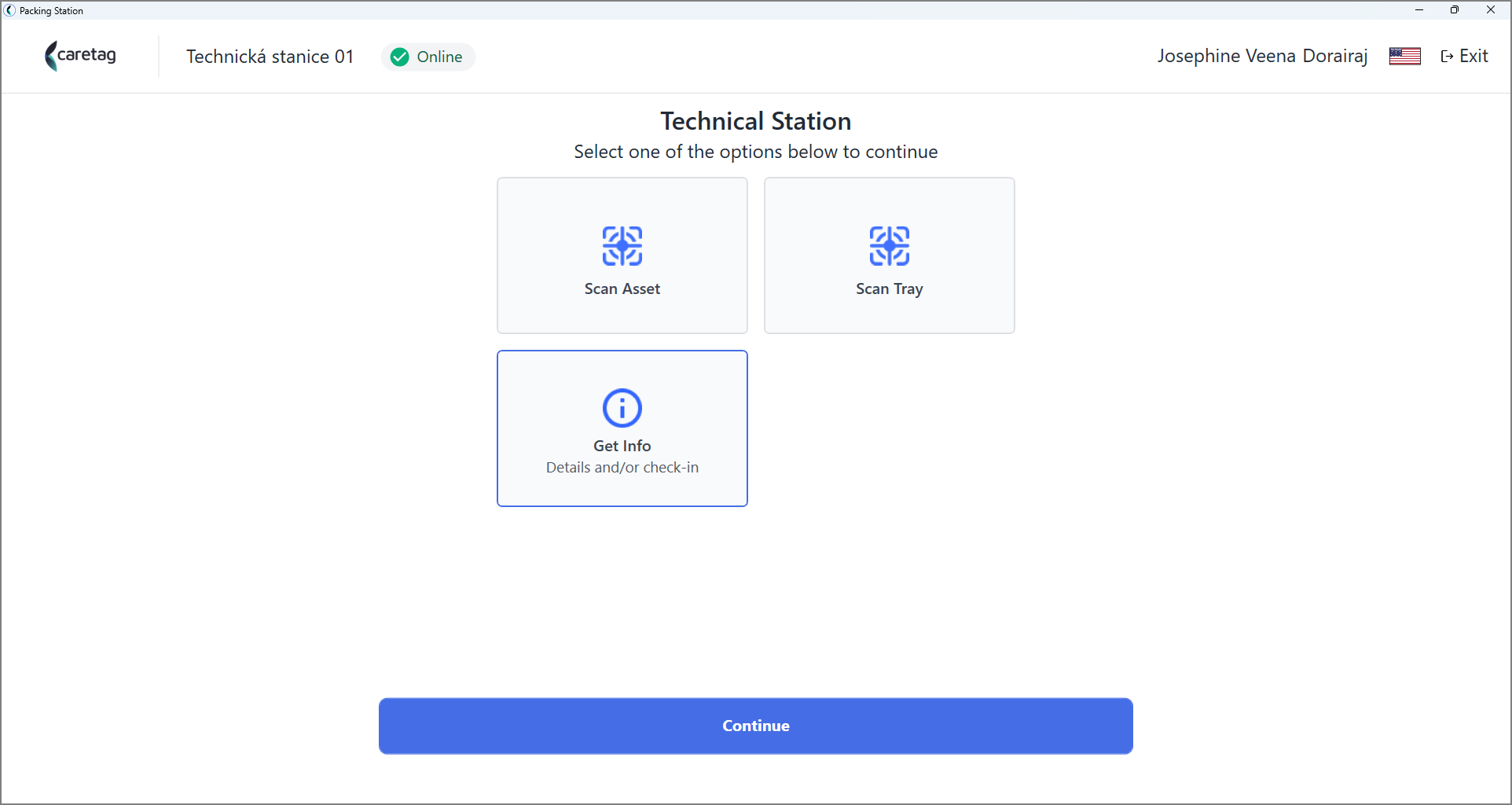
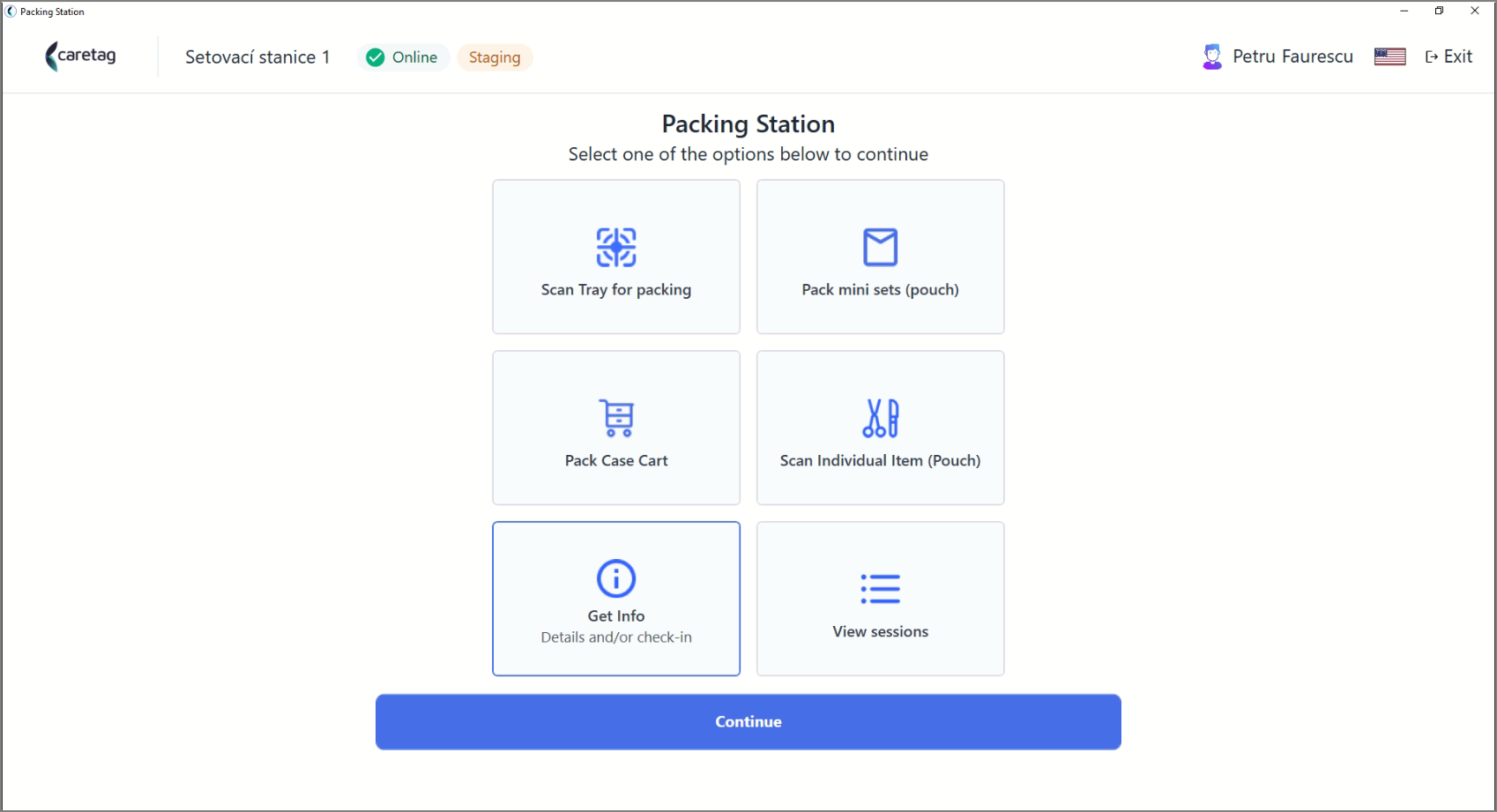
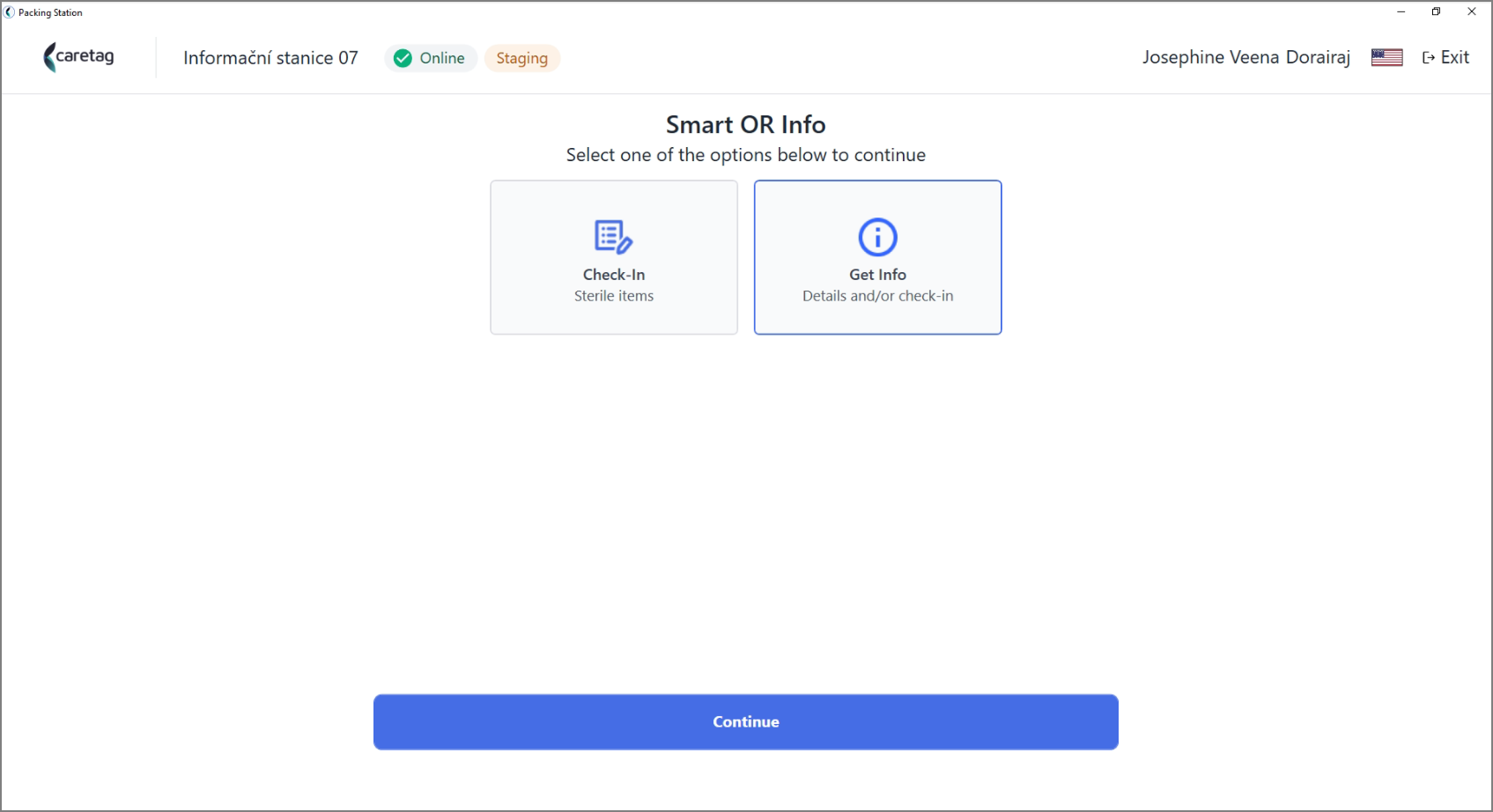
- This feature is available in the following three stations: Technical Station, Packing Station, and Smart OR Info Station.
Get Info - Flow
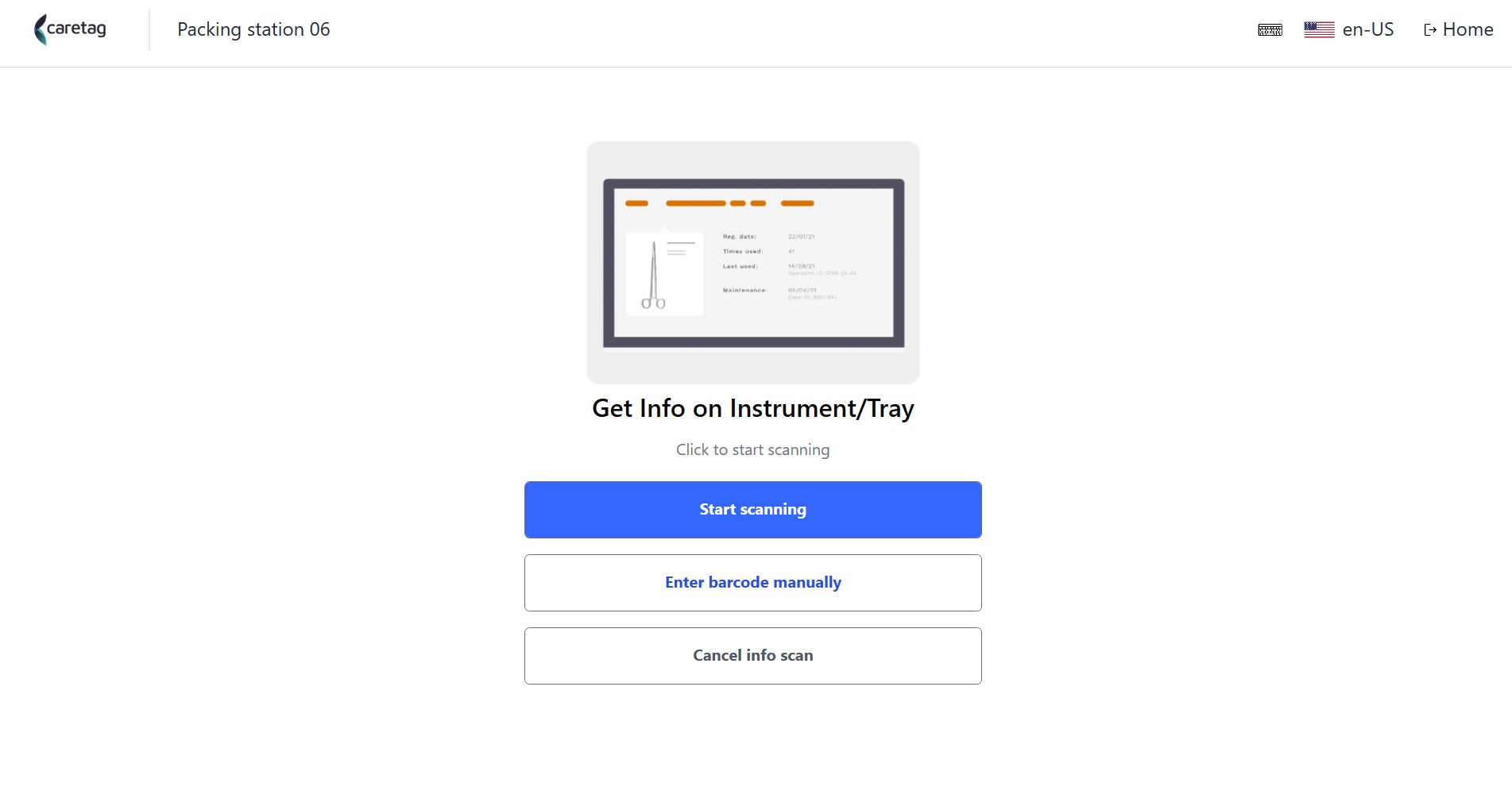
- Select the Get Info option and click continue.
- Place the tag on the Reader and click stat scan button or Enter the barcode manually.
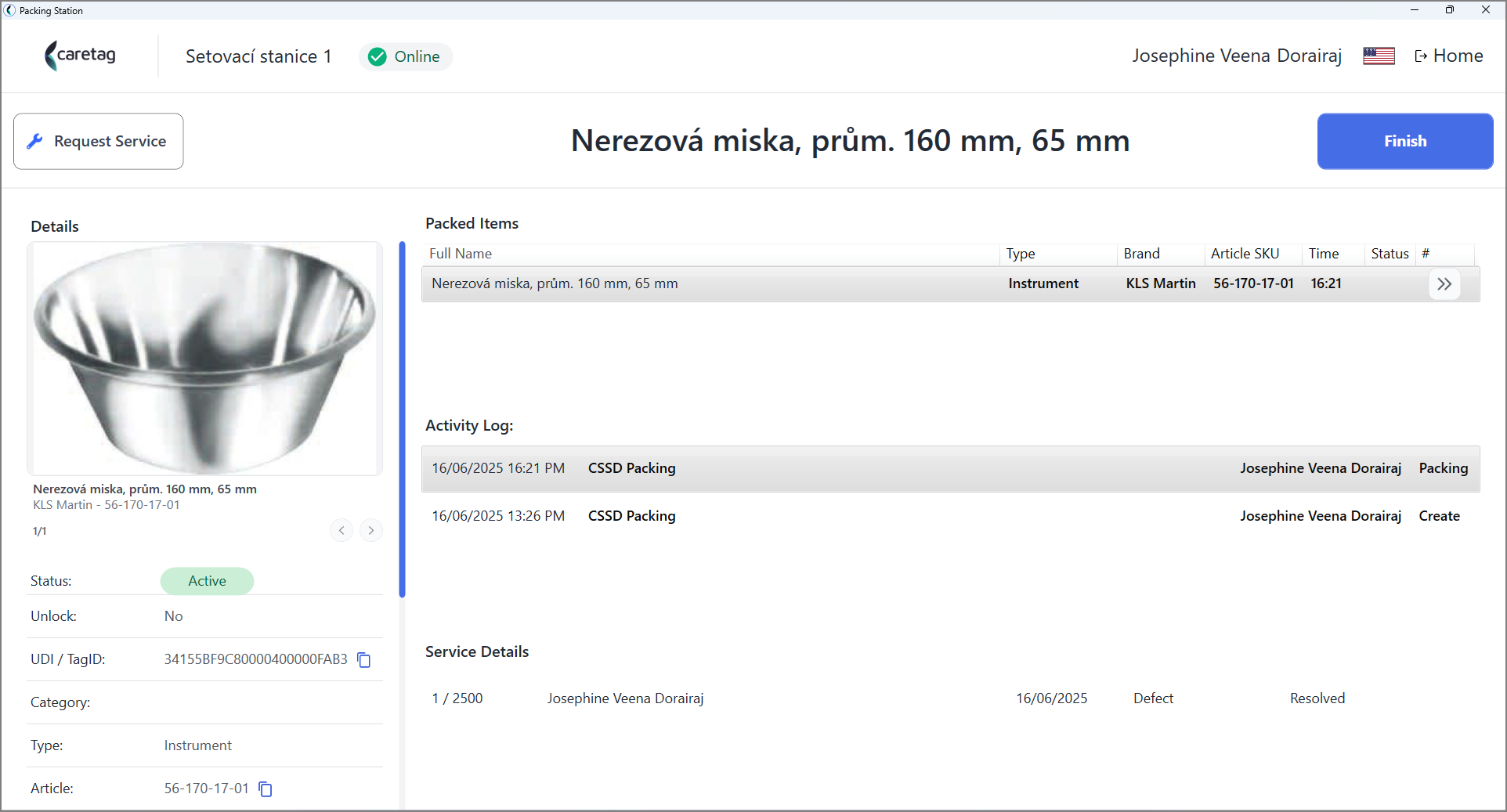
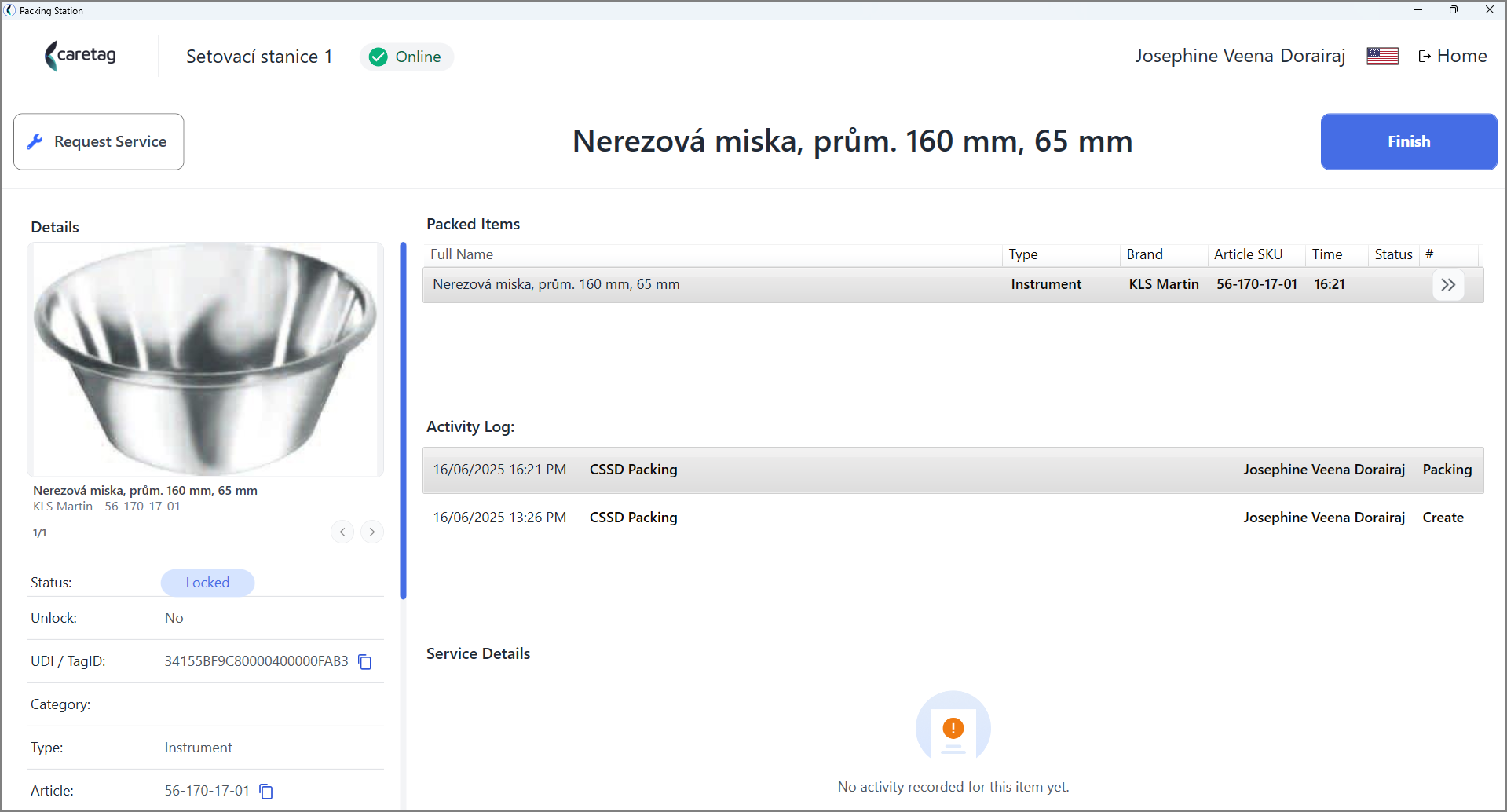
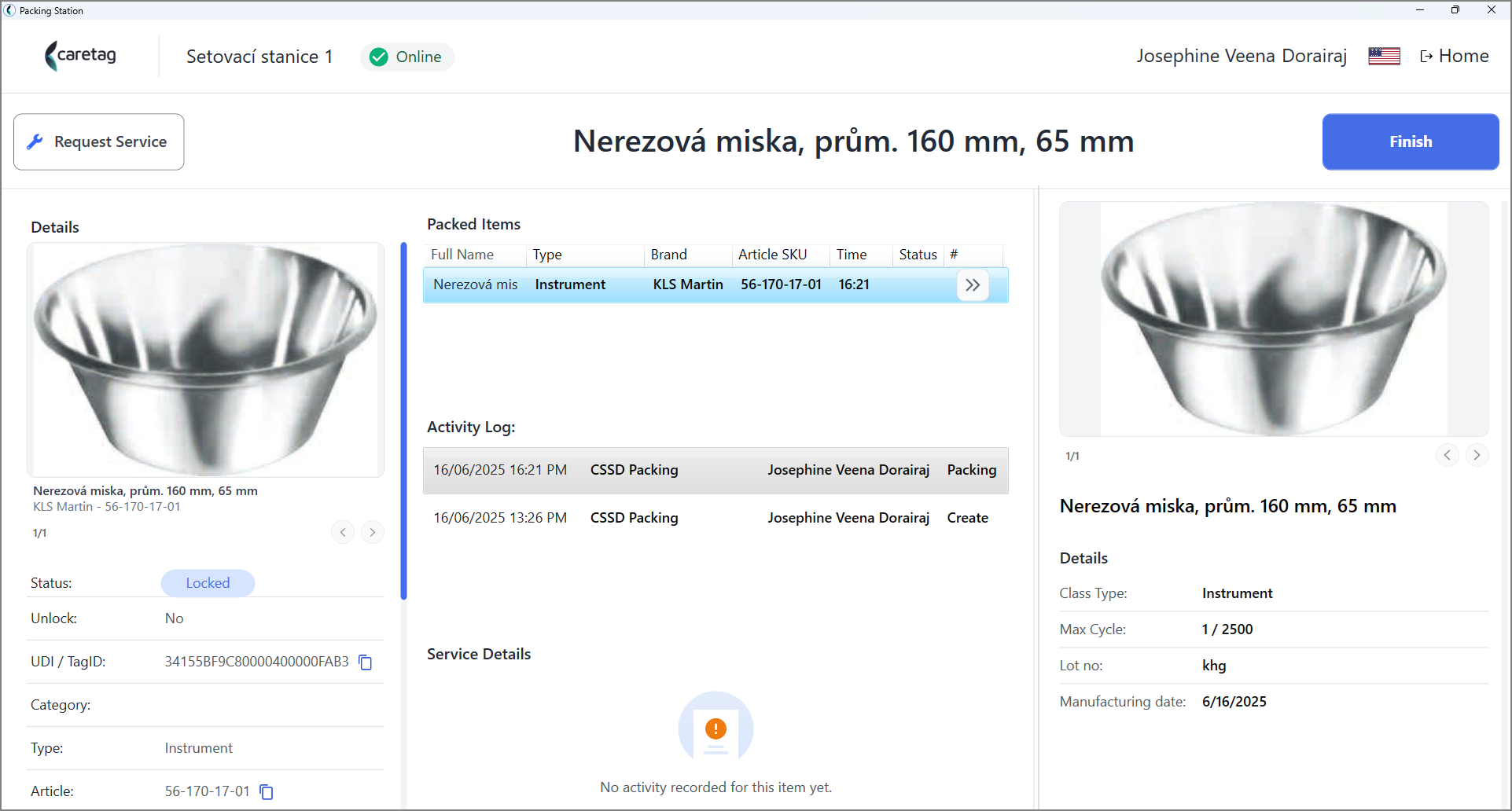
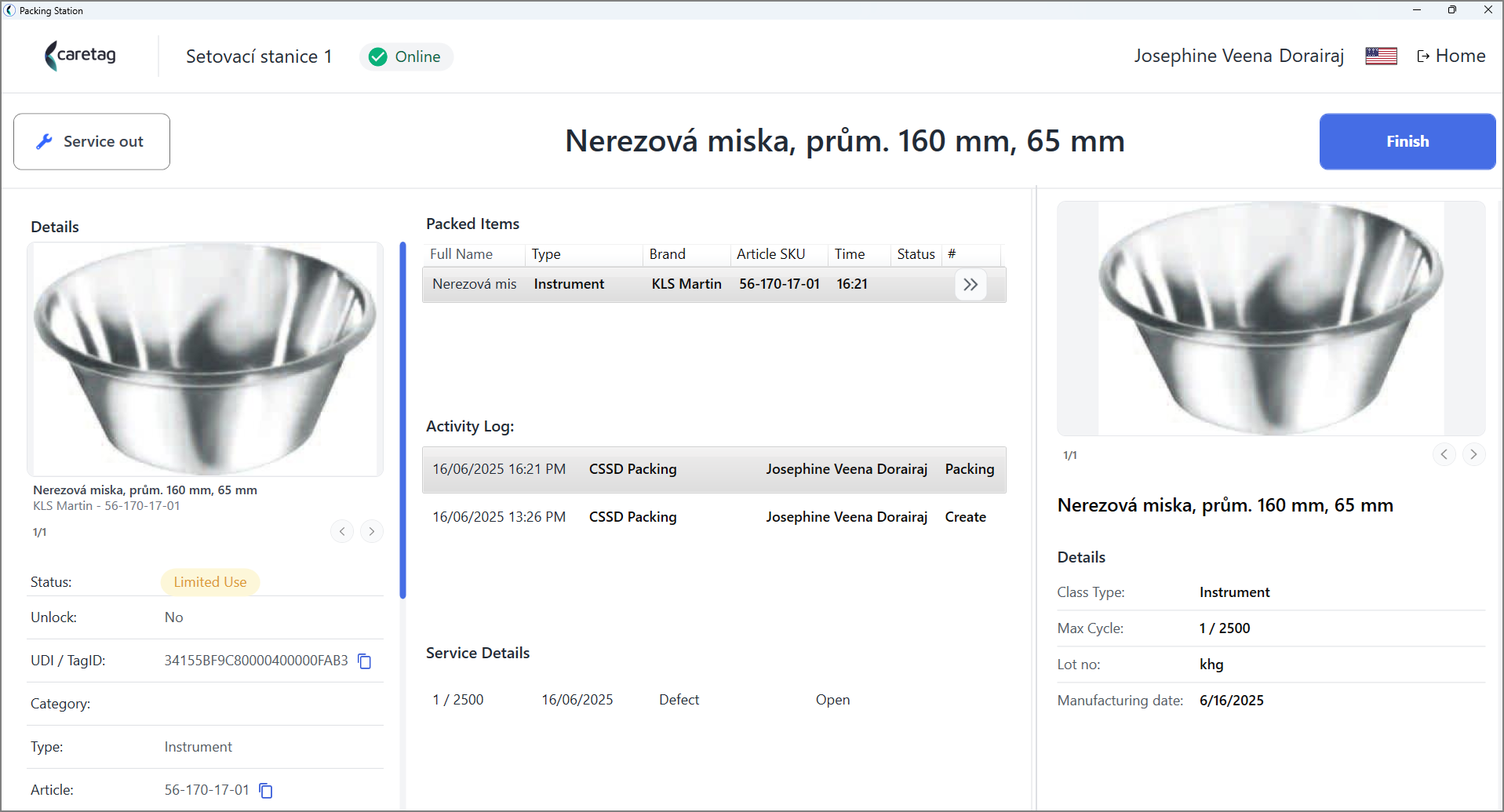
- Once an item is scanned it will show the details of it. Below is the information of the instrument that is packed, hence the status is locked.
- In the center of the page the user can view all the packed items in the packing set with their name, type, brand, article number and status.
- Below that activity log is displayed where it shows when was the item used last item, location where it is located, who has done the changes and the action status.
- On the left side of the screen, the details of the scanned instrument is displayed.
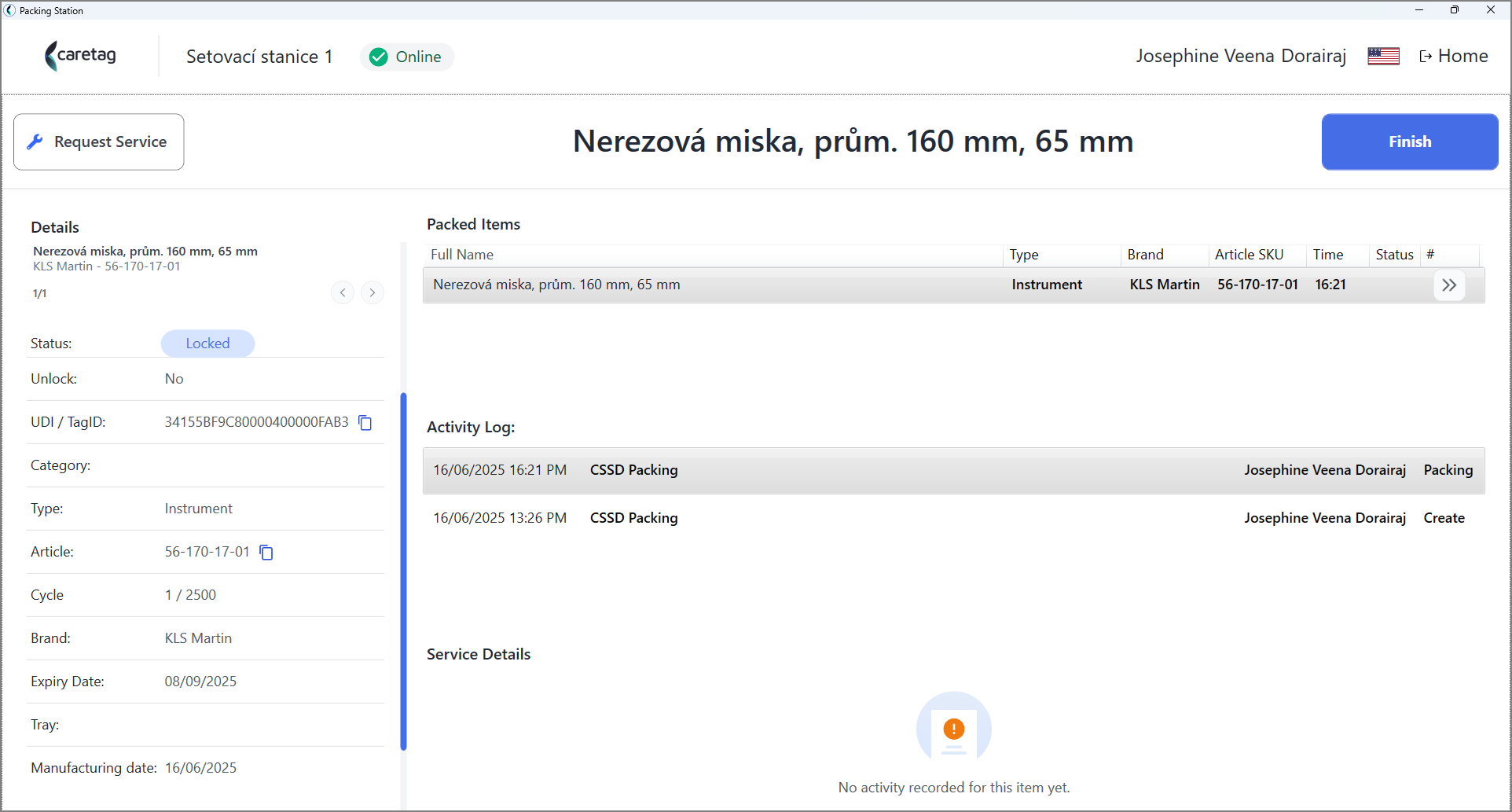
| Details | Description |
|---|---|
Status | Status of the instrument such as ACtive, locked, limited use |
Unlock | If the set ahs been unlocked during packing |
UDI/TAG ID | UDI or TAG ID is displayed |
Category | To which category the instrument belongs to |
Type | The tyoe of the scanned asset such as instrument, tray, container |
Article | Article number of the asset |
Cycle | Number of cycles the asset has been finished |
Brand | Brand of the asset |
Expiry date | Expiry date of the instrument |
Tray | To which tray this scanned instrument belongs to |
Manufacturing Date | Manufacturing date of the instrument |
- Clicking on the image of the instrument, we have an option to zoom the image
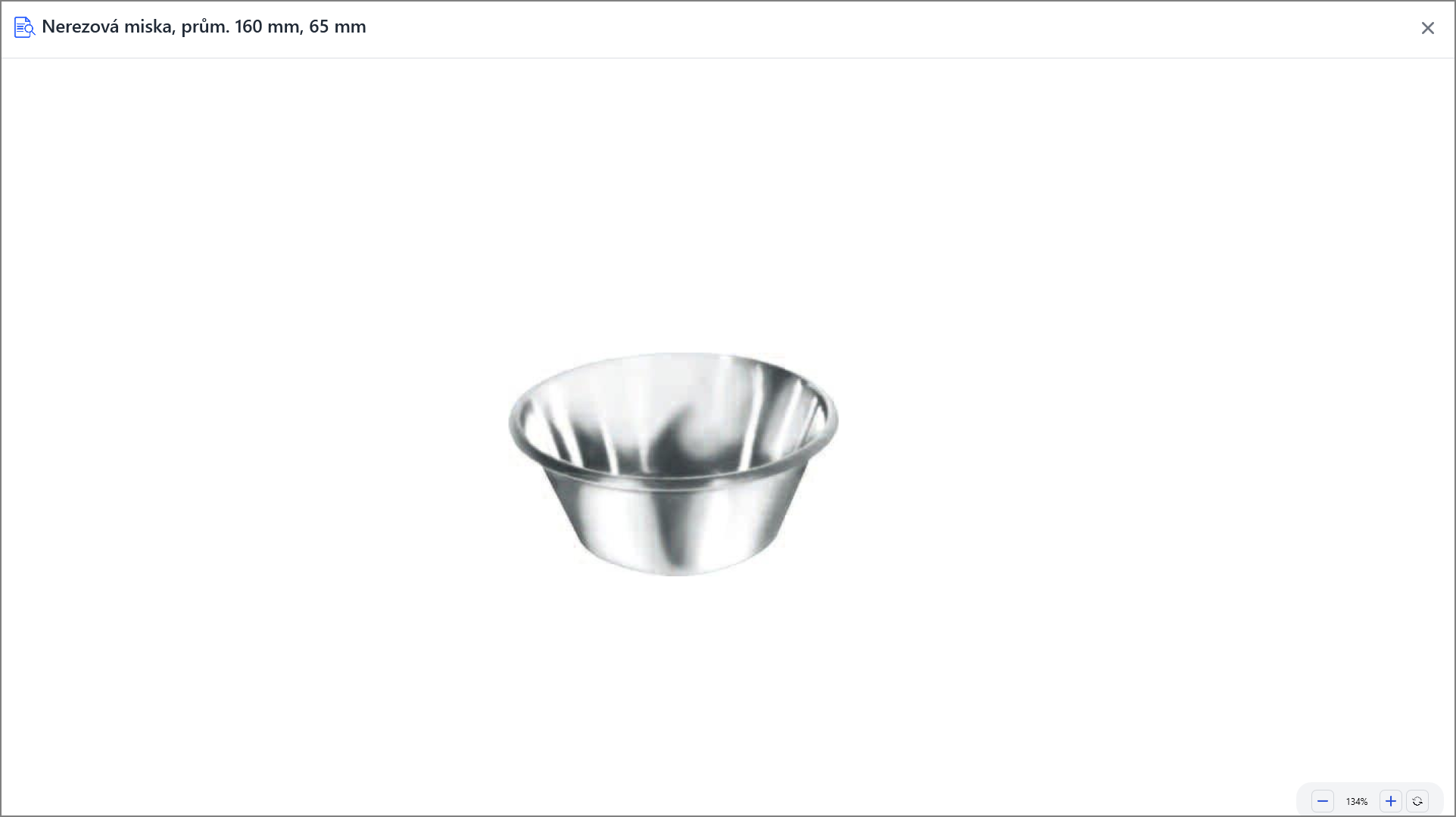
- Once you exit the zoom in page, you can see the details of the instrument on the right side.
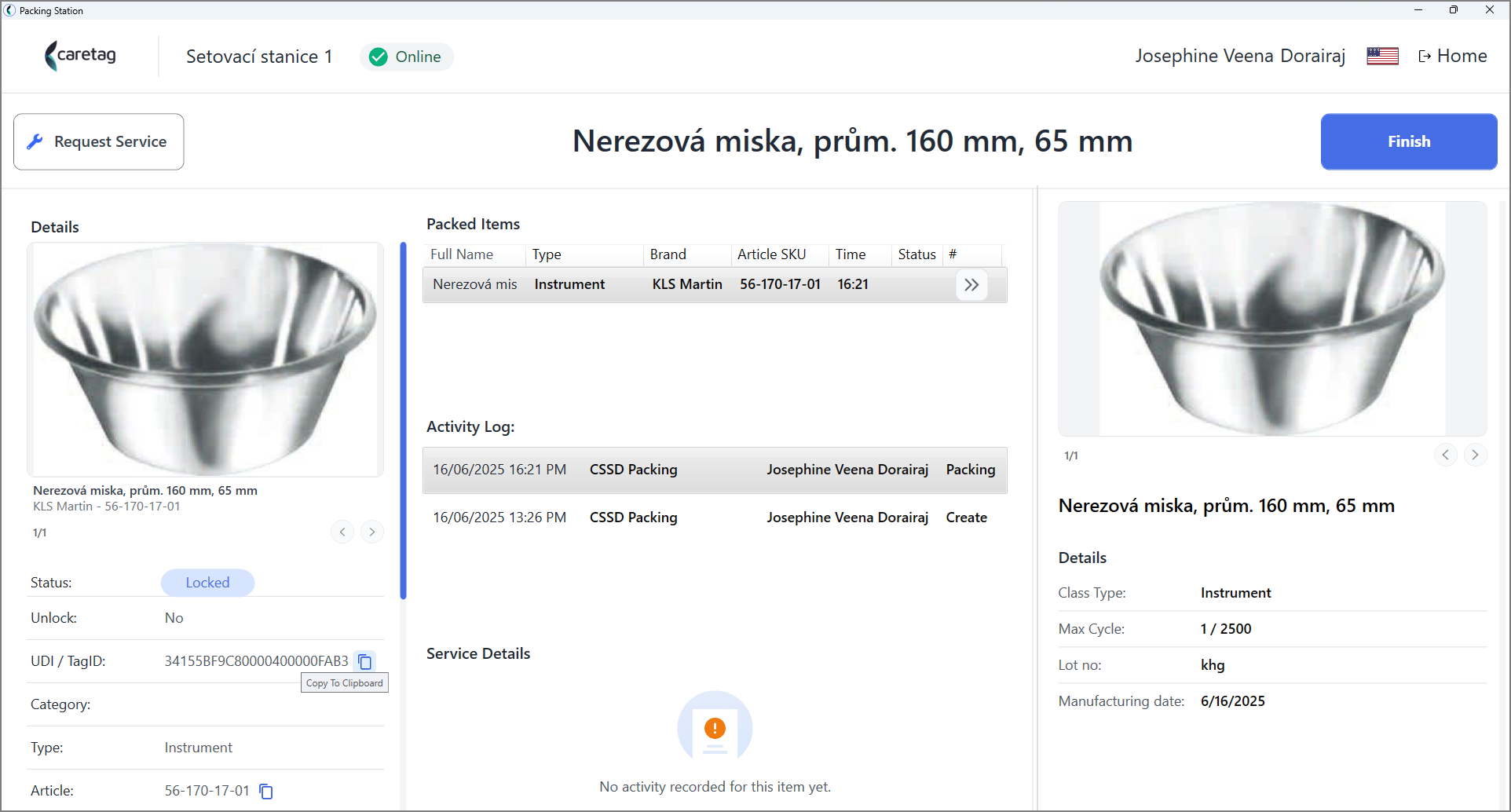
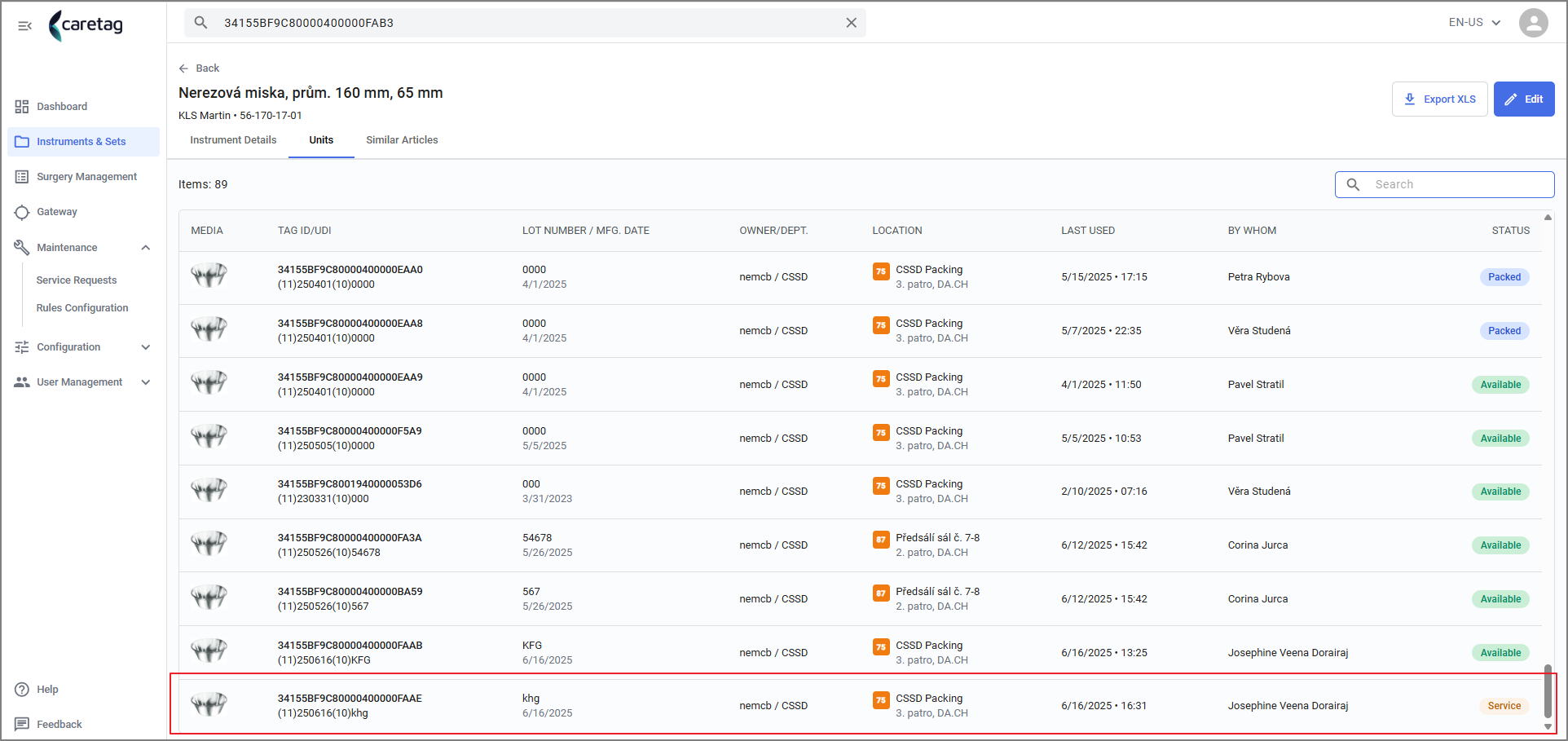
- To view the details of this scanned asset in the web(Admin Station), copy the UDI and paste it in the web(admin station).
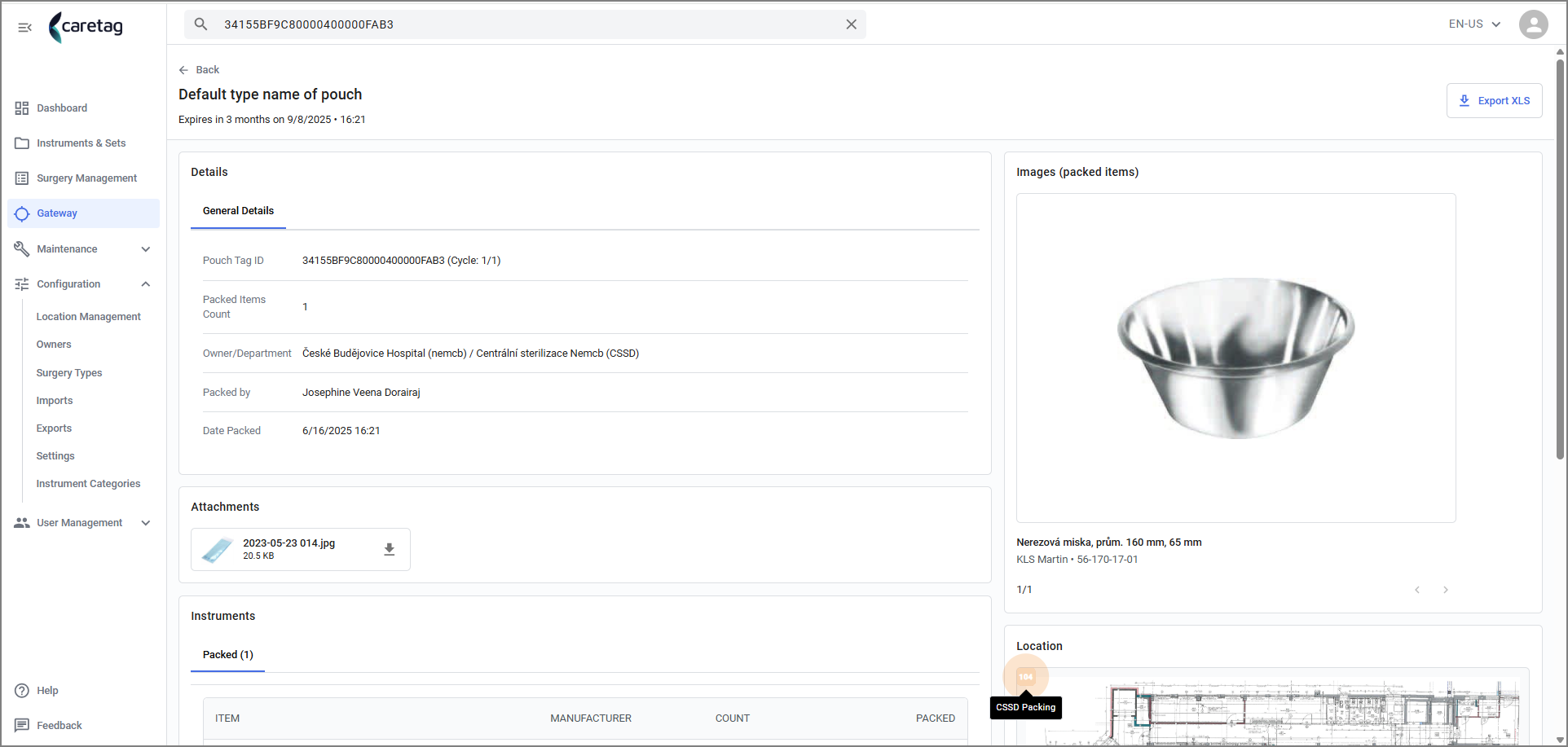
- In the Admin Station, you can see te pouch tag ID, Owner of the department, who and when was the item packed.
- Instrument image on the right side
- Location of the instrument displayed below the image.
- Items packed in the pouch are displayed in the bottom of the page
Submit a service request
- The user can create a service request in the Get info flow.
- Click the service request button
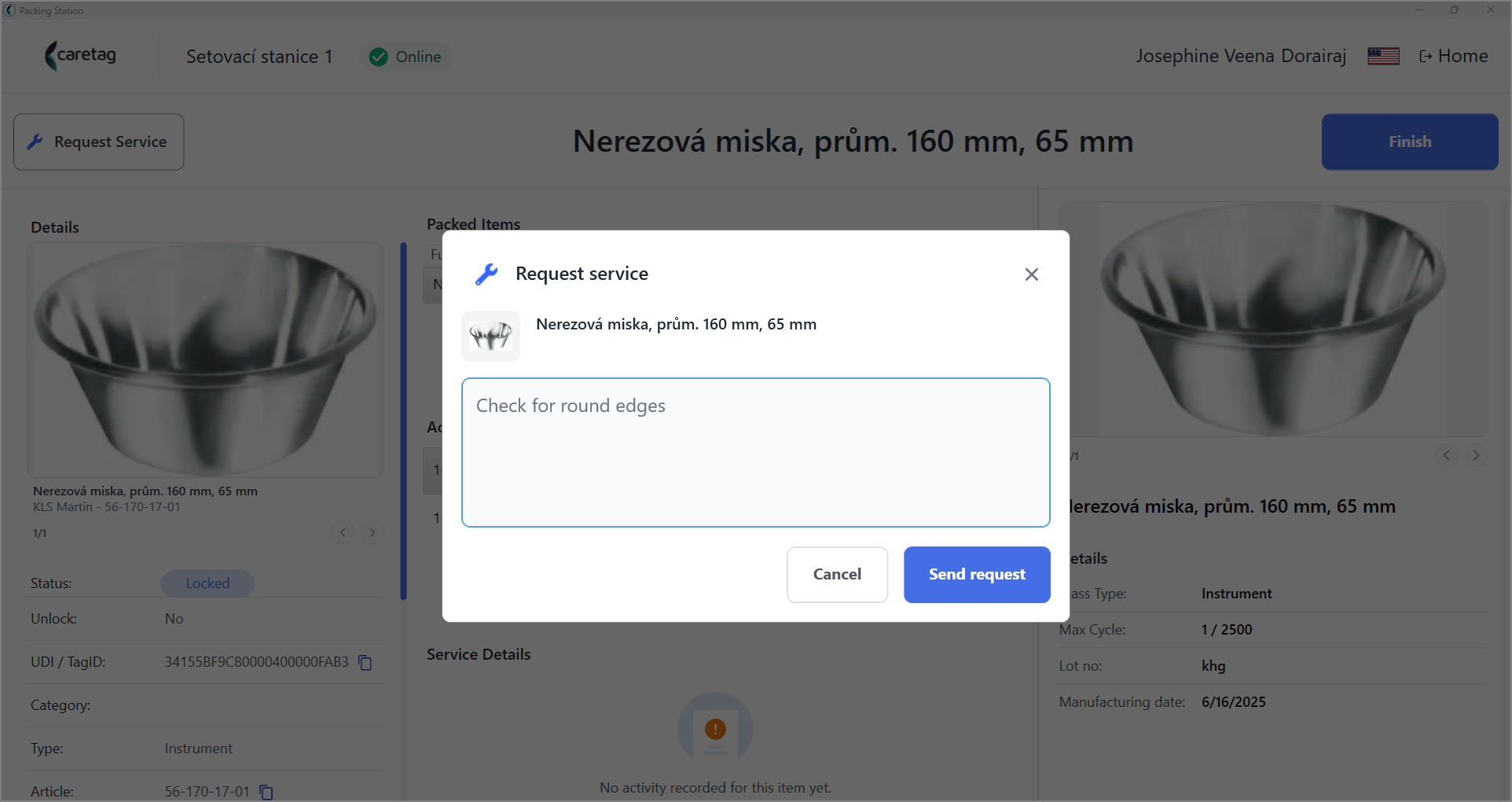
- Type your comments and submit the request
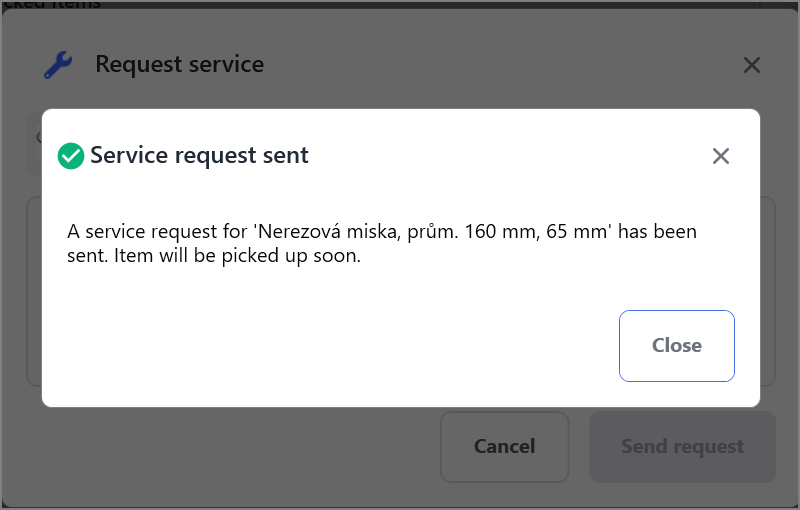
- Once the service request is submitted, the status of the instrument is changed to Limited use
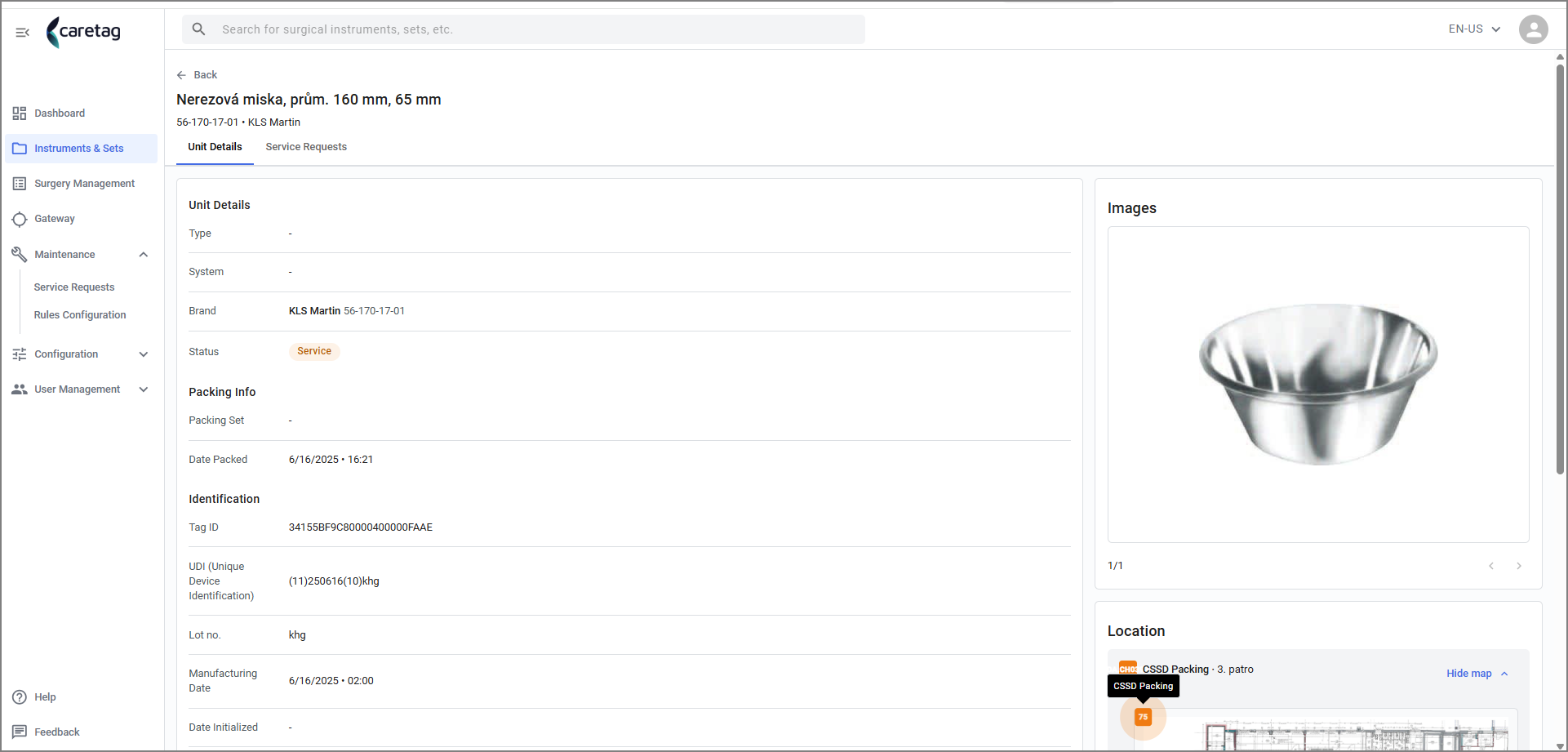
- To view this specific service request, copy the UDI/TAG Id and serach in the web.
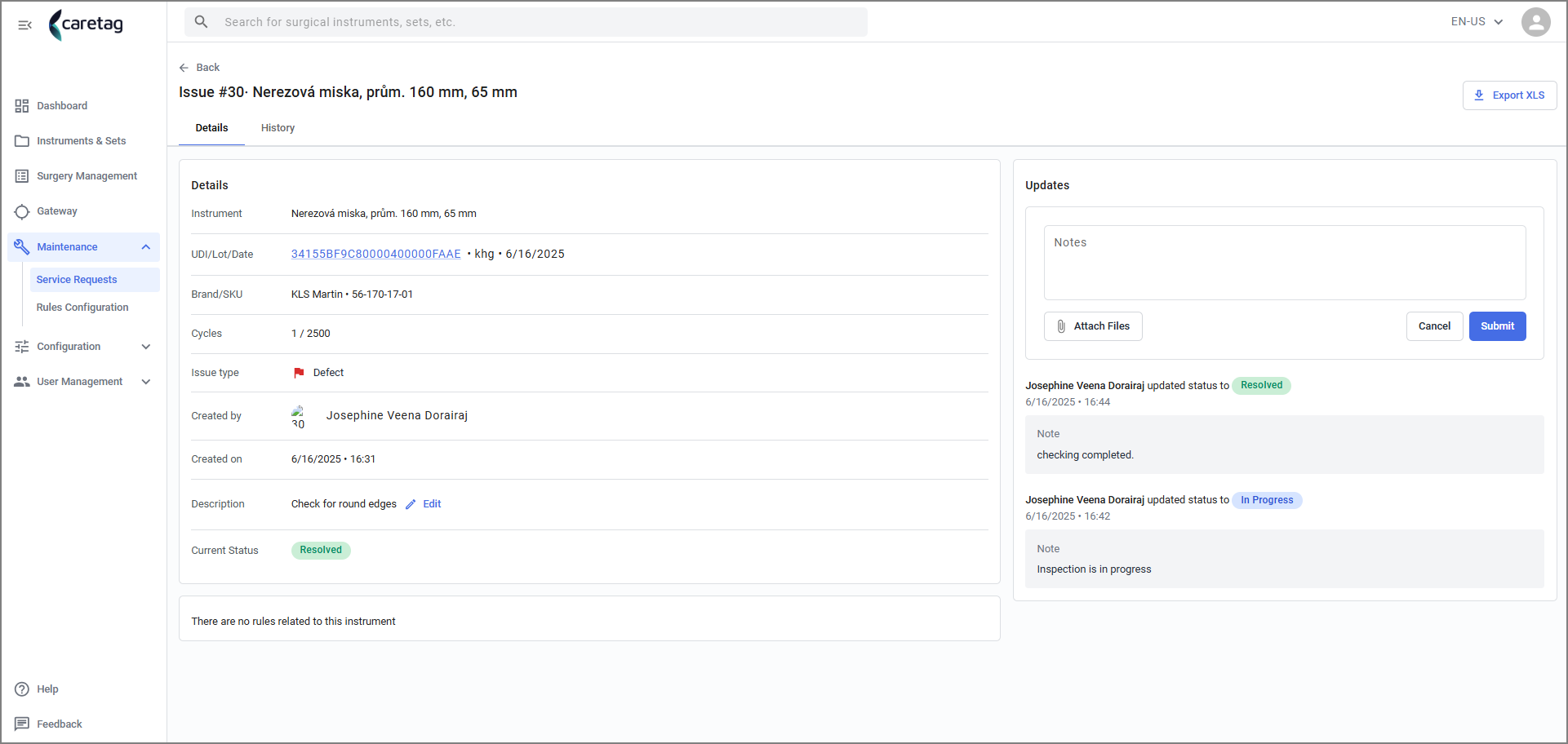
- The details of the service request for this item is displayed as shown below.
Maintenance section - All the service requests are displayed under Maintenance section - Service request. - It has 3 tabs: All request, Open and Closed
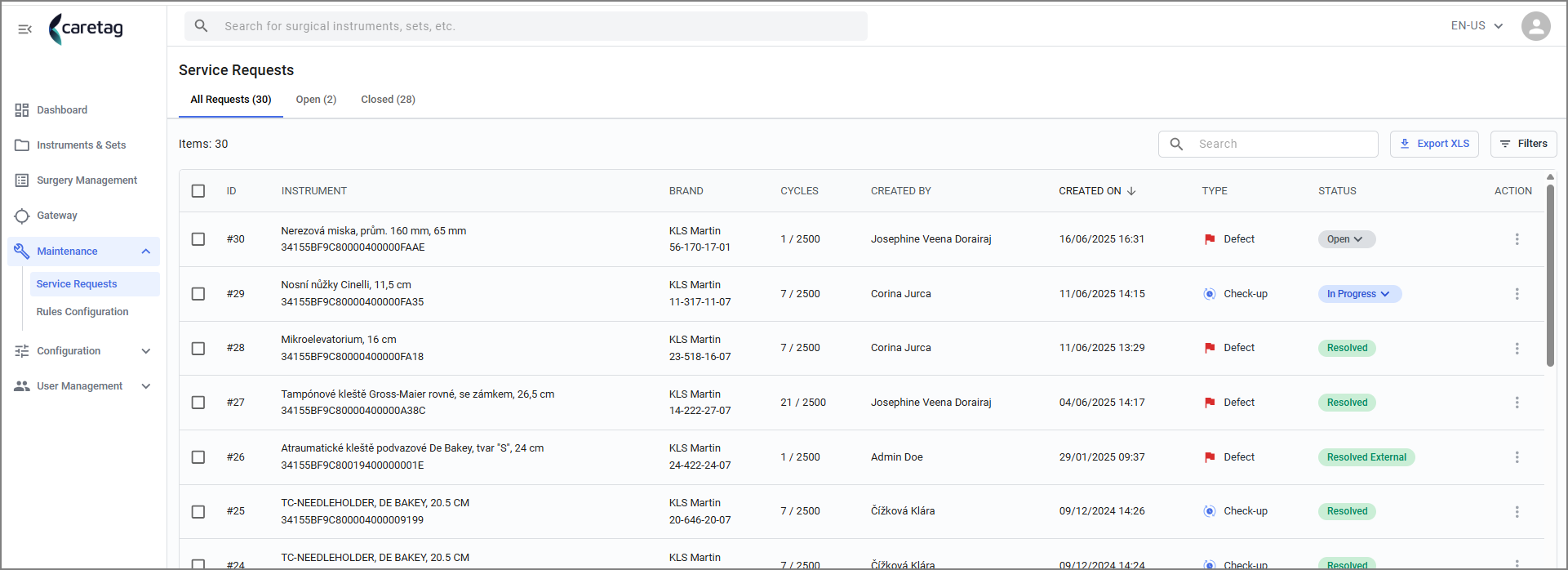
- It displays the servie requests in the table view .
| Details | Description |
|---|---|
ID | ID number of the service request is displayed |
Instrument | Name of the instrumnet |
Brand | Brand of the asset |
Cycle | Number of cycles the asset has been finished |
Created by | Name of the user who created the service request |
Created ON | When the service request was created |
Type | Type of the service request such as Defect, check-up |
Status | Status of the service request such as Open, In progress, sent to service, resolved |
Action | Clicking on the 3 dots, the user can directly solve the service request |
- Select the service request to view the full details.
- Updates are displayed on the right side.
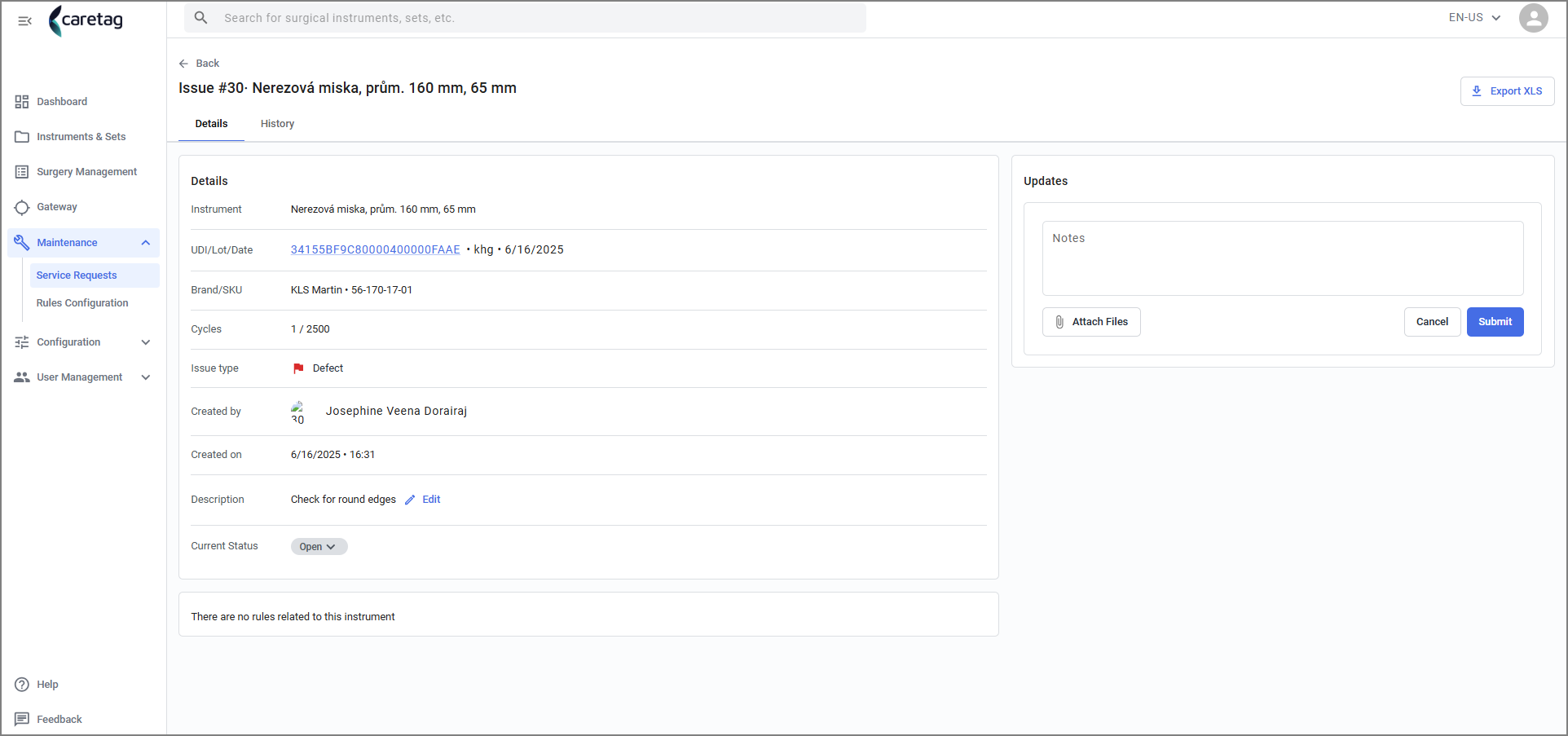
- There are 7 Status: Open, In progress, Sent to service, Resolved, Resolved External, Defect, Archeived.
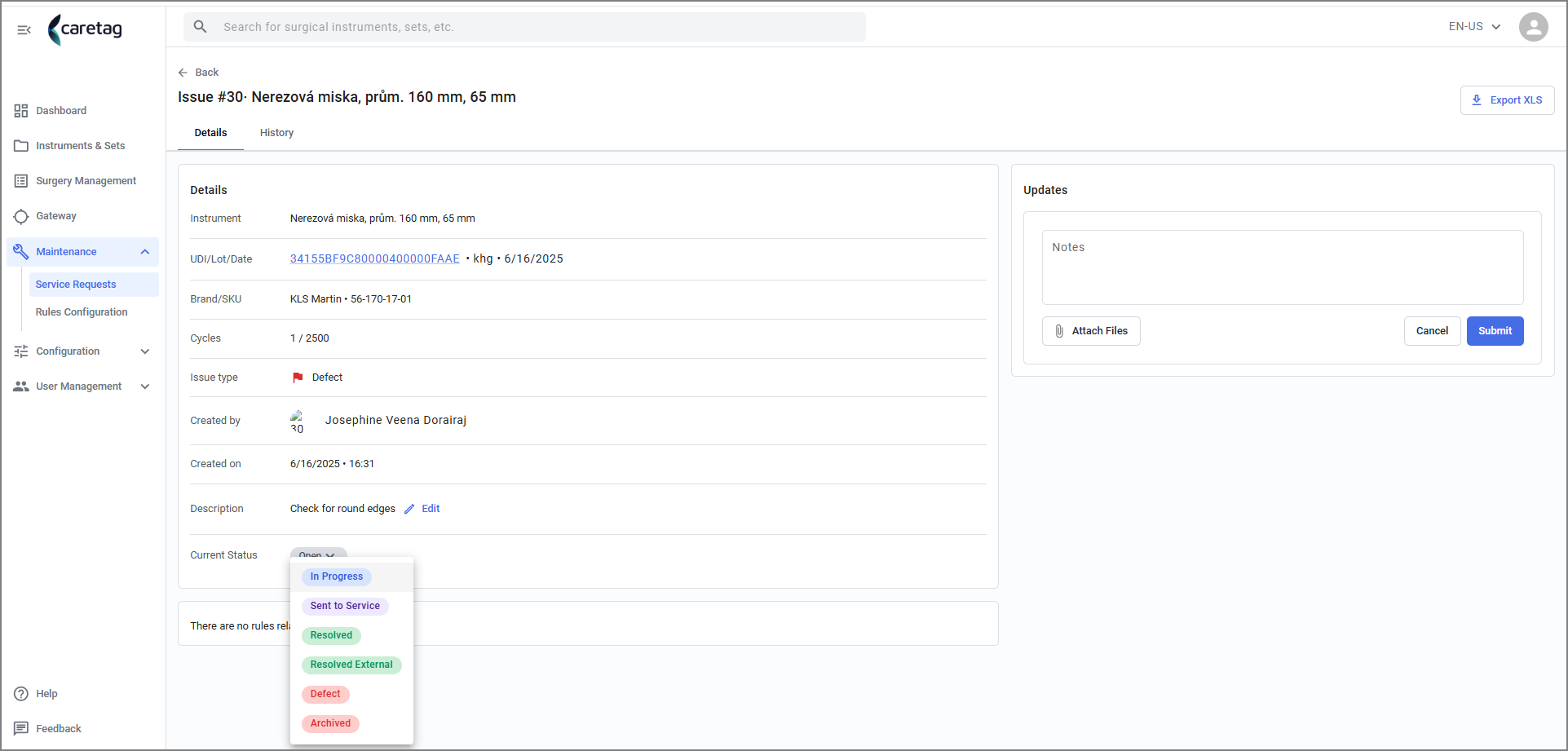
- Every time when the user changes the status, a comment is added to show in the updates.
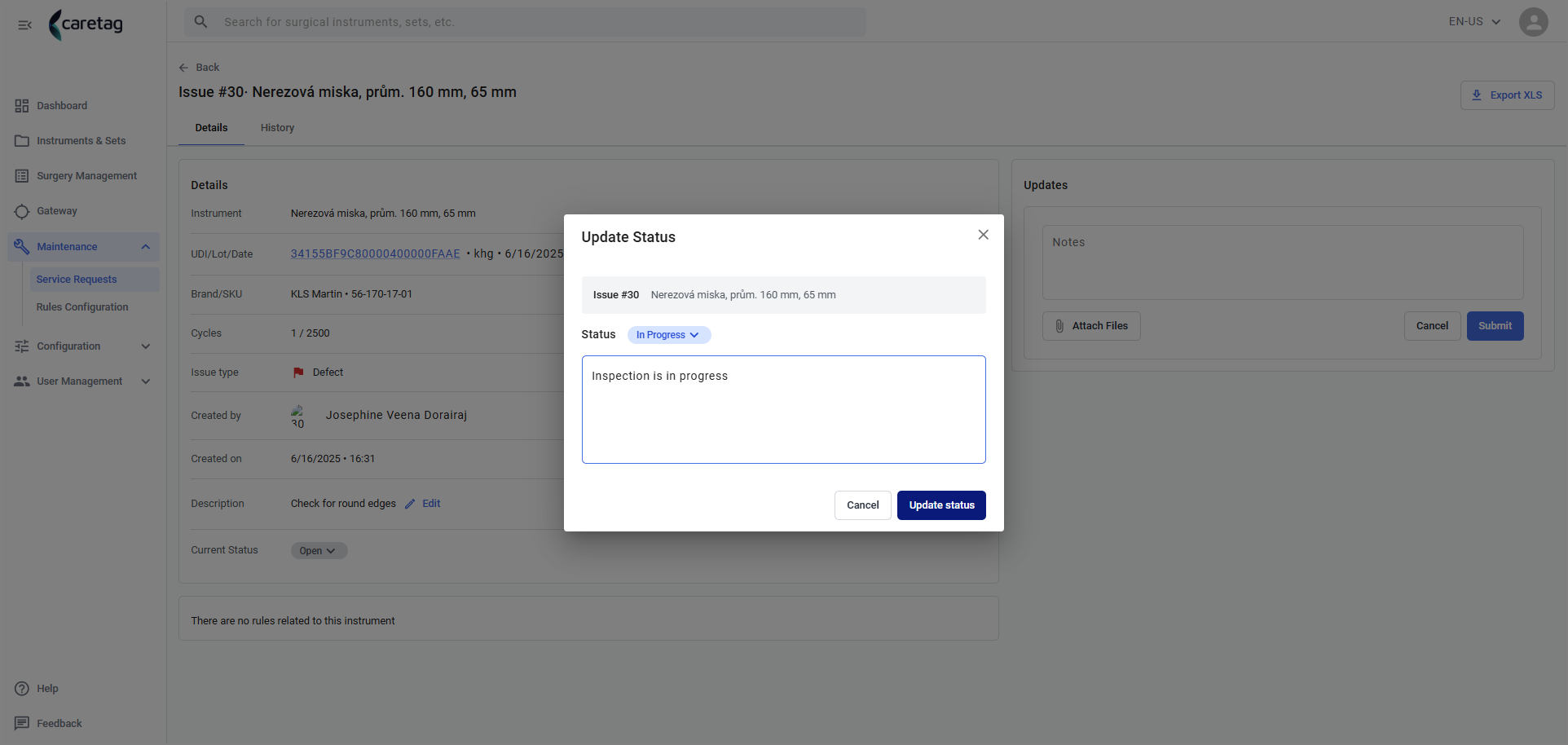
- Status is resolved.
- Scan the same instrument to see the status in the application-Get Info option.
- Since the service request has been resolved, the status of the instrument is in Active.