Zebra RFID Scanners
Scanner configuration
The configuration can be applied to the scanner by using scanning the QY code
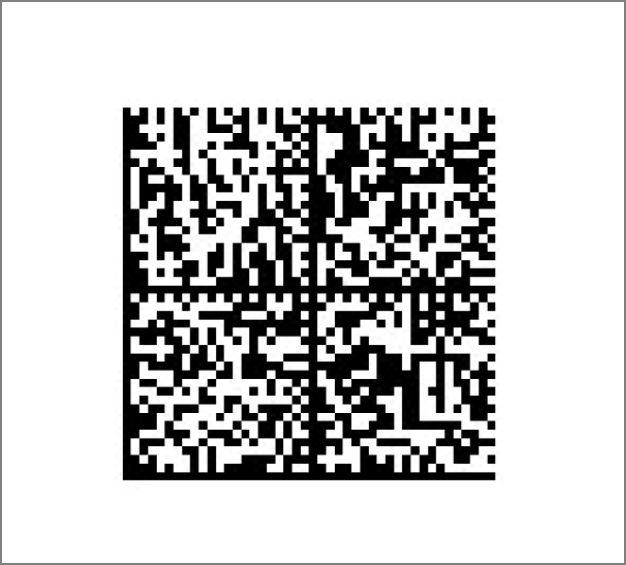
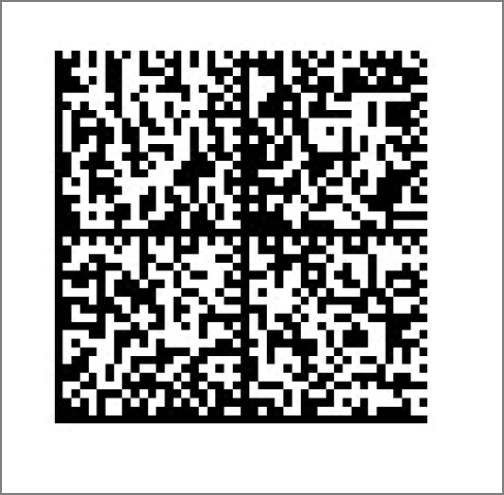
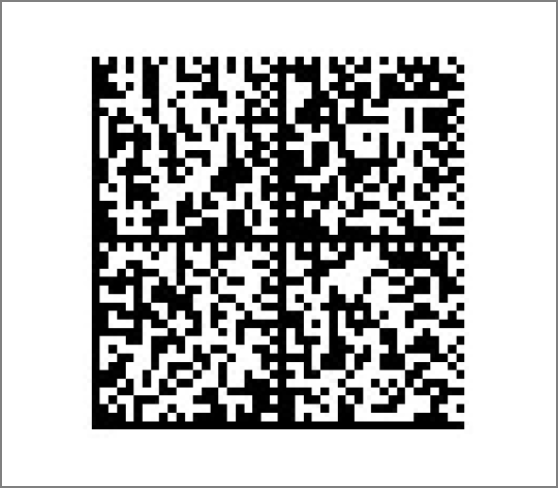
Scan the QR code found below to apply the configuration to your scanner:
Antenna Power level MAX(8) - Continuous Re-Report RFID mode
Antenna Power level 3- Single Tag Read RFID mode
Antenna Power level 1- Single Tag Read RFID mode
Note
Start with Power Level 1, and re-configure to more powerful levels, as needed. Otherwise the reader will read more tags, becoming noise and misleading the end user.
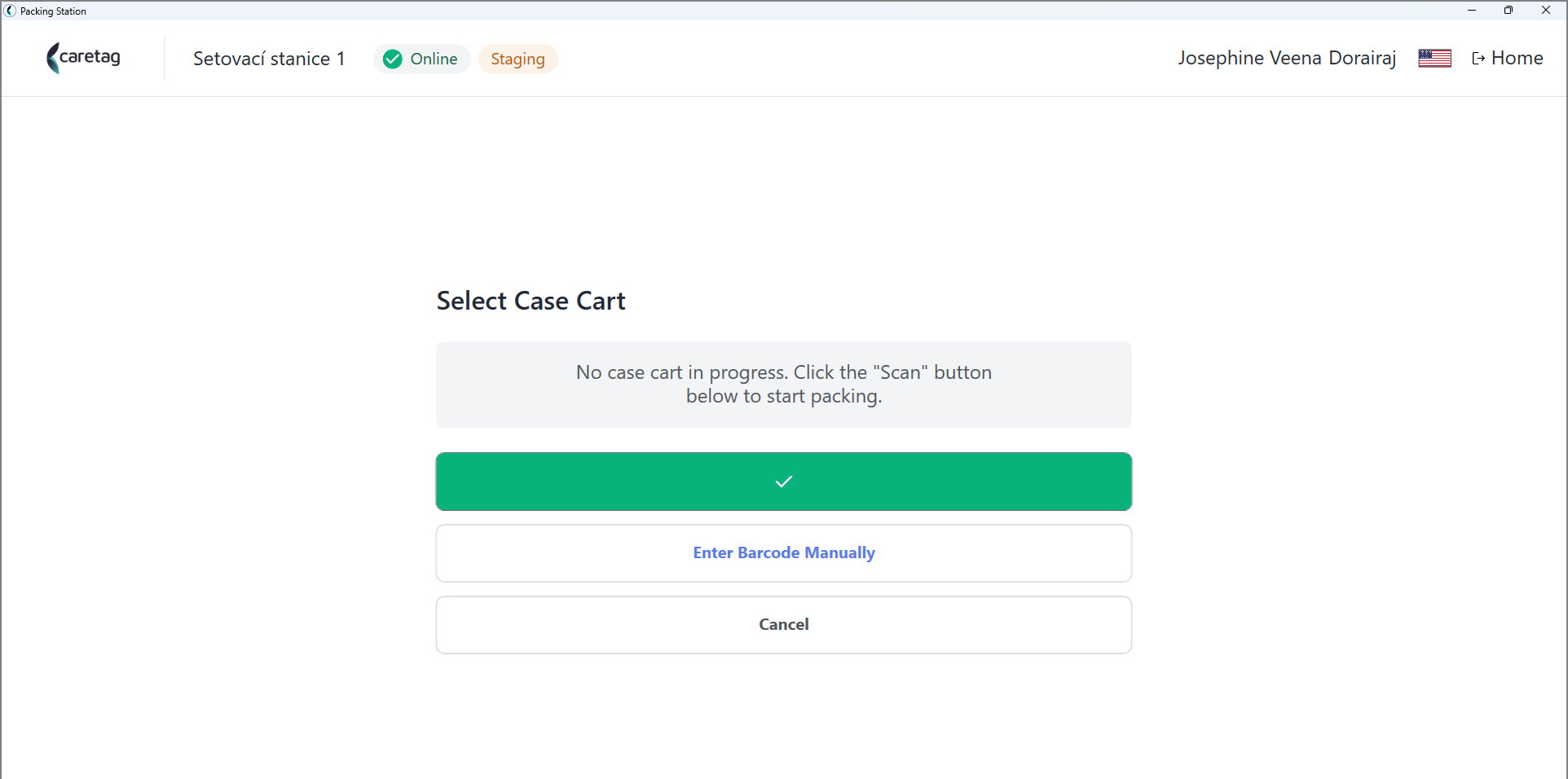
How the handheld reader works:
- The main option will be to click Start scanning and scan the RFID tagged asset (e.g. instrument, container, Case cart etc.)
- Here we have showcased the Case cart flow.
- The secondary option is to select Enter barcode manually
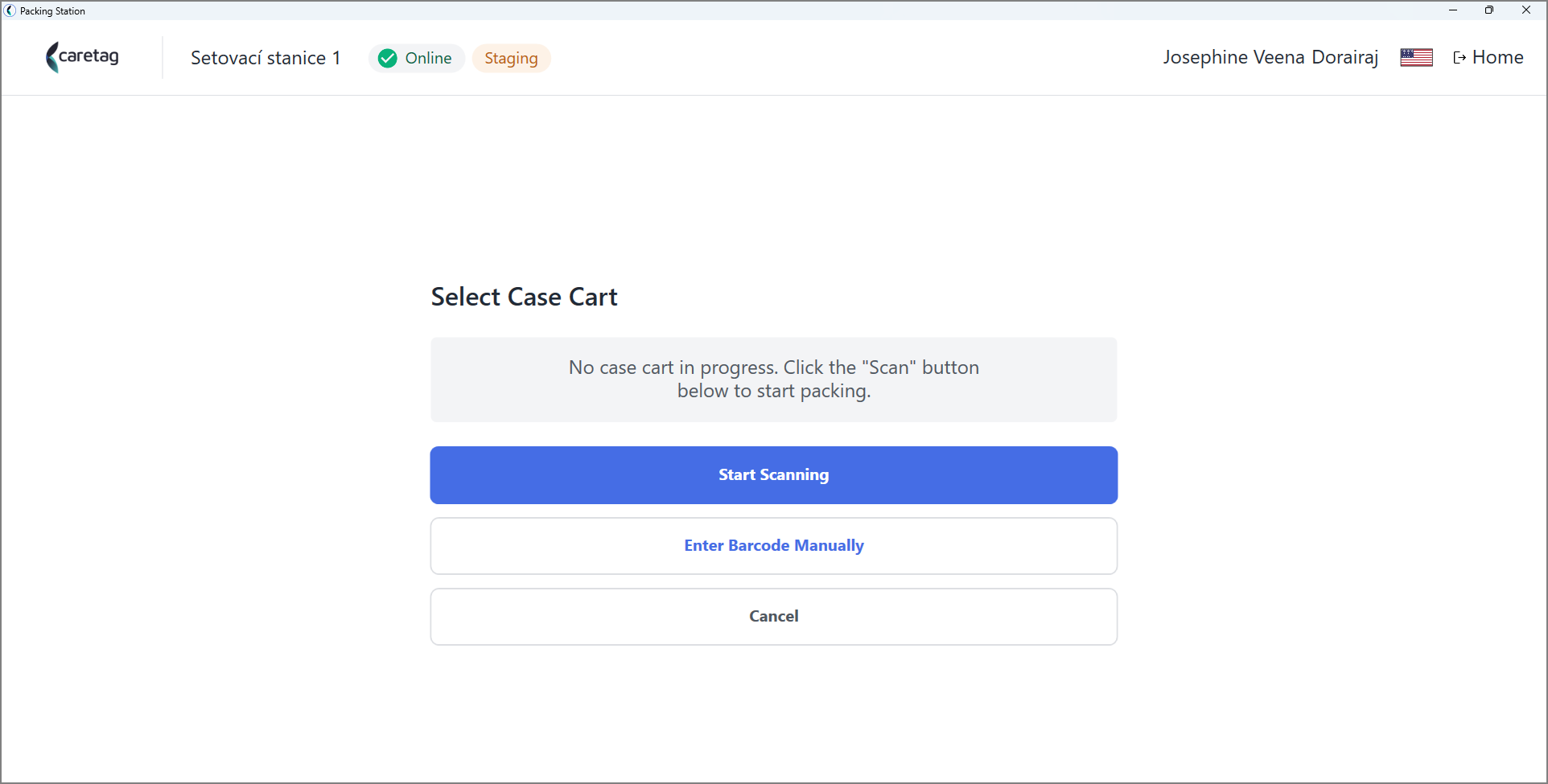
- Place the cursor in the barcode field and scan the barcode from the label
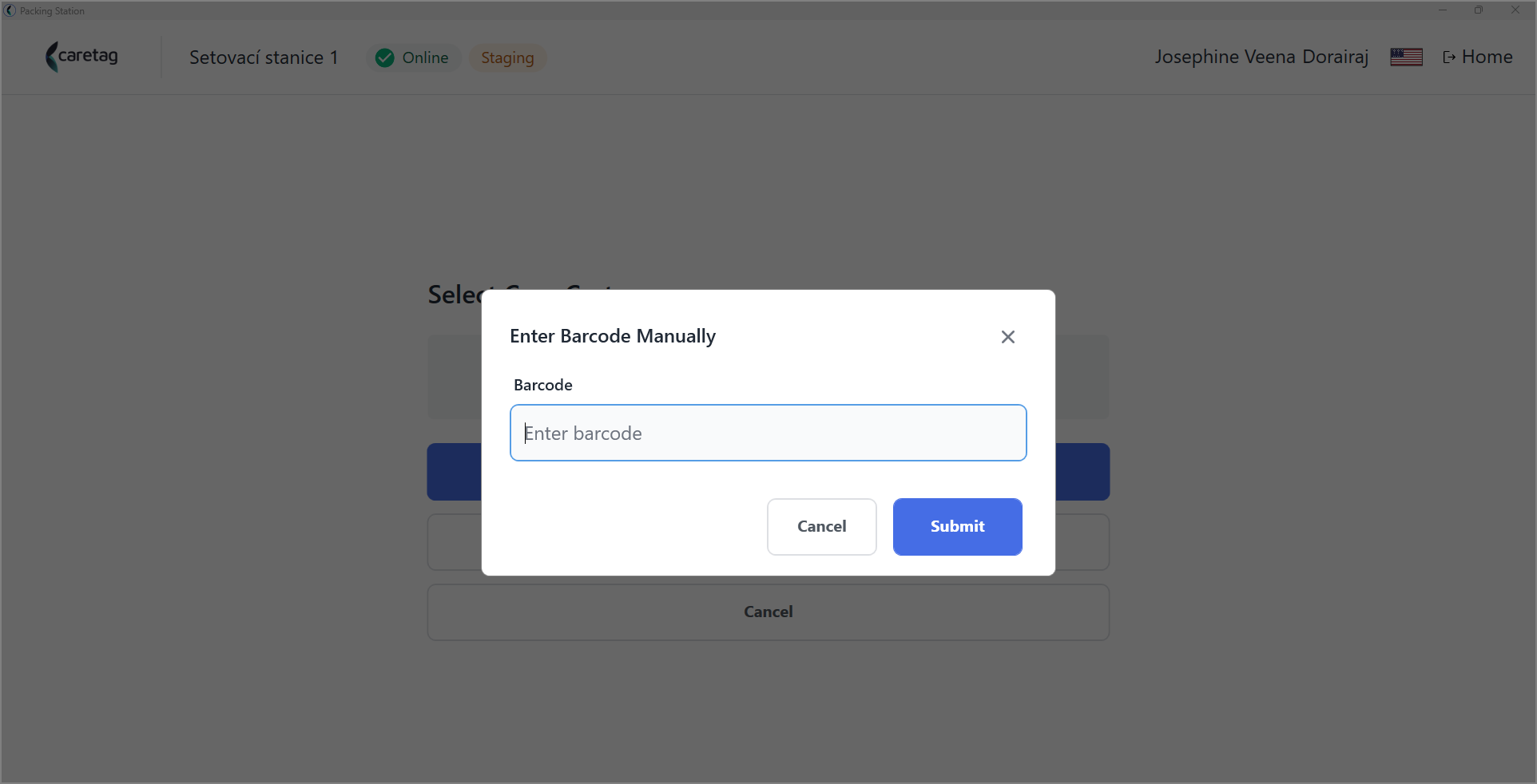
- Press the button in the handheld reader, it will automatically tpe the barcode in the field.
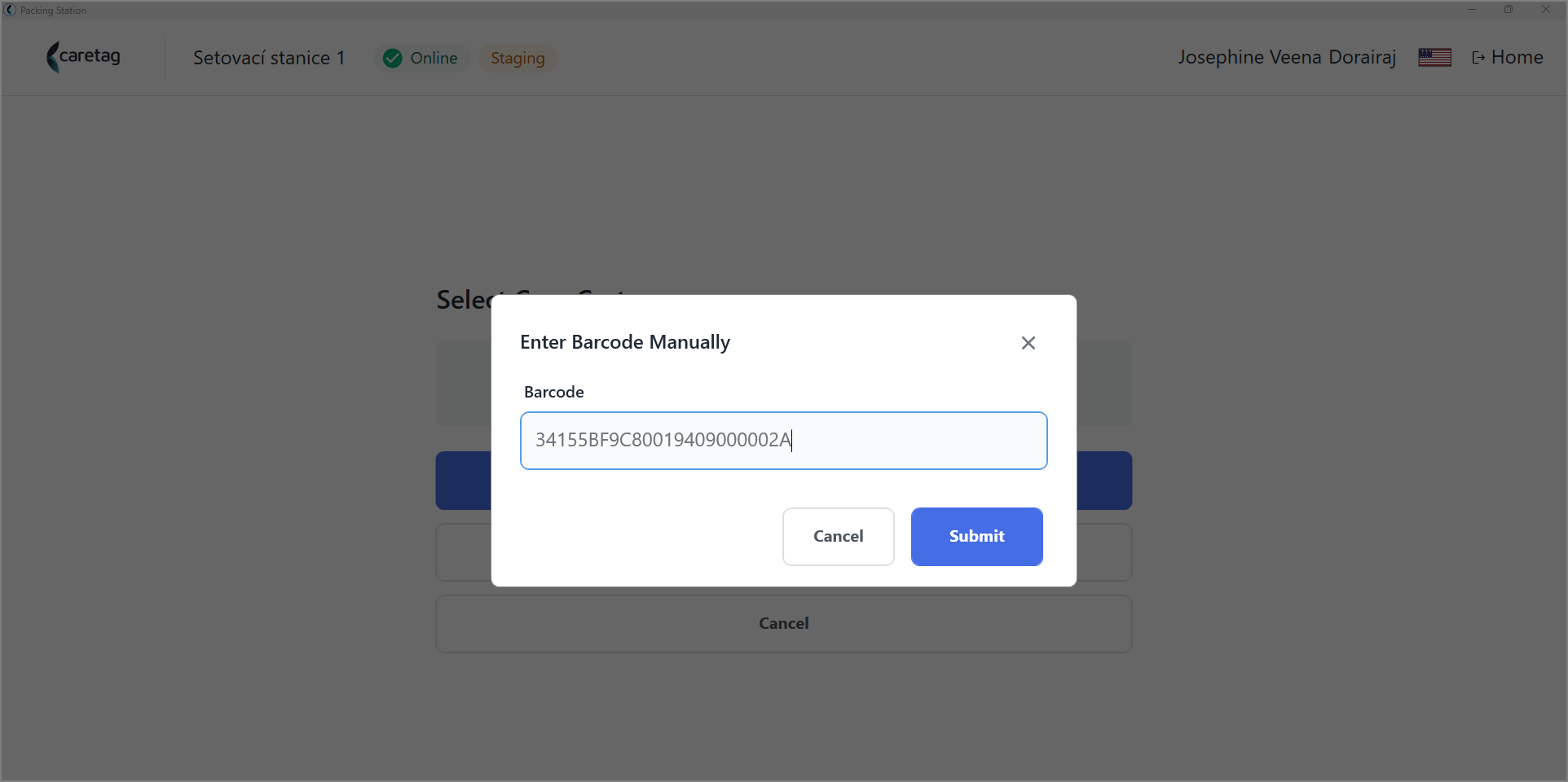
- Once the code is read it will display a green tick.