Caretag Desktop Setup
Initial Windows Setup
As initial requirement, it’s important to setup the Chocolatey package manager link.
Open Windows PowerShell, and run it As Administrator. Run next command to initially install the package manager:
Set-ExecutionPolicy Bypass -Scope Process -Force; [System.Net.ServicePointManager]::SecurityProtocol = [System.Net.ServicePointManager]::SecurityProtocol -bor 3072; iex ((New-Object System.Net.WebClient).DownloadString('https://community.chocolatey.org/install.ps1'))
Run next commands to configure the package manager:
choco feature enable -n useRememberedArgumentsForUpgrades
choco feature enable -n allowGlobalConfirmation

choco install netfx-4.8, dotnet-6.0-runtime, dotnet-6.0-desktopruntime, notepadplusplus, dotnet-9.0-desktopruntime, dotnet-9.0-aspnetruntime

choco source remove -n="Caretag3 Read.io"
choco source add -n="Caretag3 Read.io" -s=https://f.feedz.io/caretag3/3_1/nuget -u="caretag_3_1_read" -p="T-Y2ewUOYJBYExV1RHVaLGXQHWCw4Sr9In1Oo"
Install Checkbox Station App
Run next commands to initially install and configure Caretag Desktop Applications.
This application could be used in Checkbox Station (Check-out mode) or Checkbox Station (Verification mode). This could be changed within the Admin Station (Web portal).
choco install checkbox-station-3-v2 --params="'/apiUrl:https://yourserver.caretag.io /stationName:? /elasticUrl:https://elasticindex.server.io:9200 /Language:en-US'"
Install Smart OR Info
This application is installed in the operating room, enabling users to check in extra instruments, disposables, and implants needed for surgery. This station complements the Checkbox Station by allowing individual check-ins of instruments. The primary difference between the Checkbox Station and Check-In is that the Checkbox Station supports bulk check-ins of instruments, while the Check-In Light only allows for individual instrument check-ins. The detailed configuration is done on the server side, based on the stationName. Replace ? with the specific details.
choco install smart-or-info-station-3 --params="'/apiUrl:https://yourserver.caretag.io /elasticUser:elastic123 /elasticPassword:elasticABC /elasticUrl:https://elasticindex.server.io:9200 /stationName:?? /Language:en-US'"
Install Technical Station
The detailed configuration is done on the server side, based on the stationName. Replace ? with the specific details.
choco install caretag-technical-station-3 --params="'/apiUrl:https://yourserver.caretag.io /stationName:? /elasticUrl:https://elasticindex.server.io:9200 /Language:en-US'"
Install Packing Station
The detailed configuration is done on the server side, based on the stationName. Replace ? with the specific details.
choco install packing-station-3 --params="'/apiUrl:https://yourserver.caretag.io /stationName:? /elasticUrl:https://elasticindex.server.io:9200 /Language:en-US'"
Install Gateway Service
The detailed configuration is done on the server side, based on the stationName. Replace ? with the specific details.
choco install gateway-service-3 --params="'/apiUrl:https://yourserver.caretag.io /stationName:? /elasticUrl:https://elasticindex.server.io:9200 /Language:en-US /Username:? /Password:? '"
Run Caretag Desktop Applications
Before running the applications, please check the RFID reader is properly connected to the touch screen (e.g. Packing Station, Info Station etc.).
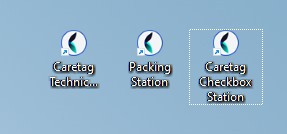
The application could be run, by clicking on the newly created desktop icons,
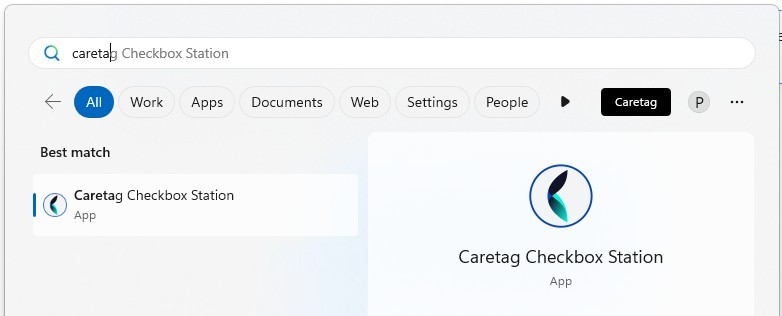
or running from Windows menu:
Upgrade to latest version
-
Open Windows PowerShell, and run it As Administrator.
-
Run next command:
choco upgrade all
Uninstall the applications
choco uninstall checkbox-station3-v2
choco uninstall caretag-technical-station3
choco uninstall packing-station-3
choco uninstall smart-or-info-station-3