Technical Station - Getting Started
Start of the application
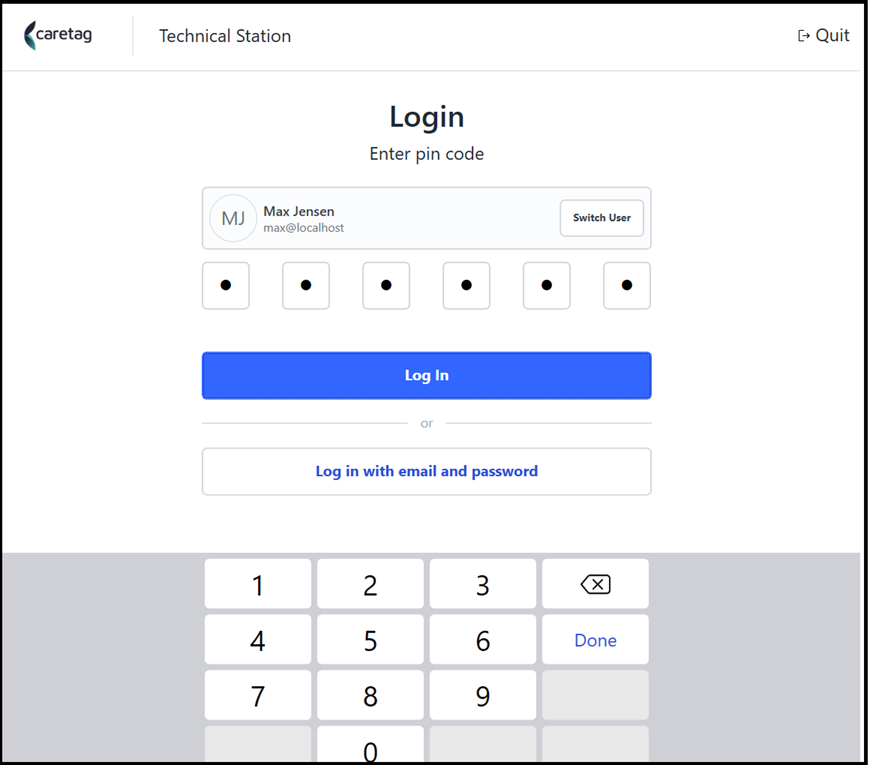
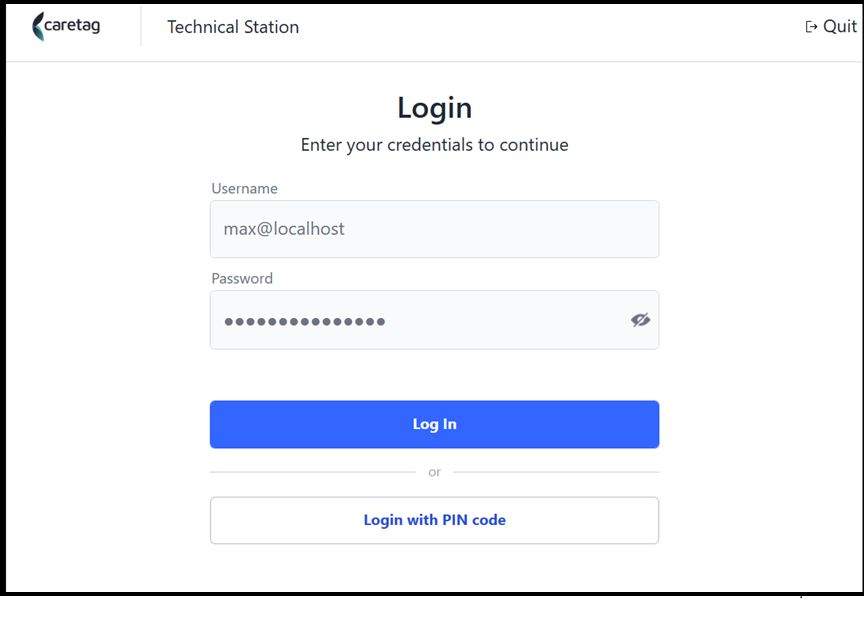
Open the Technical station desktop application and enter your pincode or email and password.
| Login - Pincode | Login - Email |
|---|---|
 |  |
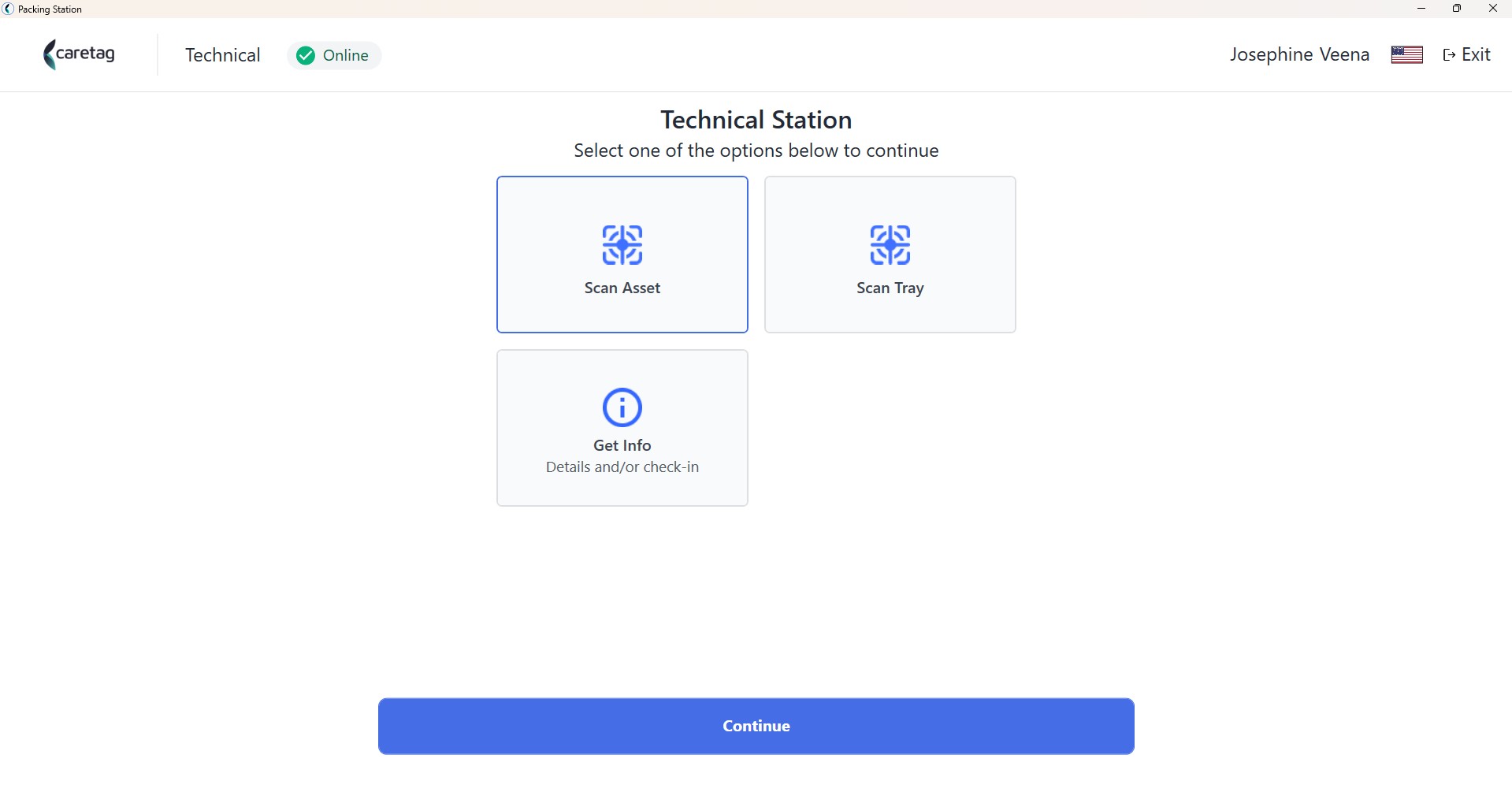
Scan Asset
- Select the scan asset option and click continue
- Click the new Scan button and place the RFID tagged instrument on the RFID Reader
- Click on the program tag button
| Scan Asset | New Scan |
|---|---|
 | 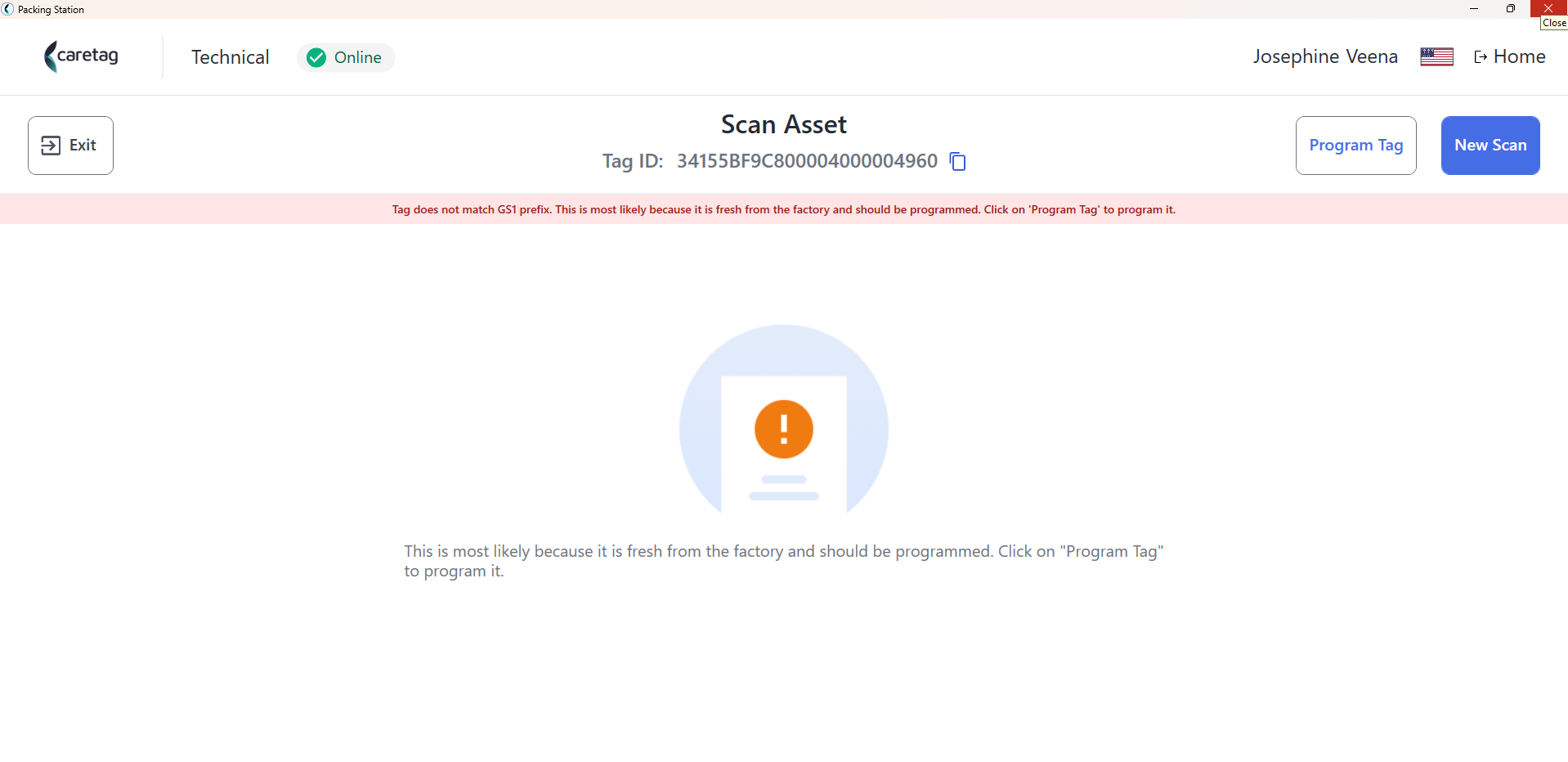 |
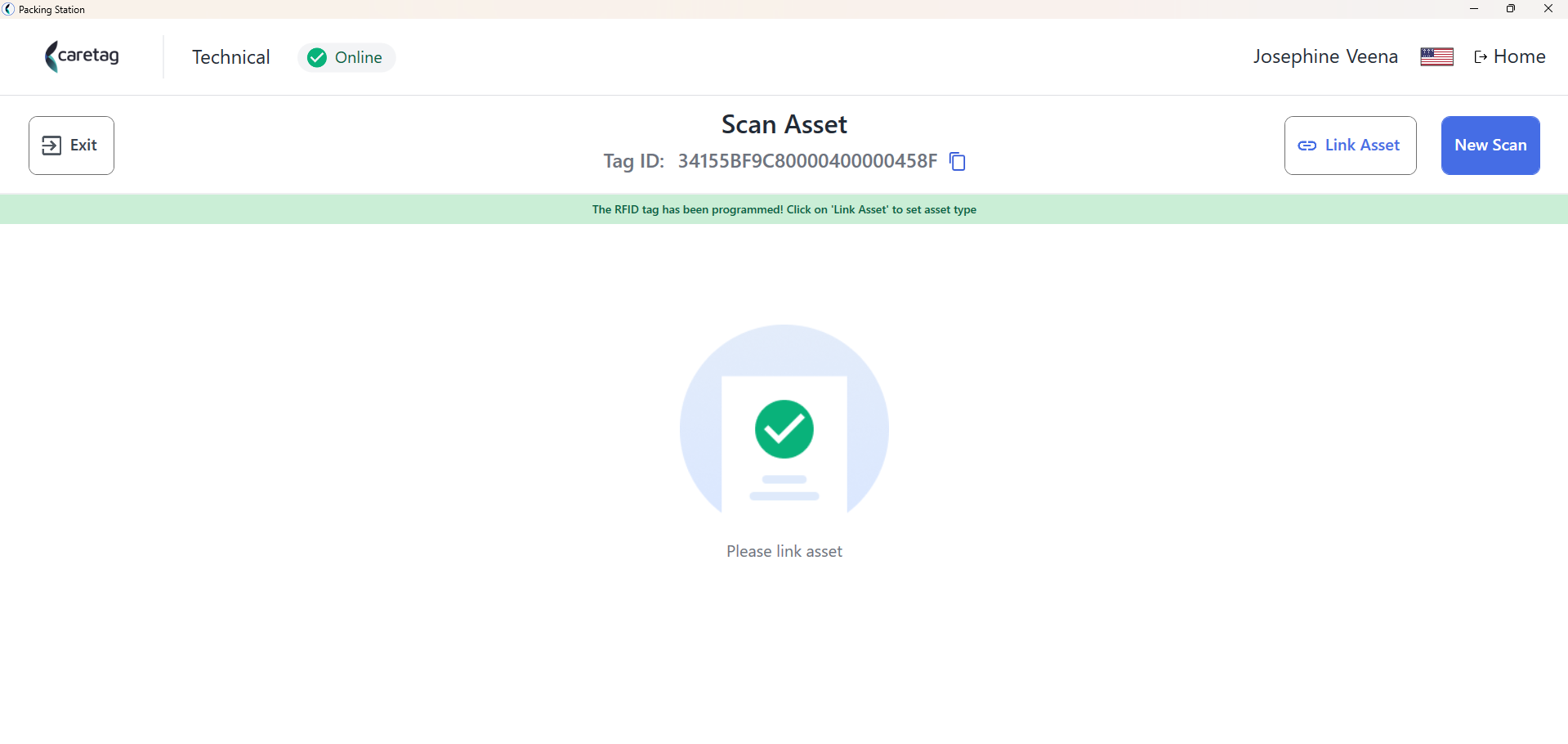
- Once the instrument is programmed, it allocates a unique tag ID to the instrument and you can link an asset to it.
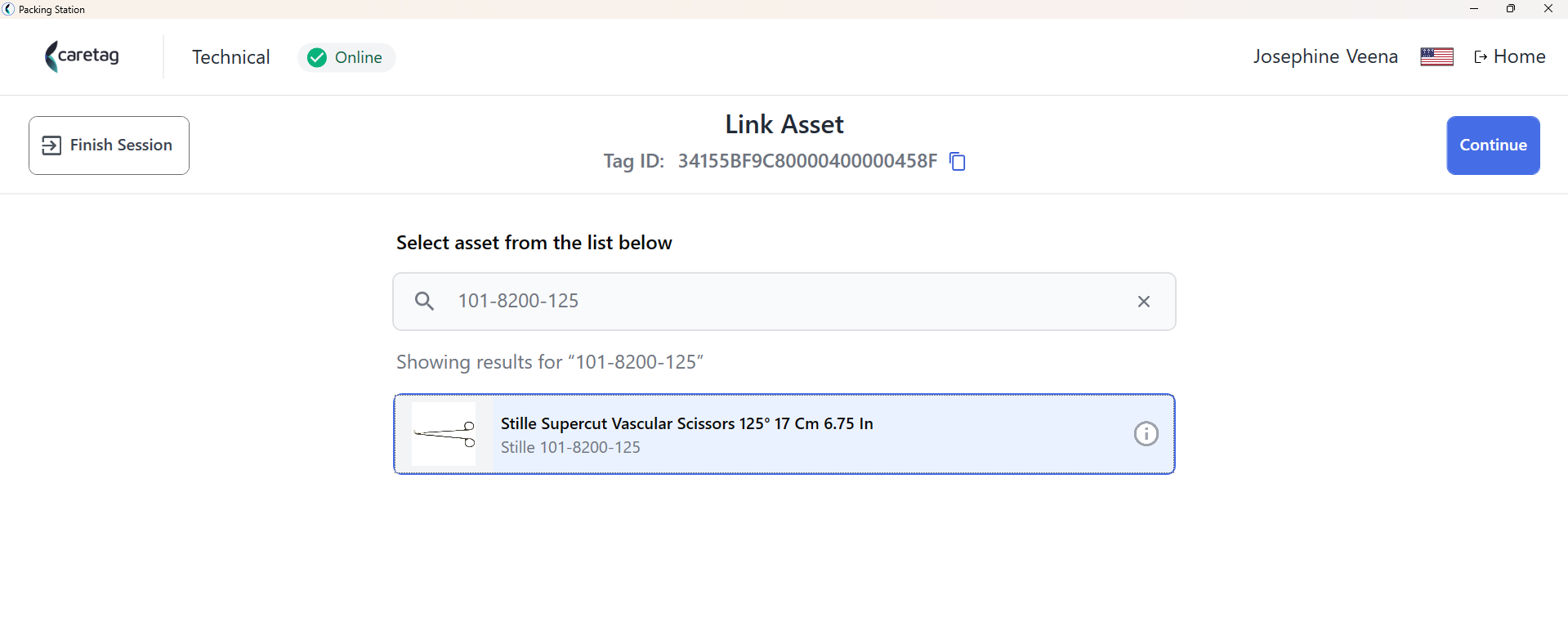
- Link an asset either by typing the key word of the instrument or article SKU
| Program Asset | Link Asset |
|---|---|
 |  |
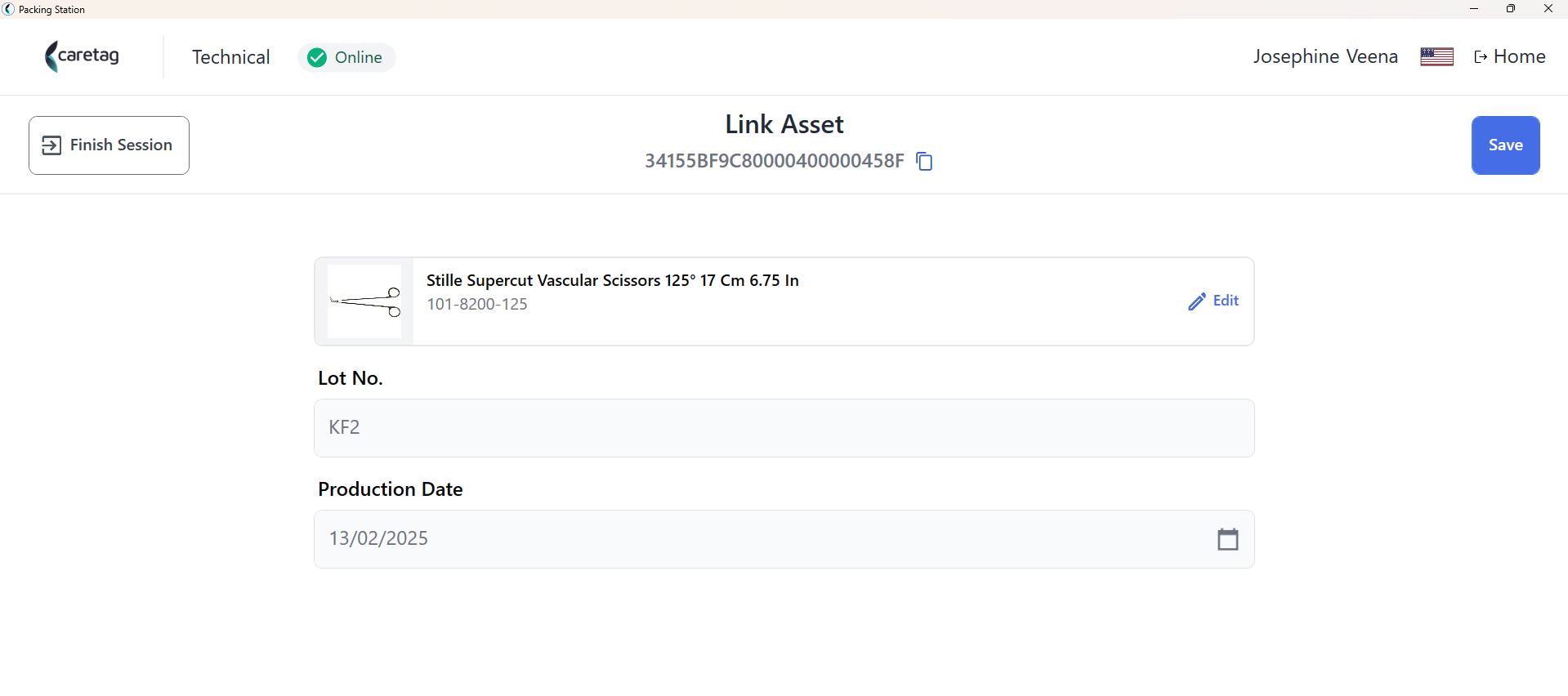
- Enter the LOT and Manufacturing date and click save.
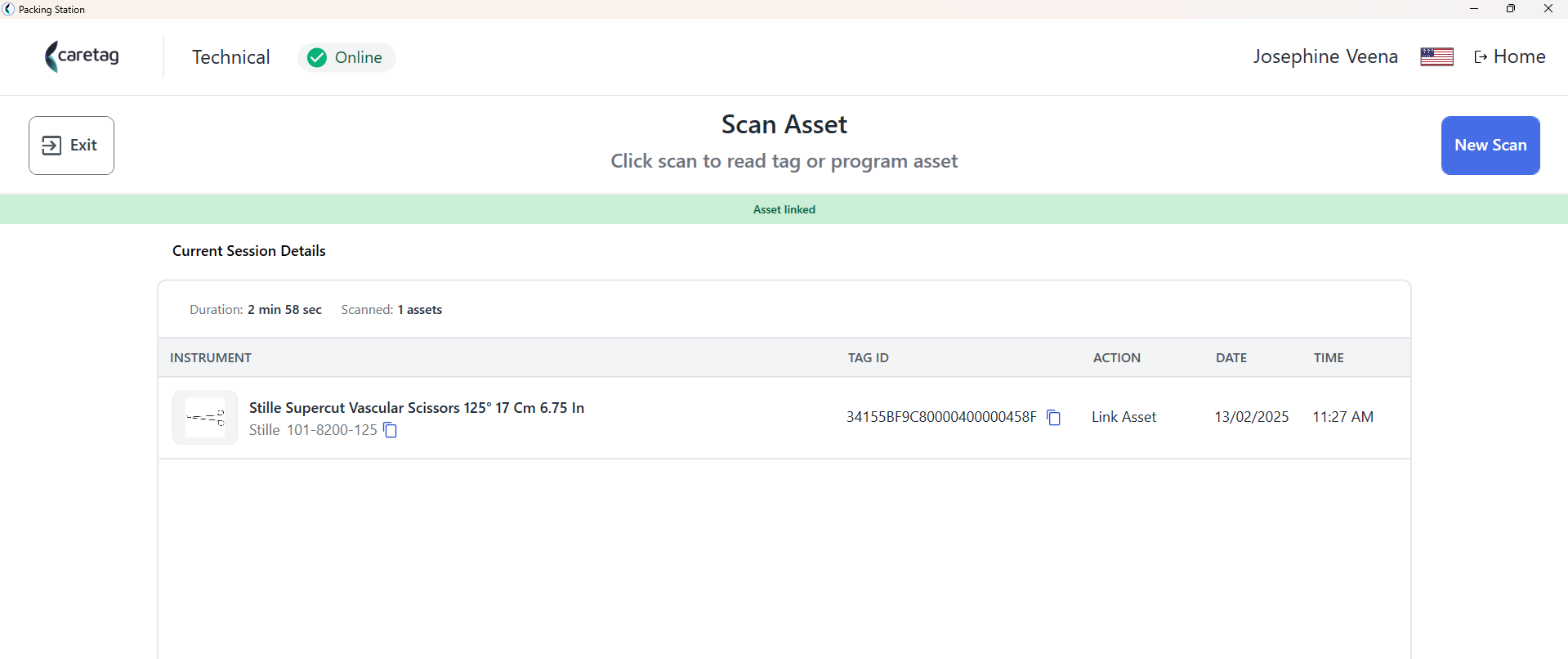
- Once it is saved you can see the current session details that displays the instrument name, tag ID, action, date and time. Programming of a new instrument is completed.
| Enter Manufactuing details | Current Session Details |
|---|---|
 |  |
Replace tag
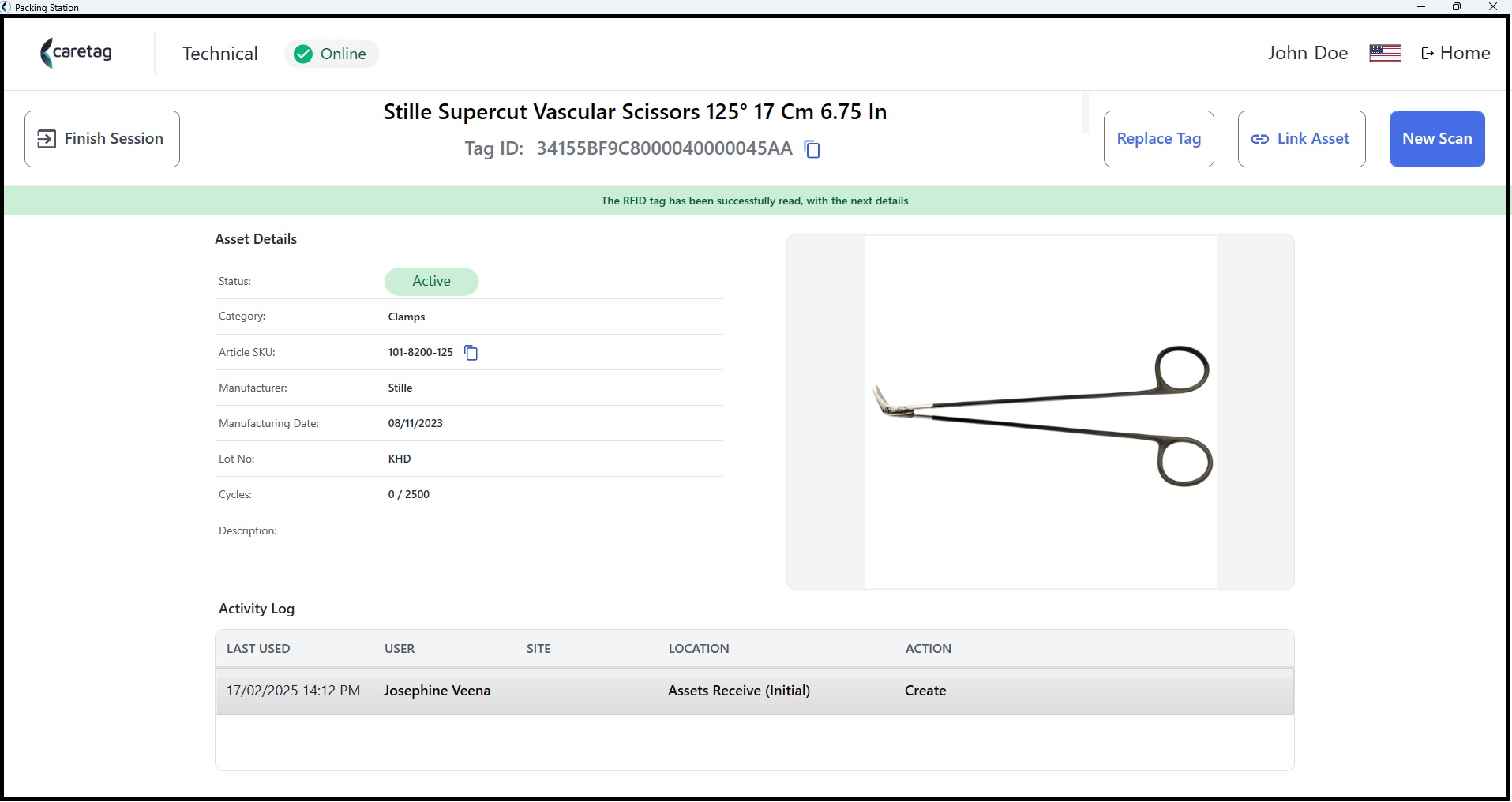
- To replace a tag ID, click on the New Scan button and scan the instrument.
- It will display the details of the instrument such as name, article SKU, brand etc.
- The tag ID is also displayed, in this case the tag ID is 34155BF9C8000040000045AA.
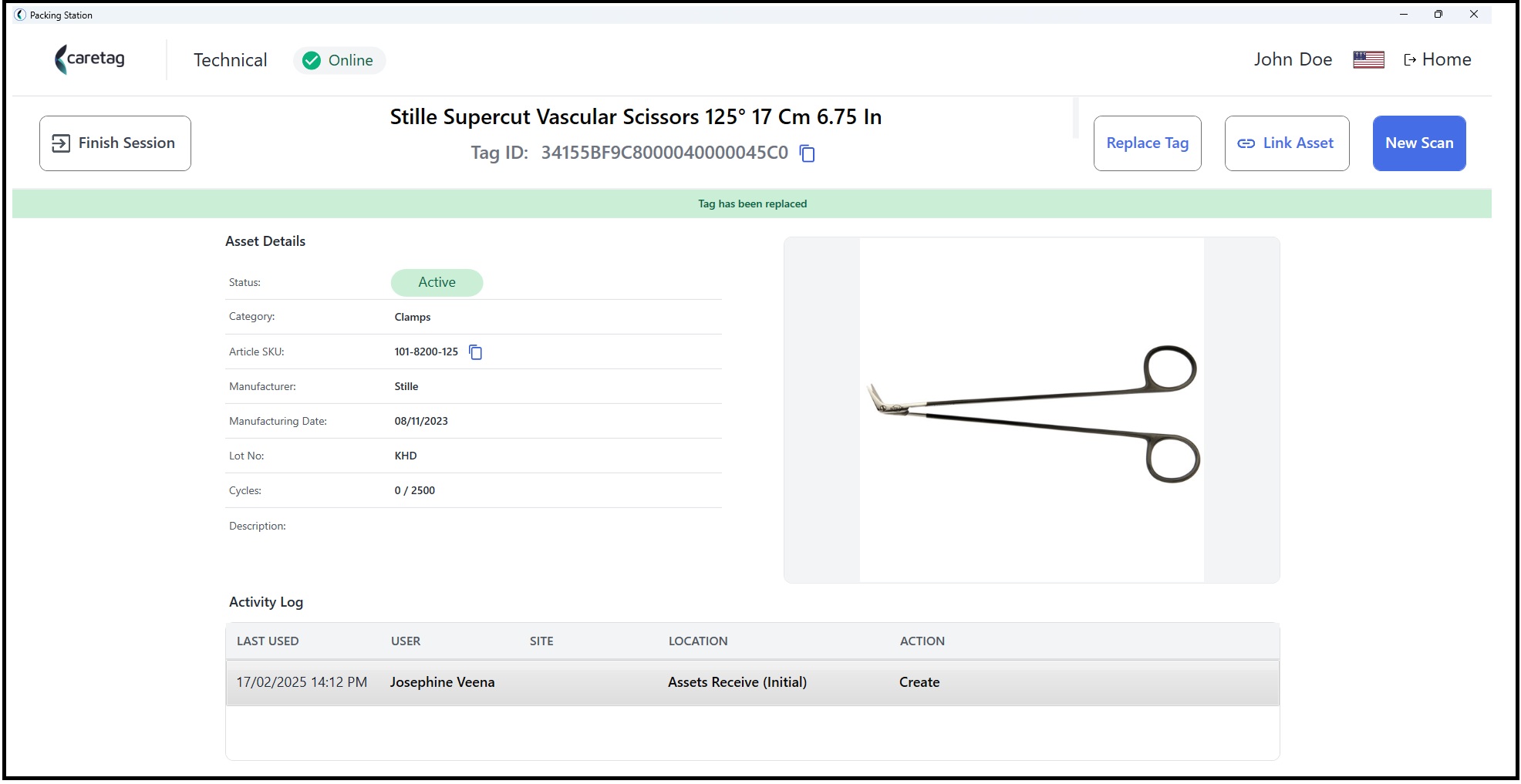
- Click the Replace tag button and you can see the tag ID is changed to 34155BF9C8000040000045C0
| Cuurent Tag ID | Replaced Tag ID |
|---|---|
 |  |
Scan Tray
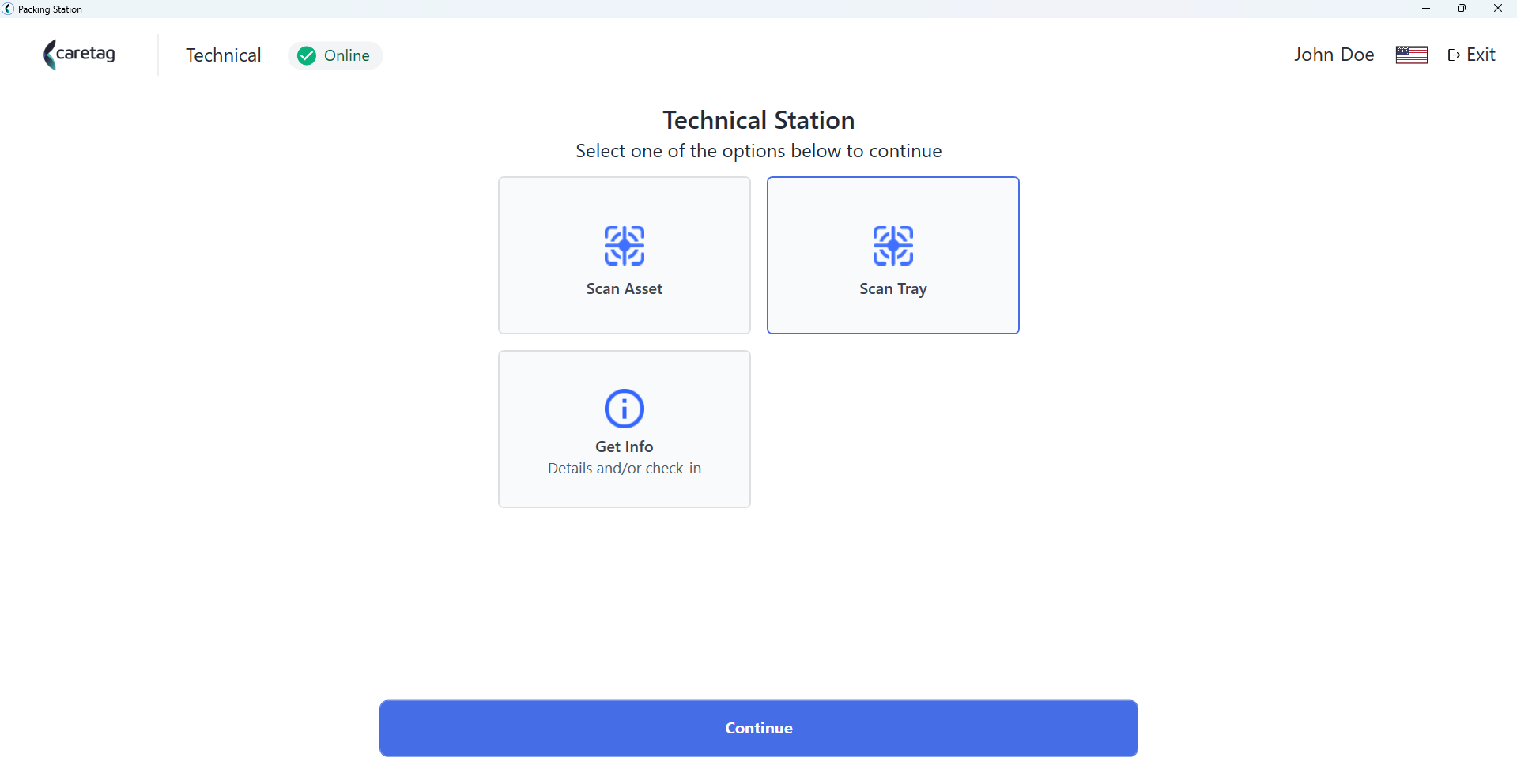
- A new tray and its instruments can be programmed much faster compared to the programming instruments one by one via Scan Asset option.
- Select Scan Tray option and press continue.
- Click on the New Scan button and scan the tray tag.
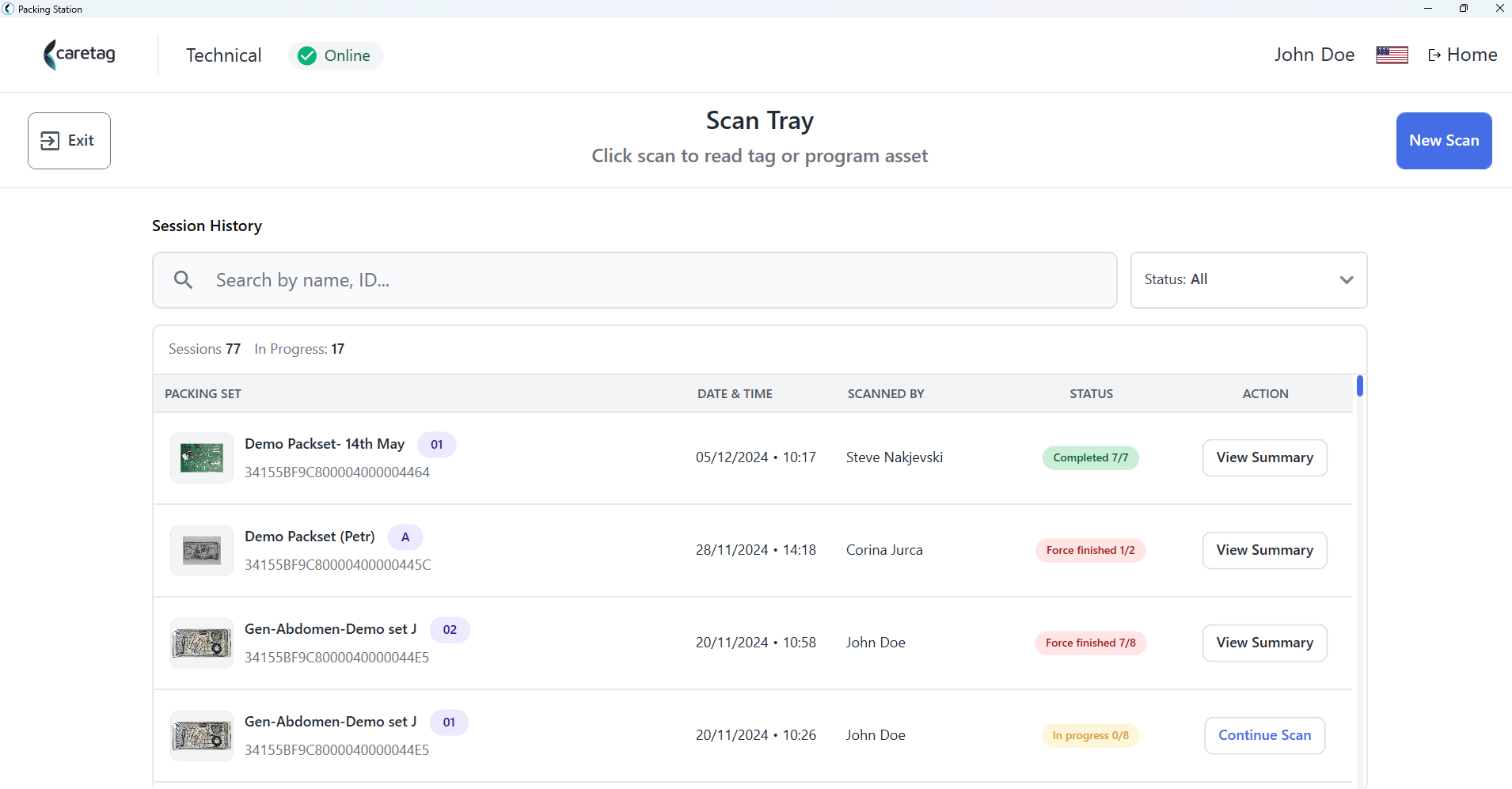
- When the tray tag is scanned for the first time, it needs to be programmed. Click on the program tag button.
- The tray tag is programmed and now you have to link as asset (Tray type) to the tag.
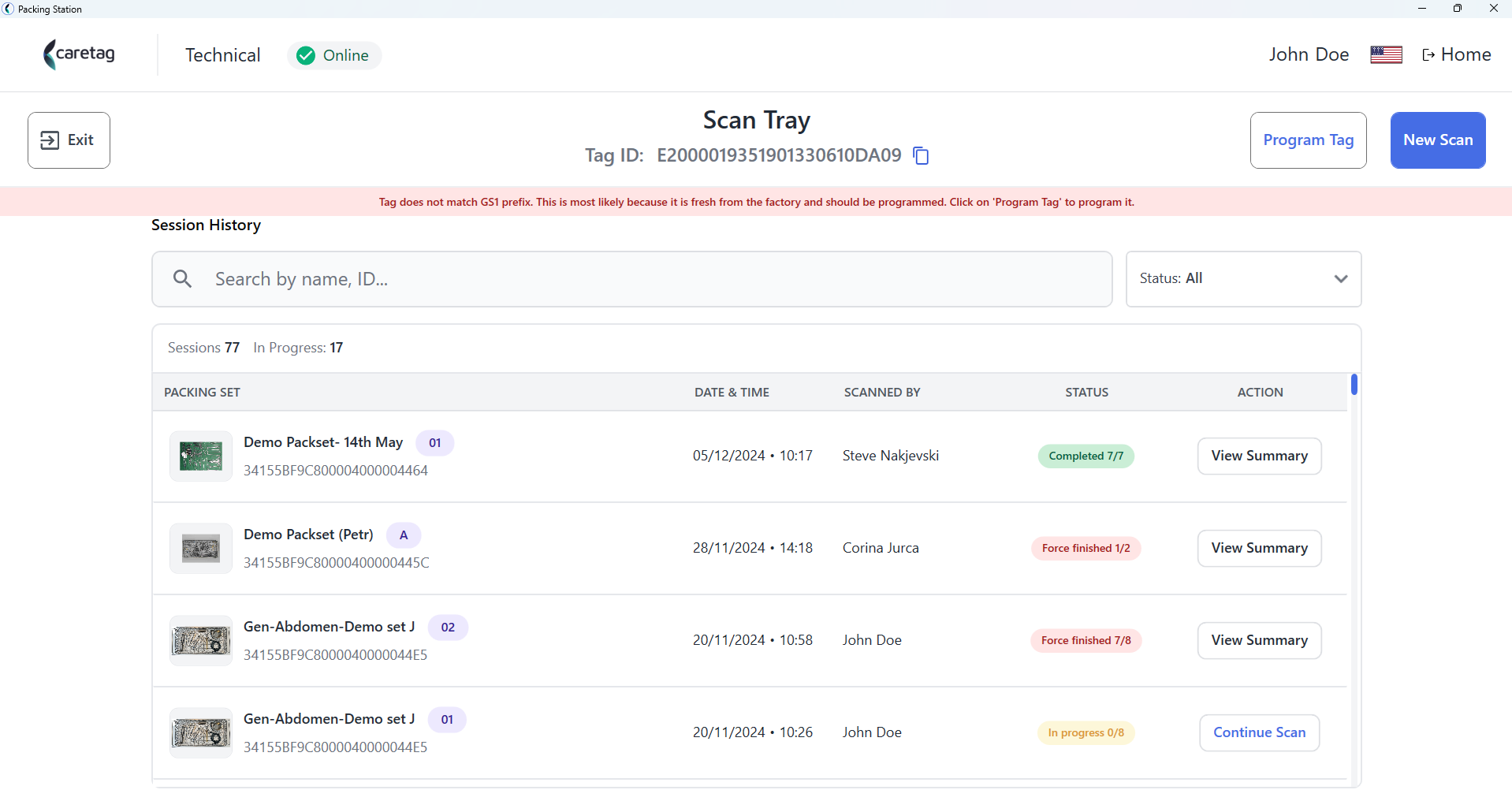
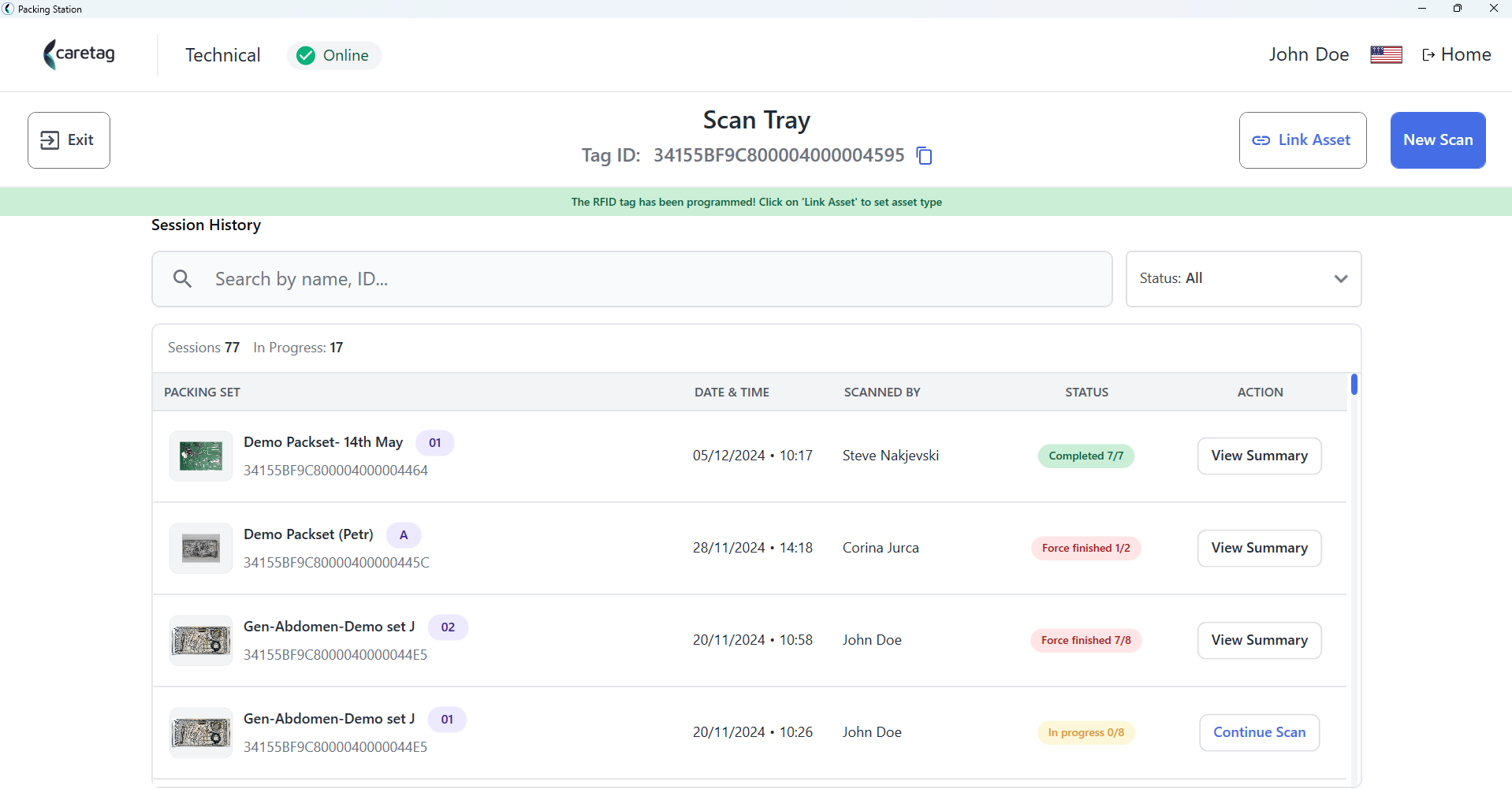
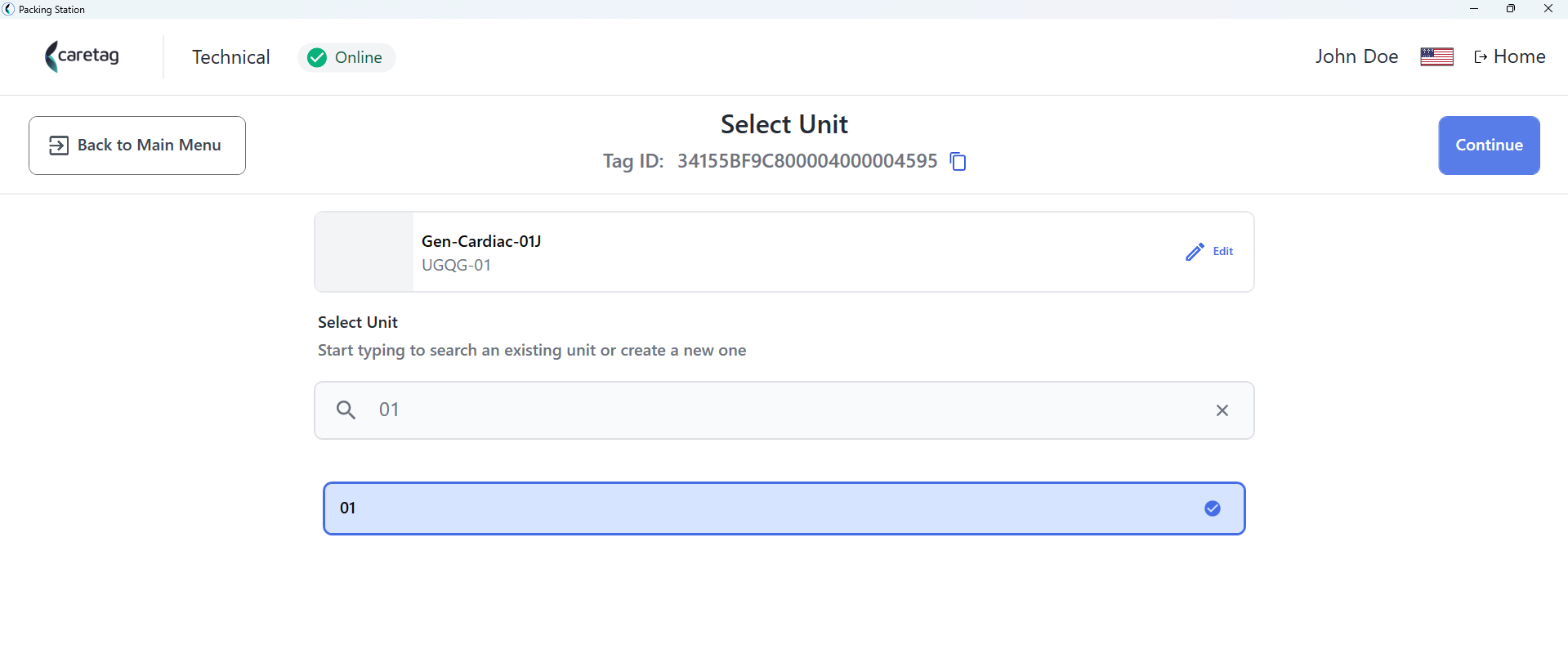
- Select the tray type (packing set name) from the list below.
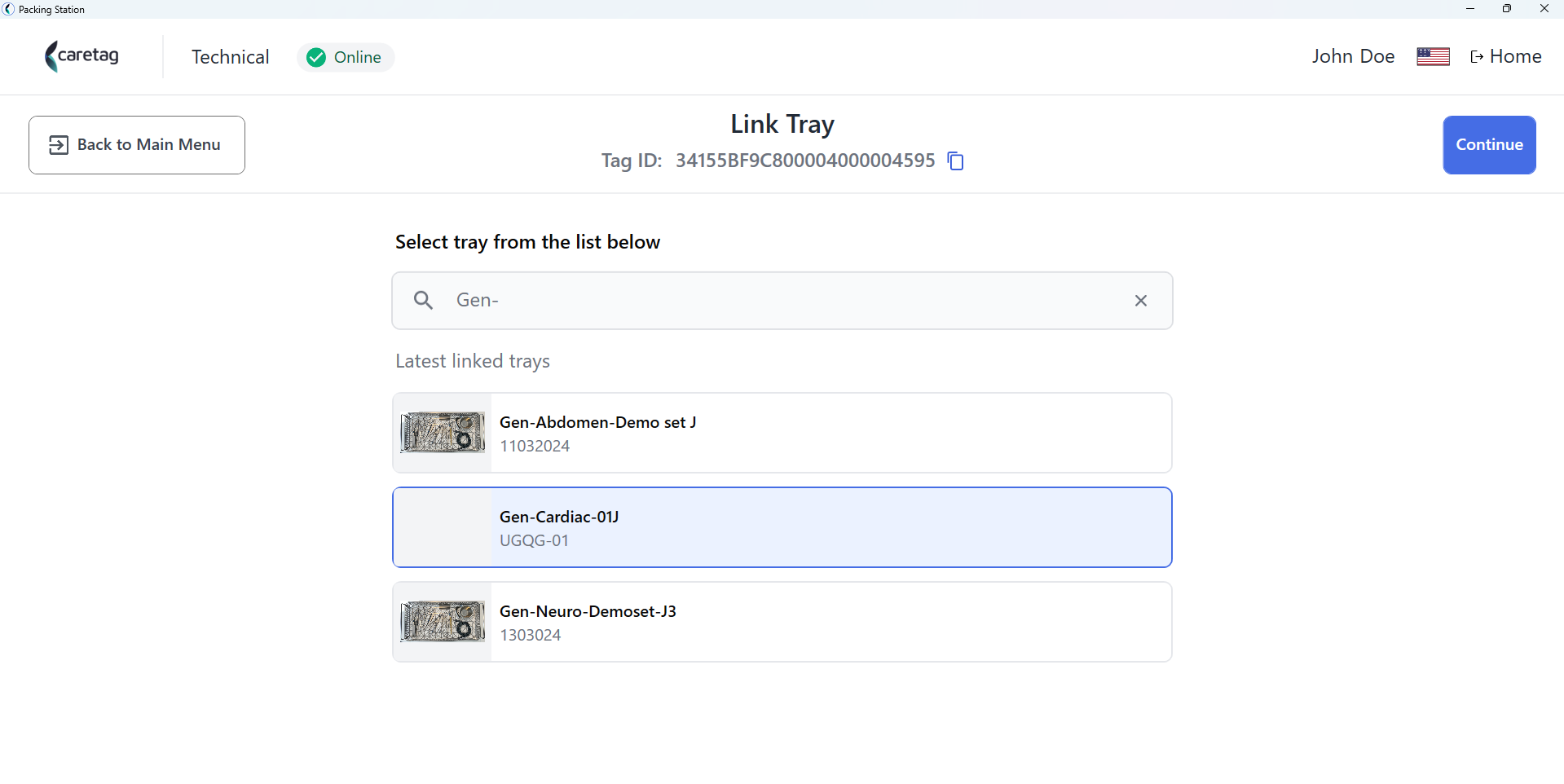
- Select an existing unit or create a new unit.
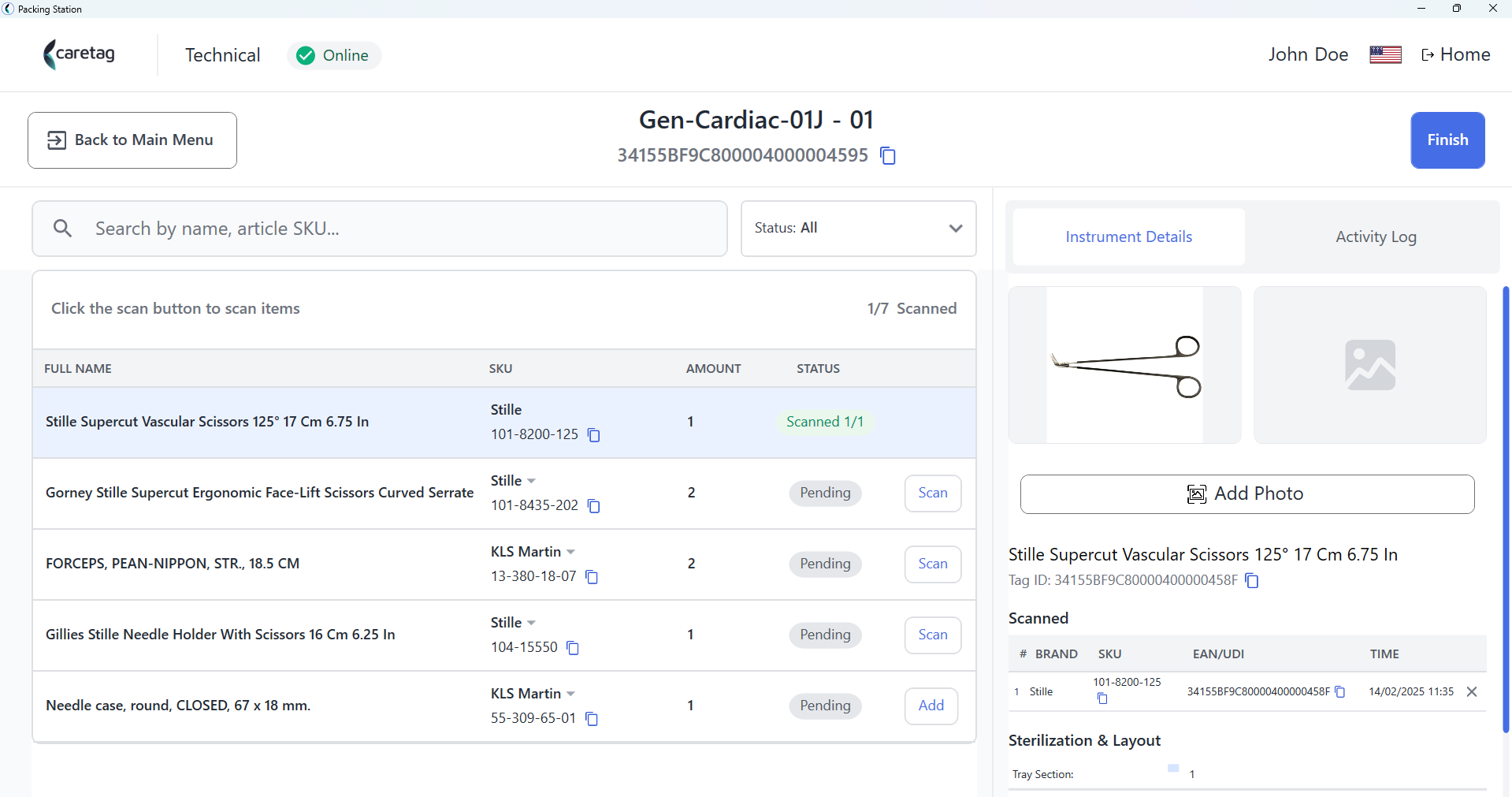
- Place the instrument on the reader and click scan button on the screen.
-
Enter UDI details or LOT and Manufactuirg date and click on the submit button.
-
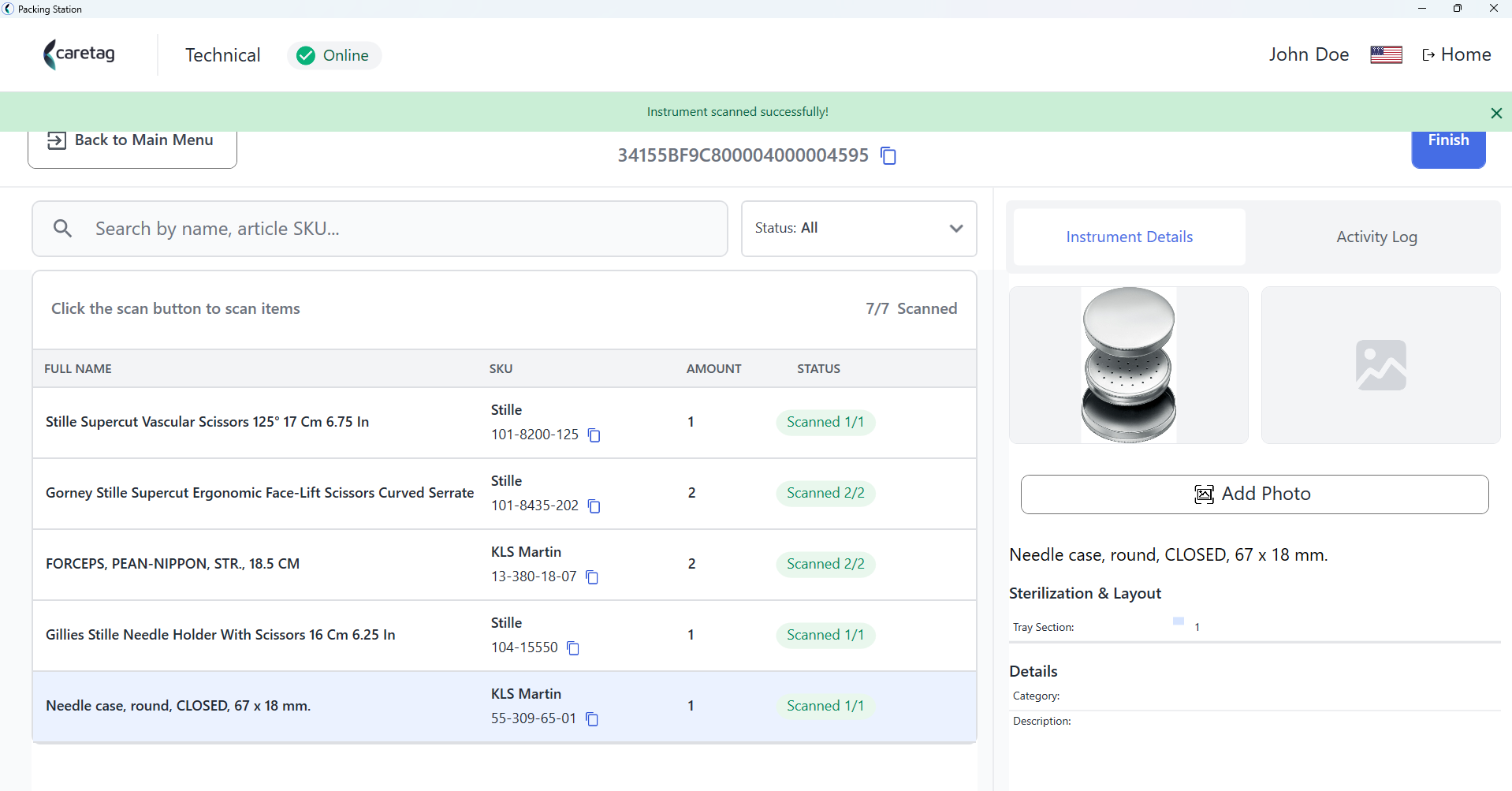
Once an instrument is programmed, it will be shown as scanned and the user can view the details in the right side.
- Once all the instrumetns are scanned press the Finish button so the tray scan gets completed.
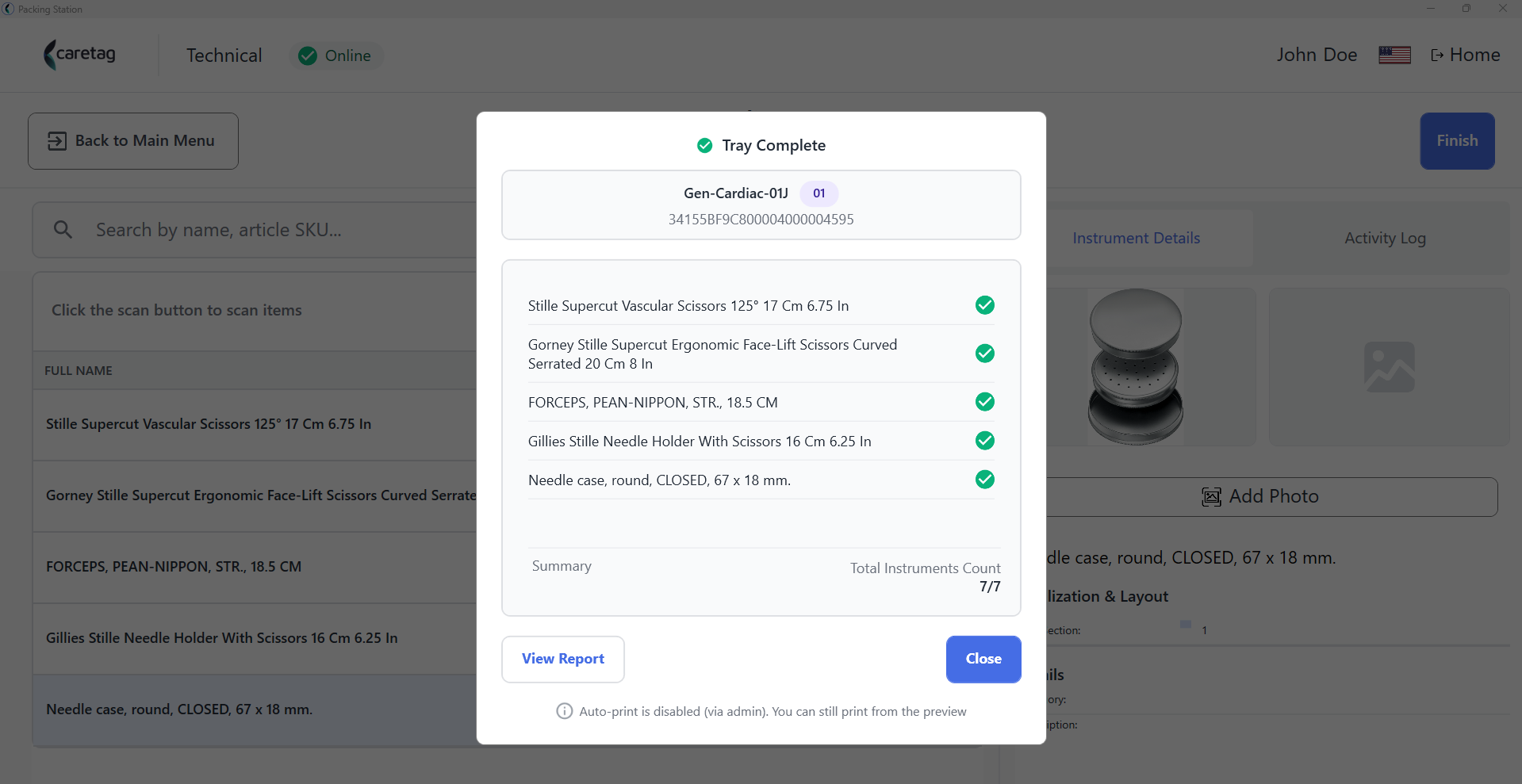
- In the Session history, the tray details, who packed the tray , date and time and summary are displayed.